By Smart Cam Guide
As an Amazon Associate I earn from qualifying purchases. Purchases through our links may earn us a commission at no extra cost to you.
If a supported Tapo camera shows an upside-down picture, check Invert Image under Video & Display before moving a secure mount. TP-Link describes that control as a 180-degree rotation. Its current guidance excludes battery cameras and says they should remain upright. An image setting does not make every physical mounting position suitable.
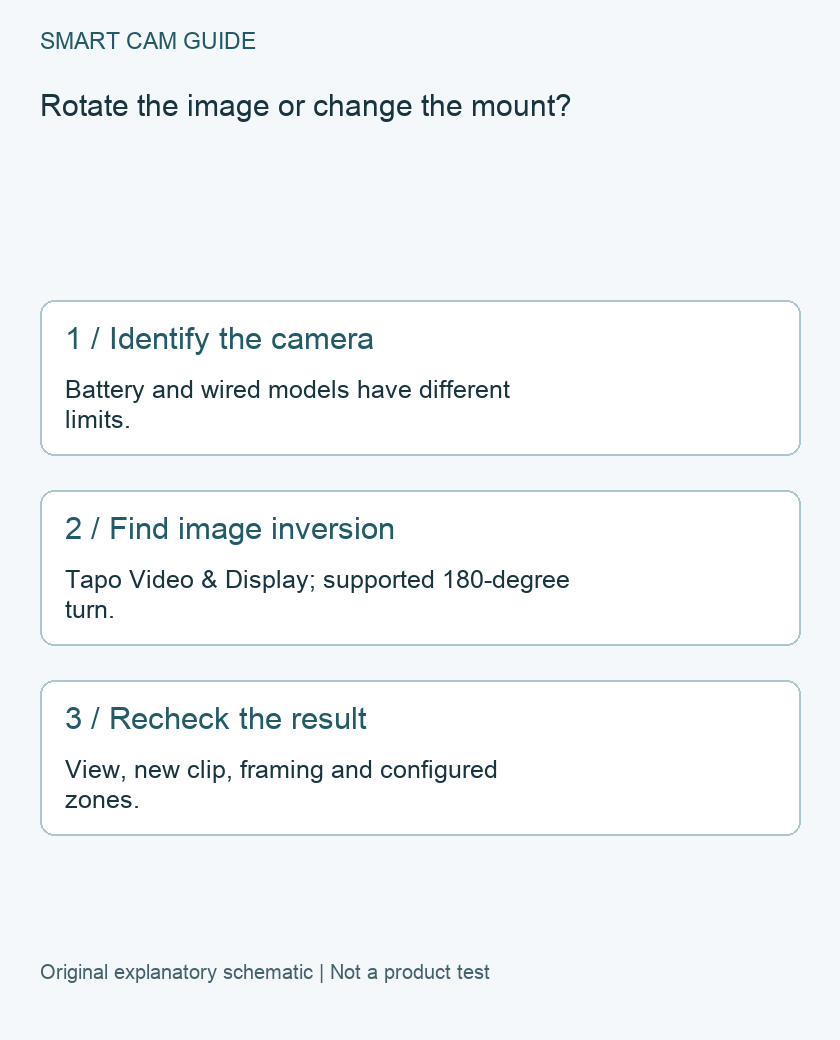
Separate orientation from mounting suitability
First identify the exact model and whether it is battery powered. TP-Link warns that upside-down battery-camera installation can affect PIR performance and expose the charging port to water; it does not support Invert Image for those cameras. Do not copy a wired-camera ceiling setup onto a battery model.
For any model, keep the original mounting, weather-exposure and cable requirements. Making the picture look upright is only one part of installation. It cannot confirm that an adhesive surface is suitable, a cable is protected or a housing is being used as intended.
Find the relevant control
In the Tapo app, open the selected camera’s live view and Device Settings, then Video & Display and Invert Image. TP-Link’s Kasa procedure instead uses Video Rotation and Normal or Upside Down. Use the app and instructions for your actual device rather than hunting for the other brand’s menu name.
Check the current interface before making a change. If the control is absent, confirm the model, hardware information and supported features with TP-Link. Do not factory-reset a working camera just because another model’s screenshot shows a switch yours does not have.
What a 180-degree control does not promise
This is an upside-down correction, not evidence of a 90-degree portrait mode or an independent left-right mirror feature. If the mounting position leaves the scene sideways, plan the physical orientation using the model’s mounting instructions instead of assuming inversion will solve it.
Keep mechanical pan/tilt movement separate from image processing. A fixed camera does not gain motorized movement through an app rotation setting.
An owner verification worksheet
- Save the starting state. Note the model, current inversion setting and mount orientation.
- Use a known upright reference. A door frame or a simple label in a permitted test area makes orientation clear.
- Change only the relevant control. Confirm the resulting live view, including all frame edges.
- Create a new permitted test event. Play the newly saved clip through your existing recording method. Do not use an older file as evidence that the change worked.
- Review configured regions. Inspect detection and privacy regions against the resulting picture, and verify the intended coverage instead of assuming their behavior.
Keep evidence and privacy separate
A correctly oriented live view does not demonstrate successful event storage, notification delivery or privacy masking. Check each result directly when it matters. If a region is intended to exclude a neighbor’s property or a private area, confirm its effect before leaving the camera in service.
If the picture remains wrong, send support the exact model, app version and before/after screenshots. The next step should address the supported feature or installation, rather than replacing a camera solely because a generic menu path did not match.
Buying option: match the exact product
For a powered fixed-camera installation, compare this C120 option after checking the mounting and cable route. It is not a Tapo battery camera and does not make an unsuitable installation safe. Existing owners normally only need the supported orientation setting, not another camera.
Tapo C120, white, one camera
Check Tapo C120, white, one camera details on Amazon
Product link and model mapping reviewed November 4, 2026. Check the selected model, package, seller and current offer before ordering. No live price, stock or delivery is asserted.
Related guides
- Tapo C120 Mounting: Magnet, Adhesive Plate or Screws?
- Tapo C120 Night Vision: Invisible IR, Color and Status Lights
- Tapo Privacy Mode vs Privacy Zones: Stop the Camera or Hide an Area?
Sources and research scope
Reviewed November 4, 2026. TP-Link US FAQ 2625, What should I do if the video image is upside down on my Tapo or Kasa Camera. This is document-based guidance by Smart Cam Guide. The decision worksheet and proposed owner checks are editorial recommendations, not hands-on test results. Exact model, hardware revision and current instructions govern where details differ.