By Smart Cam Guide
As an Amazon Associate I earn from qualifying purchases. Purchases through our links may earn us a commission at no extra cost to you.
To make a Nest camera’s status light less bright, check its status-light setting in the app that controls that device. Google lists Low, High and Auto brightness options. Changing brightness is not the same task as turning the camera off, and a green light is not proof that a particular event was saved to your account.
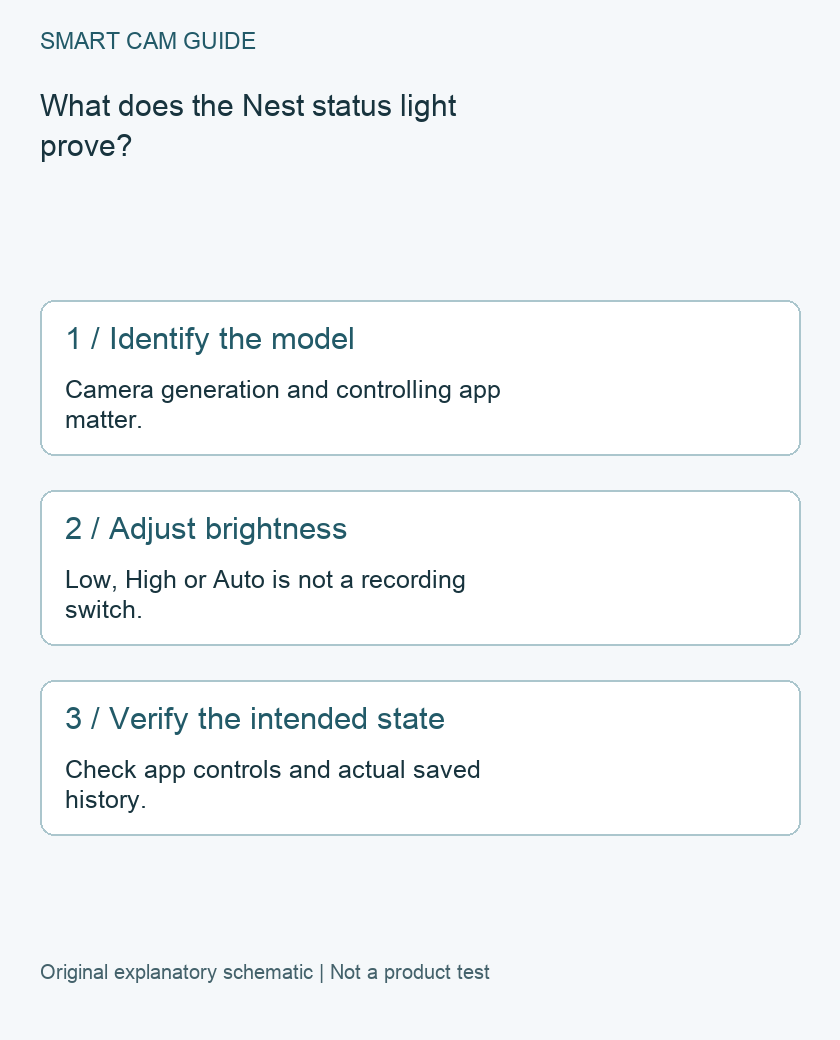
Start with the exact camera, not a generic color chart
Google’s help page separates camera and doorbell generations. For example, it describes solid green on legacy Nest Cam Indoor and Outdoor as the camera being on, connected and streaming. Those legacy models can pulse green during live viewing, but Google documents an Android cellular Spaces-view exception. Do not extend that table to every battery camera or doorbell.
Write down the device name, model and app before troubleshooting. A doorbell button ring, a camera status indicator and night-vision illumination are different things. Trying a Tapo or Ring menu path on Nest is unlikely to answer the setting question.
Find the brightness control
In Google Home, select the camera and open its settings, then look for Status light brightness. In the Nest app, select the camera, open Settings and find Status light. Google lists High, Auto and Low; exact navigation can vary with the app and device.
Choose the available lower setting and observe the device in its normal location. Note your previous choice so you can restore it. If the documented control is missing, verify which app manages that particular model before resetting the camera or removing it from the household.
Decide which outcome you actually need
- The indicator distracts you: adjust the supported brightness setting, then check it under the room lighting that matters.
- You want the camera off: use the camera’s actual on/off control and confirm the intended state in the app. Dimming the indicator is not that control.
- You suspect someone viewed live video: do not use the absence of pulsing as proof that nobody viewed it. Review account and household access through the appropriate security controls.
- You need evidence of a saved event: inspect the relevant history and play the actual clip. An indicator cannot substitute for that check.
Keep a small observation record
Record the time, light pattern, app state and action you took. For example: “Selected Low at 8:15 p.m.; camera still appears enabled; checked a new event in history.” This separates an appearance change from a recording or connectivity result. It also helps avoid confusing a clip from before the change with a new clip.
Do not factory-reset the device merely to make the indicator darker. That is a much larger intervention than changing an available preference and makes before/after observations harder to interpret.
What this check cannot establish
Brightness does not establish your subscription entitlement, retention window, successful upload, or future recording reliability. Likewise, a camera being reachable in the app does not demonstrate that every earlier event exists. Check the exact event and its playback when that is the question. For connectivity interruptions, use the separate Nest offline-buffer guide rather than treating the light as a complete storage diagnostic.
Buying option: match the exact product
For a new battery-capable Nest installation, compare the exact camera and its current history-plan requirements. This is a specific model, not a universal replacement for every legacy Nest Cam. Dimming the status light or changing a setting on an existing device does not require a purchase.
Google Nest Cam (battery), one camera
Check Google Nest Cam (battery), one camera details on Amazon
Product link and model mapping reviewed November 4, 2026. Check the selected model, package, seller and current offer before ordering. No live price, stock or delivery is asserted.
Related guides
- Nest Cam Battery Offline Recording: What the One-Hour Backup Means
- Tapo C120 Night Vision: Invisible IR, Color and Status Lights
- Ring Indoor Cam Privacy Cover: Does It Turn Off Audio Too?
Sources and research scope
Reviewed November 3, 2026. Google Home and Nest Help, Nest camera and doorbell lights and sounds. This is document-based guidance by Smart Cam Guide. The decision worksheet and proposed owner checks are editorial recommendations, not hands-on test results. Exact model, hardware revision and current instructions govern where details differ.