By Smart Cam Guide
As an Amazon Associate I earn from qualifying purchases. Purchases through our links may earn us a commission at no extra cost to you.
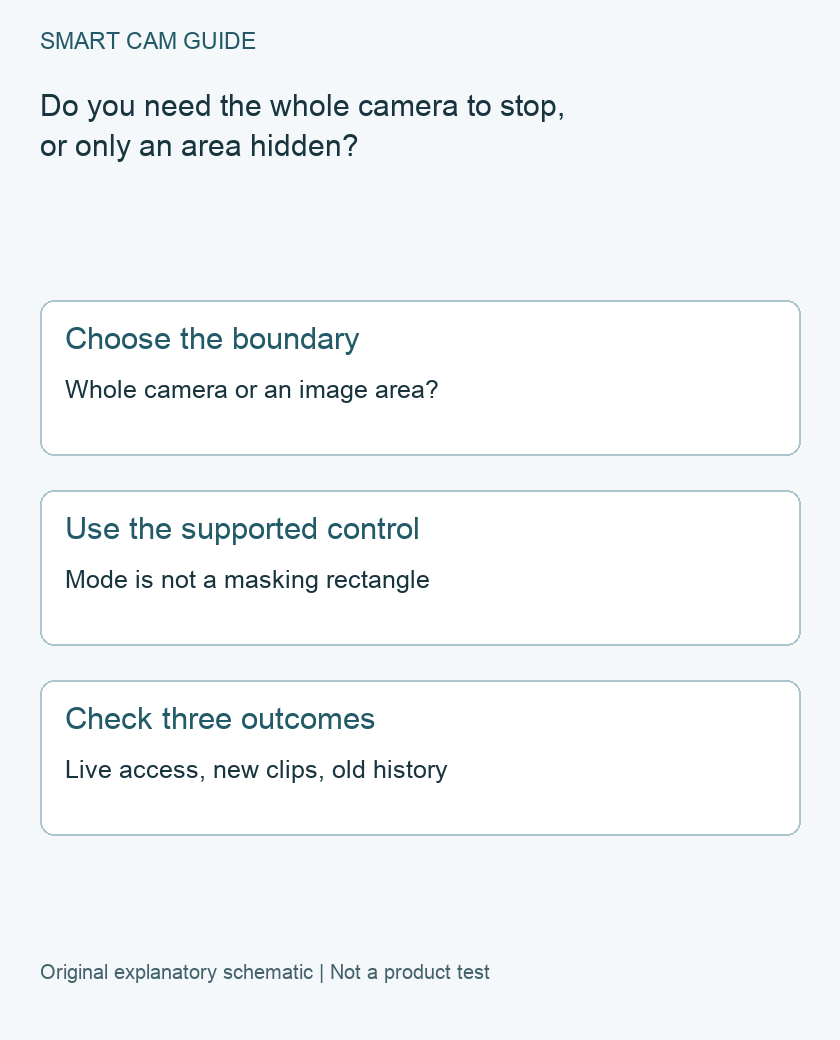
Choose Tapo Privacy Mode when you intend to suspend the camera’s live streaming and recording. A Privacy Zone addresses an area in the image; it is not the same whole-camera control. Check the exact model’s supported behavior before relying on either for a private room.
State the boundary in plain words
Decide whether you want no new camera capture, an area hidden while the rest of the view remains useful, or fewer notifications. These are different requirements. Write down the required result before choosing a familiar-looking toggle.
Tapo’s general guidance describes Privacy Mode as disabling streaming and recording, with no audio/video recording or event notifications while it is active. Its app guide presents this as a camera state, distinct from choosing parts of the picture. The exact model, firmware and available controls still govern your setup.
Keep a spatial mask separate from stopping the device
A supported Privacy Zone is intended for a defined part of the image. Do not infer that the entire camera has stopped merely because a rectangle obscures one area. Conversely, if your goal is to retain coverage of an entrance while excluding a neighboring area, switching the whole device into Privacy Mode may remove more coverage than intended.
Our existing zone guide addresses detection areas and privacy masks in detail. This page adds the different decision about suspending the camera as a whole. A detection zone or a notification mute should not be treated as an equivalent privacy-off control.
Make a three-column verification note
- Live access: after enabling the intended supported control, note what a newly opened camera view shows.
- New recordings: record the time of the change and check whether later footage exists through the recording route you actually use.
- Old history: keep previously saved clips separate from the question of new capture.
Use one camera and a known time interval. A previously recorded event in history does not prove that recording continued after the change. A failed live connection on one phone is also not, by itself, proof that every recording path stopped.
Account for the coverage gap
Privacy Mode intentionally removes camera functions during the chosen interval. Agree with the household or account owner about when coverage should resume. If the camera protects an entrance, note the period when that protection is deliberately unavailable.
If you use an automation to change the state, inspect the actual supported action, time and device rather than assuming an app schedule always ran. This article does not establish that every Tapo model has the same scheduling controls, or that a state name alone certifies a particular automation.
Check again after restoring normal operation
Exit the mode through the supported control when you intend to restore coverage. Confirm a fresh live view and a new recording in a time covered by your recording schedule. Check notifications separately if those are part of the requirement.
If live video returns but expected new footage does not, inspect storage status and recording settings before blaming the privacy control. If footage is absent only during the interval when the mode was active, that gap may be the deliberate result rather than a failed card.
What this control does not prove
Changing the current capture state is not an evidence-deletion workflow. Preserve or manage old local and cloud files through their own documented controls. Do not use a privacy toggle as proof that a previous recording has been erased.
For a boundary that must remain private even if an app setting is mistaken, follow the exact device’s documented physical privacy or power procedure and account for the loss of coverage. We have not tested the camera’s implementation or external recording systems. This checklist helps you verify the intended result without claiming a mode label is a universal privacy guarantee.
Buying option: match the exact product
For a new fixed camera with the documented Tapo privacy controls, compare this C120 one-camera option. Check its power, mounting and recording arrangement first. A software privacy mode is not a motorized physical shutter, and no purchase is needed just to change an existing setting.
Tapo C120, white, one camera
Check Tapo C120, white, one camera details on Amazon
Product link and model mapping reviewed November 4, 2026. Check the selected model, package, seller and current offer before ordering. No live price, stock or delivery is asserted.
Related guides
- Tapo Detection Zones vs Privacy Zones: What Gets Recorded?
- Tapo C120 Sends Alerts but Has No Recordings: A Decision Tree
- Tapo C120 microSD Card Full: Loop Recording or a Recording Fault?
Sources and research scope
Reviewed October 27, 2026. TP-Link US General Questions about Tapo Cameras FAQ2742; TP-Link US How to Enable and Disable Privacy Mode FAQ2791; Tapo App User Guide for Indoor/Outdoor Cameras, 2024. This is document-based guidance by Smart Cam Guide. The decision worksheet and proposed owner checks are editorial recommendations, not hands-on test results. Exact model, hardware revision and current instructions govern where details differ.