By Smart Cam Guide · Research checked September 29, 2026. This is a document-based guide, not a hands-on test.
Affiliate disclosure: As an Amazon Associate I earn from qualifying purchases.
An alert from a Tapo C120 does not prove that a playable video was saved. First preserve any footage you can still access. Then check the correct playback location, date, recording settings and storage status—before formatting a card, resetting the camera or buying a replacement.
This decision tree is for the powered, Wi-Fi Tapo C120. It separates “no clip was recorded” from “the app cannot display an existing clip.” A notification thumbnail, a live view and a saved recording are different results. Menus can vary with app and firmware versions; look for the corresponding Storage & Recording controls.
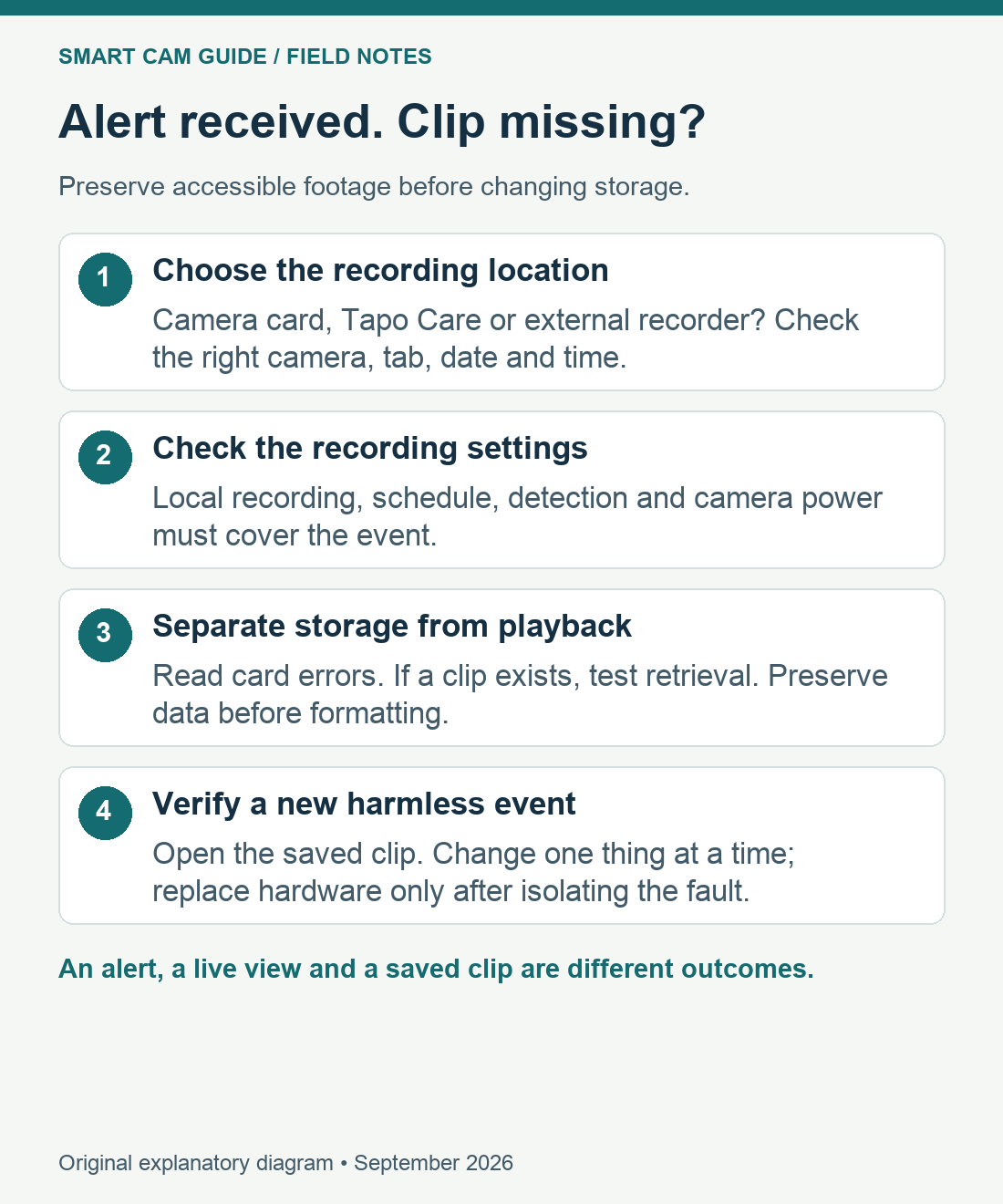
Before troubleshooting: protect the evidence
If the missing clip concerns a theft, accident or another important event, avoid experiments that write more data to the same card. Export accessible clips using the normal playback/download controls and confirm that the downloaded files open. Record the approximate event time, camera time zone and any error message. If the only copy may be on an unreadable card, stop recording and seek recovery help rather than repeatedly formatting it.
A factory reset, card initialization or reformat is not the first diagnostic step. Formatting erases data. If a card must be removed, power the camera off first and keep the original safe. A new empty compatible card can be used later to test the camera without sacrificing the old card.
1. Are you looking in the place that was meant to save it?
| Where you expect footage | Check first | What the result means |
|---|---|---|
| Camera microSD | Playback & Download → SD Card; select the event date and time. | An empty Cloud tab does not establish that the local card is empty. |
| Tapo Care cloud | Correct camera/account, active coverage at the event time and available retention. | A plan purchased afterward does not recover an event that was never uploaded. |
| H200 / H500 or an NVR | The configured recorder, channel and its recording schedule. | Camera-card playback is not a universal view of every external recorder. |
TP-Link’s playback FAQ specifically calls out the selected date: if today appears but earlier footage does not, choose the date before dragging the timeline. Check the camera time zone when events appear at the wrong hour. If another family member sees the clip, compare camera selection and account permissions before changing storage.
For an external recording setup, follow the H200/H500 capacity and pairing guide or the C120 NAS/NVR recording guide. Do not assume a subscription adds recording to an unconfigured external recorder.
2. Was recording enabled for that time and event?
Open Camera Settings → Storage & Recording. Check that Local Recording is enabled when using the camera card, then inspect the Recording Schedule. A notification schedule and a recording schedule serve different jobs: receiving an alert alone is not confirmation of a scheduled recording.
If the schedule uses detection recording, verify that the relevant detection type and area cover the activity you want. A continuous schedule is a different choice: it can provide footage between events but consumes storage faster. The C120 is a plug-in camera; do not copy the restrictions of a battery-only model into its setup. Check whether Privacy Mode, a reboot schedule, a smart action or an actual loss of camera power overlaps the gap.
Make a small, harmless test while the camera is powered: note the time, walk through the intended area, wait for the event to finish, then verify a saved clip. Change one setting at a time. A successful live view or notification is not the acceptance result; opening the new recording is.
3. Is the card recognized, healthy and allowed to keep recording?
Read the card status and available storage in the app. “No card,” initialization requests and recurring card errors point to a different branch from a healthy card with an empty schedule. Check whether loop recording is enabled: with looping, the oldest material can be overwritten when space is needed. Once overwritten, old footage is not restored by turning the setting off.
The C120 US specification supports camera microSD storage up to 512 GB. Capacity is only one compatibility check. TP-Link recommends at least Class 10 / U1 / V10 and endurance cards for ongoing surveillance writes, and its compatibility list identifies specific tested series and capacities. Match the exact card, not just a brand or a larger speed number.
Only after preserving footage should you follow the app’s initialization or format procedure. If the same errors return, compare with a known compatible, genuine card from an authorized seller. See how to choose an endurance microSD card for the purchasing checks. Replacing the entire camera is not the default response to an unrecognized or worn card.
4. A recording appears, but will not play or download
This points toward retrieval rather than a simple absence of recording. Check whether live view works, whether another client is already playing back, and whether the app is current. TP-Link notes that SD playback is limited to one client at a time. Try the normal local-network download path with the phone and camera on the same trusted network, while retaining normal security settings.
Do not broadly disable router security to troubleshoot a clip. A blocked local path, VPN routing or isolation can be investigated narrowly with the network administrator. Preserve footage before firmware changes or reformatting. If the clip still cannot be retrieved, record the app/firmware version, card model, date, error and what you tried for support; share device logs only through the official support channel.
When to buy something—and when to stop
- Buy a compatible endurance card if local recording is wanted and no suitable card is installed, or a preserved-card test isolates the failure to the old card.
- Consider paid cloud storage for an additional off-camera copy only after confirming the current US plan, camera coverage and retention. It is not a recovery service for past missing clips.
- Investigate the power path if recording gaps coincide with outages or restarts. Internet loss and camera power loss have different consequences.
- Contact support if a supported new card, correct schedule and stable power still produce no retrievable test clip. Keep the original evidence and avoid repeated destructive resets.
Sources reviewed: TP-Link “Tapo SD Card Playback Issues” FAQ 3927, microSD compatibility FAQ 3048, C120 US specifications and related local/network recording documentation. This is a research-based diagnostic sequence; no failure rate or recovery guarantee is claimed.
If the intended trigger is a bark, meow, glass break or baby cry, check the C120 sound-detection categories and sensitivity separately from visual motion. Then return to the recording checks above; a sound notification does not prove that a clip with audio was saved.