As an Amazon Associate I earn from qualifying purchases. Purchases through our links may earn us a commission at no extra cost to you.
Tapo C120 sound detection looks for named sound categories; it is not a promise to alert on every loud noise. TP-Link lists baby crying, glass breaking, dog barking and cat meowing. Choose the categories you need, then check detection, phone notifications and saved footage as separate steps.
A pet moving silently through the picture and a pet barking outside the picture are different detection problems. Turning on visual pet detection does not prove you have enabled the sound category you want.
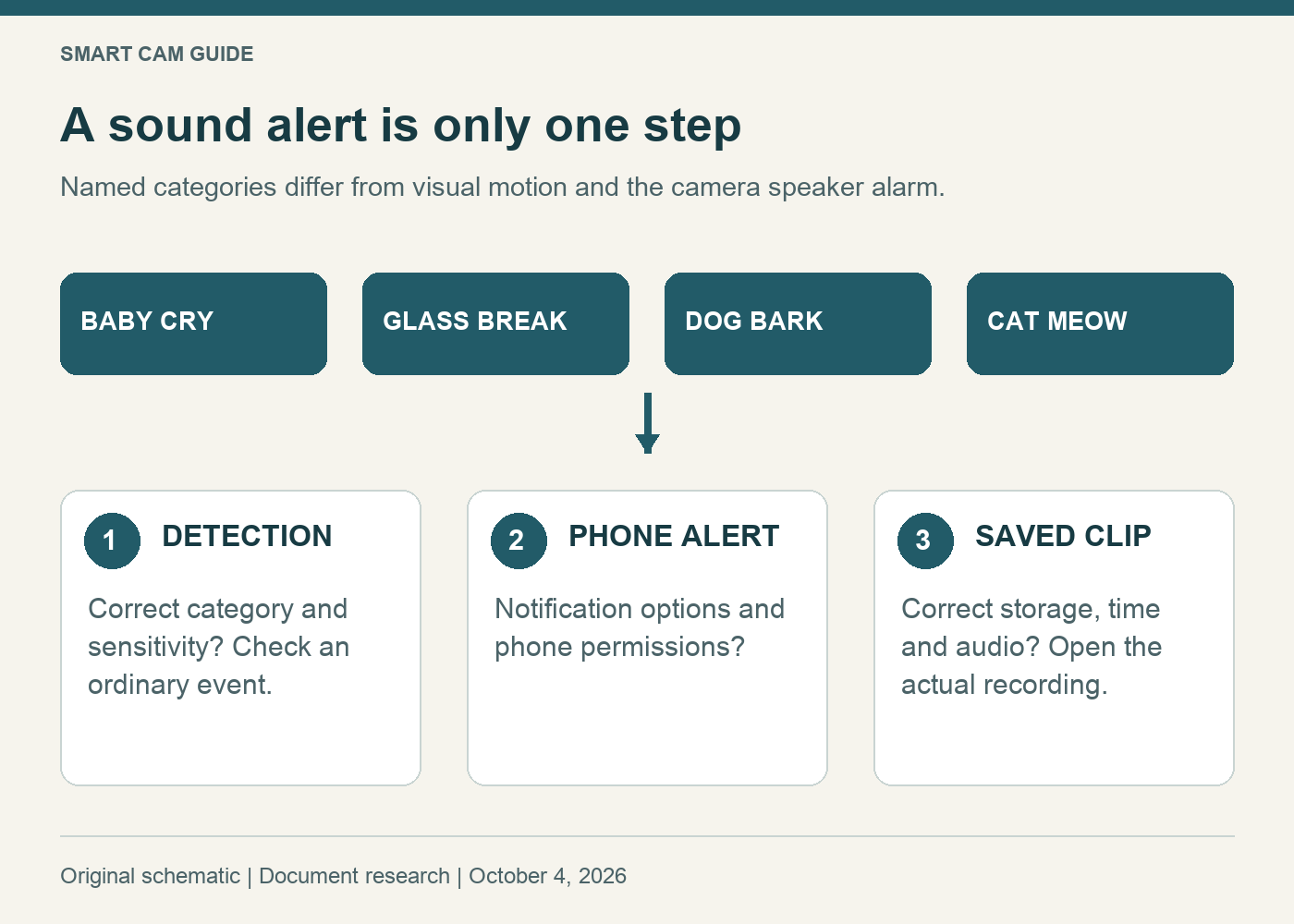
Four categories, several separate controls
TP-Link’s sound-detection FAQ uses the C120 to illustrate individual category switches and sensitivity controls. As checked on October 4, 2026, both the US V1 and V2 specification pages list the four categories. The retail listing we checked does not guarantee which hardware revision will ship.
Confirm your camera’s label, region, app and supported firmware when matching instructions to the device. If a particular switch is missing, identify the version before assuming a paid subscription, factory reset or replacement camera is the remedy.
- Sound detection: recognition of an enabled sound category.
- Visual pet or motion detection: activity within the camera image.
- Sound alarm: a sound emitted by the camera as an action; it is not the microphone recognizing a bark.
- Recording audio: whether the saved footage contains audio; do not infer it merely from receiving a sound notification.
Enable only the category that answers your question
Open the camera in the Tapo app, enter its settings, then look under Detection → Sound Detection. Enable the relevant category and inspect its sensitivity. The reviewed FAQ treats categories separately; a general motion setting is not a substitute.
If your question is “Does the dog bark while I am out?”, start with bark detection rather than enabling every available alert. If you need to know whether the pet approaches a doorway, position the camera for that visible area and use the relevant visual detection settings instead. Each choice should have a purpose you can explain.
Sensitivity involves missed events and false alerts
The manufacturer’s FAQ identifies glass-breaking, bark and meow detection as beta features and notes possible false triggers. Treat that as a reason to evaluate the alerts in your own room, not a reason to assume that the highest sensitivity is best.
Keep a short observation log: time, enabled category, sensitivity, relevant ordinary sound and the resulting event. Change one setting at a time so the comparison remains interpretable. Background television, room acoustics or distance may be worth noting as possible influences; this guide does not claim measured error rates for any of them.
Do not deliberately break glass or distress a child or animal to test an alert. Observe safe, ordinary activity and compare the recorded result. A played sound sample also does not establish reliable recognition of every real event.
An event and a phone notification are different evidence
If the camera’s event record indicates detection but the phone stays quiet, investigate the notification path: the selected camera’s notification options, any relevant schedule and the phone’s permission or quiet-mode settings. Repeatedly increasing detection sensitivity would not directly resolve a blocked phone notification.
If no event appears, record the enabled sound type, device/app version and circumstances before changing multiple controls. Absence of an alert from one observation does not prove the microphone is broken. Likewise, a notification with the word “sound” does not tell you that a useful clip with audible content was saved.
Check the clip you actually need
Plan storage before relying on an alert for later review. The C120 supports local microSD recording and an optional Tapo Care cloud service; those are separate recording paths. Card presence alone does not prove that the wanted interval and audio were retained.
Find an ordinary event at a known time, open its saved footage and check the relevant action and audio with appropriate playback volume. Preserve anything important before troubleshooting storage. Our C120 alerts-without-recordings decision tree covers the next steps if detection works but the clip is missing.
Who should consider a C120 for sound alerts?
It is a candidate when one of the listed categories is useful alongside a fixed camera view, wired power and a suitable network. It is a poor match if the buying requirement is “notify me about every noise” or a guarantee that no important event will be missed. Use dedicated safety equipment where that is the requirement; this feature is a convenience, not a medical or life-safety monitor.
Check Tapo C120 — white, one camera on Amazon
Confirm the C120 single-camera package, available revision and storage needs. The C120 versus Wyze Cam v4 comparison covers the broader camera choice; the sound feature should support that decision rather than replace it.
Research scope: TP-Link’s US sound-detection FAQ and C120 V1/V2 specifications, checked October 4, 2026. No physical camera, acoustic accuracy, notification timing or audio recording was tested.