As an Amazon Associate I earn from qualifying purchases. Purchases through our links may earn us a commission at no extra cost to you.
A Ring camera can record because another device triggered it, even when nothing moved in that camera’s own view. Before lowering motion sensitivity or replacing the camera, check whether the recording is a Linked Event and identify the device that started it.
Linked Devices can be useful when one arrival should be captured from more than one angle. They can also create confusing extra recordings if the rule’s source, action or direction is no longer what you intended.
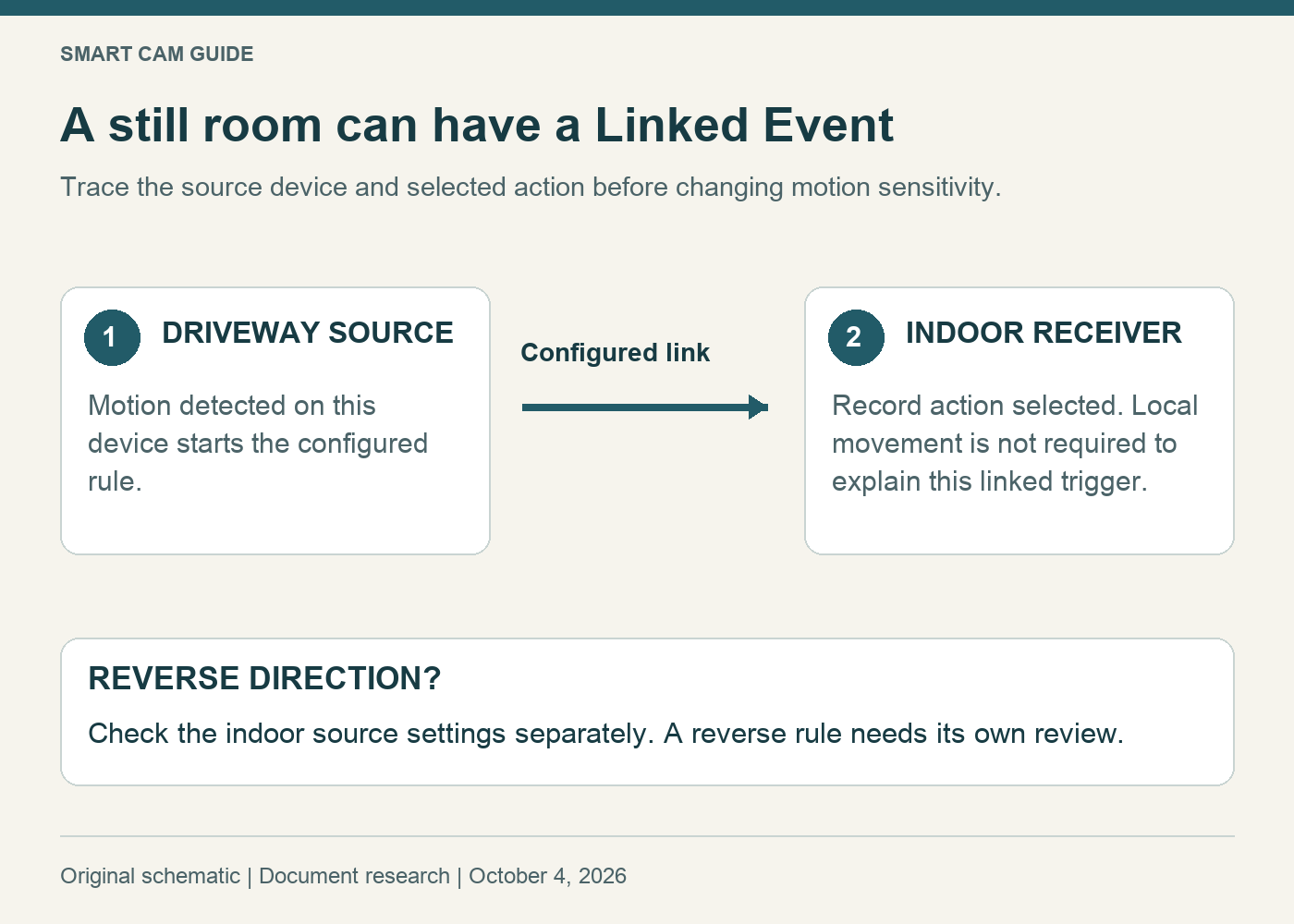
Separate the trigger from the camera that records
Think of a rule as three entries: source device → triggering event → receiving device’s action. For example, motion at a driveway camera could tell an indoor camera to record the entrance. The indoor room can be still at the beginning of that recording because the triggering motion happened elsewhere.
Ring’s US guidance describes motion and doorbell-ring triggers with supported recording or light actions. Available choices depend on the devices. A camera recording, a light turning on and a phone alert are different results; do not assume a rule selects all three.
A subscription that supports stored recordings is needed to review the saved Linked Event in history. A working live view does not by itself establish that the event has been retained.
Read the event history before changing settings
- Note the affected camera and time of the unexpected recording.
- Look for a Linked Event designation and compare the same time with activity on other Ring devices in the location.
- Write down the suspected source and the receiving camera.
- Check the configured link on the source device rather than assuming the receiver’s motion zone caused it.
If an event is not identified as linked, keep other possibilities separate. A local motion event, manual live-view activity or another supported automation needs its own explanation. This guide does not diagnose every recording solely from the absence of a person in the image.
Inspect one rule at a time
In the Ring app, open the source device’s settings and find Linked Devices. Choose the relevant trigger, inspect the selected receiving devices and their actions, then save the intended configuration. Ring’s documentation uses Motion Detected and Rings for applicable triggers and options such as recording an event or turning on lights.
As an owner check, make a simple note before changing anything: “Driveway motion asks Entrance Cam to record.” If that sentence cannot be written clearly, trace the selections until the relationship is clear. Menu wording can vary with app and device; do not use a similarly named notification control as a substitute.
Do not assume the link works both ways
A rule you configure on device A to act on device B should be checked as that specific direction. If you also want activity on B to trigger A, inspect and configure the relevant source settings for B separately. Selecting a useful incoming action does not prove that the reverse rule exists.
Suppose the driveway should start entrance recording, but ordinary indoor activity should not illuminate the driveway. Keep that asymmetry explicit. Checking both source devices prevents an old reverse rule from surviving unnoticed after you change one side.
Remove the unwanted action, then verify the result
If the extra capture is unwanted, deselect the relevant linked recording or light action on the source and save. Avoid turning off every camera’s motion detection merely to suppress one relationship. Our Ring Motion Snooze guide explains why silencing phone alerts is a separate choice.
Test with an ordinary, authorized walk through the intended source area. Note the time; check the source event, receiving camera’s saved clip and any lighting action separately. Then check another normal source event that should remain unaffected. We have not performed these checks on a live Ring installation.
Use a quiet, non-emergency test. There is no need to trigger an alarm or siren to validate an ordinary camera-motion link.
When an Indoor Cam adds a useful second angle
The white Ring Indoor Cam (2nd Gen) is a plug-in indoor 1080p model. Consider it when you need a separate indoor view of an entrance and can provide suitable power and the recording service you want. It is not an outdoor replacement for a floodlight camera, and adding it will not repair a mistaken rule on the cameras you already own.
Check Ring Indoor Cam — 1080p, white on Amazon
Check the selected package and recording plan. Its manual privacy cover can disable the camera and microphone; an intended automation is not a reason to assume recording continues through a privacy choice. Review privacy settings deliberately before relying on that view.
For the outdoor source, our driveway light-zone and camera-view guide keeps illumination coverage separate from the image. Linking another camera does not improve the original camera’s view outside its frame.
Research scope: Ring’s US Linked Devices guidance and Indoor Cam product documentation, checked October 4, 2026. Configuration examples are proposed owner checks, not measured recording reliability or a tested security system.