As an Amazon Associate I earn from qualifying purchases. Purchases through our links may earn us a commission at no extra cost to you.
The Tapo C120 is a sensible budget candidate for a Wi-Fi camera feeding a compatible NAS or NVR through RTSP or ONVIF. It needs continuous USB power and a reliable local network. It is not a PoE camera, and buying it does not supply the recorder, storage drives or any camera licenses your recording software may require.
This guide addresses the purchase and connection decisions that come before a dependable archive. It uses TP-Link’s C120 specifications and current RTSP/ONVIF support guidance, checked September 17, 2026. We have not run an endurance test with a NAS or verified every recorder and firmware combination.
What the C120 actually connects to
The C120 is a fixed-view, 2.4 GHz Wi-Fi camera with 2560 × 1440 maximum video resolution and H.264 compression. Its wired connection supplies power; the video link goes over Wi-Fi. A NAS connected by Ethernet to the same router can still receive that stream, but this does not turn the camera end into a wired Ethernet connection.
| Requirement | What to confirm |
|---|---|
| Video input | Your recorder accepts the C120 through a supported device profile, ONVIF Profile S or a compatible RTSP input. |
| Network | The camera and recorder can communicate on the local network; guest isolation may prevent it. |
| Power | There is a suitable continuous USB power supply at the camera position. No Ethernet/PoE socket is provided for a PoE-only installation. |
| Recording software | Check channel-license cost, supported audio/video formats and the recording schedule. |
| Feature expectations | A basic video connection does not promise that all Tapo app AI labels or controls transfer to the NAS. |
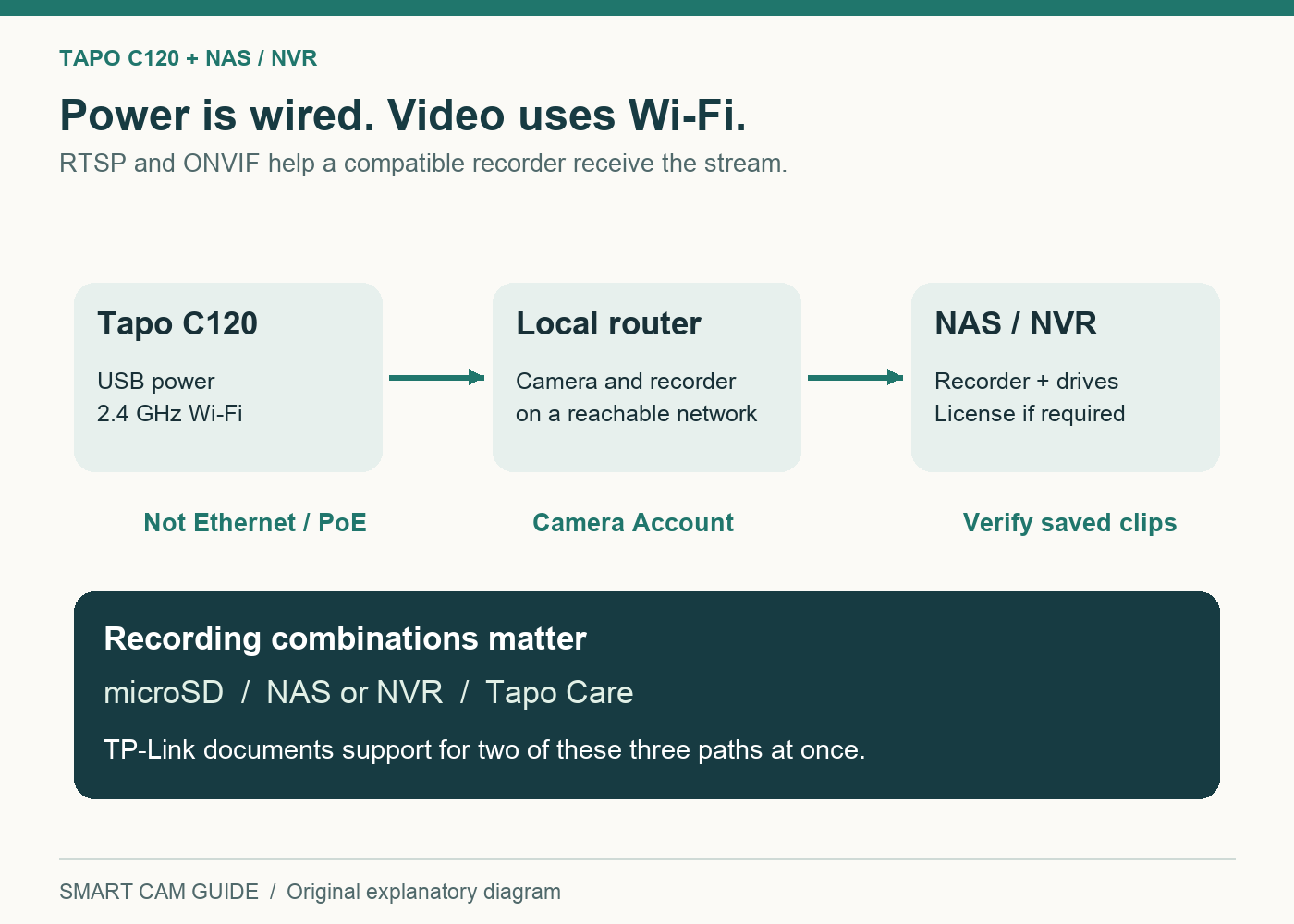
If you already have an NVR, read its supported-camera documentation first. Some recorders have physical PoE ports yet can also add a compatible network camera by IP address; others impose stricter device support. The presence of an Ethernet port on the recorder alone answers neither question.
The C120 suits a location where Wi-Fi is acceptable and local recording integration matters. If you need a fully cabled camera path, reliable coverage beyond the network’s reach or cellular service at a remote site, start with those requirements instead. Our long-driveway connectivity guide helps separate a coverage problem from a camera-model problem.
Tapo C120 — 2K+ White, one camera
Check price on AmazonThe camera account is different from your Tapo login
TP-Link’s setup path is the camera’s Device Settings → Advanced Settings → Camera Account in the Tapo app. Create the dedicated camera credentials there. Your NAS should use that account, not your Tapo cloud email and password. Keep the camera password unique and enter it into the recorder’s credential fields where possible.
Find the camera’s local IP address in its device information or your router’s client list. A DHCP reservation can help avoid a future address change breaking the recorder configuration. Keep a private note of the device name and assigned address; do not put a password into a shared screenshot or public troubleshooting post.
TP-Link lists port 2020 for ONVIF and 554 for RTSP. The high-quality stream path is /stream1; /stream2 is the lower-quality option. An illustrative local URL is rtsp://192.168.1.50:554/stream1—replace that example address with your camera’s actual local address and authenticate using the camera account.
Use these services on a trusted local network. For remote access, use a properly secured VPN or your recorder’s supported secure remote-access method; do not expose the camera’s RTSP or ONVIF ports directly to the internet just to make a phone connection easier.
Choose recording paths before switching everything on
TP-Link’s current FAQ says Tapo Care cloud recording, microSD recording and NAS/NVR/ONVIF software recording cannot all run at the same time. At most two of these categories can be used together. This matters when a free cloud trial is active during setup: a configuration that appears redundant can exceed the documented limit.
For a NAS-first installation, start with the recorder alone and confirm it works. Then add one secondary path if you need it, and repeat the playback check. The C120 product page lists microSD support up to 512 GB, with the card sold separately. A card can provide a second location for footage, but a camera and card stolen together are still one physical point of failure.
How much NAS space should you budget?
Resolution alone does not determine storage. Bitrate, scene detail, frame rate, recording schedule and compression settings all contribute. The simple planning formula for continuous recording is:
GB per day ≈ average bitrate in Mbps × 10.8.
These are decimal gigabytes and hypothetical constant average bitrates. They are not measured C120 outputs or a claim that its firmware offers each setting.
| Assumed average | 7 days, one camera | 14 days, one camera |
|---|---|---|
| 2 Mbps | 151.2 GB | 302.4 GB |
| 4 Mbps | 302.4 GB | 604.8 GB |
| 6 Mbps | 453.6 GB | 907.2 GB |
For example, two cameras averaging 4 Mbps continuously would produce about 1,209.6 GB over 14 days before allowing for filesystem overhead, reserved space or other NAS uses. Event-only recording can reduce storage, but the saving depends on how often recording actually starts. Do not select a drive from a manufacturer’s best-case day count without checking the intended schedule.
After installation, measure one or more representative days on the recorder and adjust retention. Include a busy day with people moving and a night period; a quiet daylight view alone can understate the final requirement. Set a disk-space alert and check that overwrite behavior matches what you intend.
A live picture is only the first acceptance check
- Confirm a recorded timeline. Close the live view, reopen playback and recover a specific earlier minute.
- Export a clip. Play it on another authorized device and check image, timestamp and audio if needed.
- Test the final network position. Evaluate the installed location rather than the desk next to the router.
- Check recovery. After a planned router or recorder restart, confirm recording resumes. Note gaps rather than assuming reconnection.
- Verify the chosen secondary path. If using microSD as well, confirm its recording schedule and playback separately.
- Check retention later. Return after the intended archive window and verify the oldest available footage matches the storage policy.
Power protection deserves a system view. Supplying backup power only to the NAS will not keep a USB camera or Wi-Fi router running through an outage. Decide which components must remain powered before treating the archive as resilient.
Verify privacy in the recorder’s saved file
A detection zone can focus events without hiding the rest of the image. A privacy zone is a separate visual mask, and neither term establishes that the microphone is disabled. Do not use a quiet notification log as evidence that nothing outside the event boundary was recorded.
Check a non-sensitive saved clip from each recording path you actually use, including the NAS, and repeat the check after moving the camera. Our C120 detection-zone versus privacy-zone guide provides a walk-test sequence. We have not verified every firmware/recorder combination, so the app preview alone is not proof that a third-party archive preserves the intended mask.
Common connection problems and what they suggest
| Symptom | Useful first check |
|---|---|
| Authentication fails | Use the separate Camera Account credentials, not the cloud login. |
| ONVIF discovery fails | Check local-network reachability and the ONVIF port; do not substitute RTSP port 554. |
| Video appears but no archive exists | Check the recorder schedule, storage destination and channel license. |
| Third-party recording stops after adding cloud/SD | Recheck the documented two-of-three recording-path limit. |
| NAS two-way talk is unavailable | ONVIF Profile S does not include two-way audio; app features do not automatically carry over. |
The C120 has a fixed view, so support for ONVIF does not give it a motorized pan-and-tilt mechanism. Similarly, a recorder receiving video may offer its own event analysis rather than the same classifications shown in Tapo. Test the particular alert or recording behavior you need.
Our recommendation
Choose the C120 if a small, continuously powered Wi-Fi camera is appropriate and you are prepared to validate the recorder connection. Skip it for a PoE-only design or if you want every advanced camera feature guaranteed inside a third-party app without testing. If your needs end at straightforward in-app SD playback, our Kasa SD-recording guide covers that simpler workflow; it should not be read as a claim that Kasa supports this NAS integration.
Tapo C120 — check the exact one-pack variant
Check price on AmazonResearch notes: TP-Link C120 US specifications and datasheet; “How to View Tapo Camera on PC, NAS, or NVR Using RTSP/ONVIF,” June 23, 2026; “Tapo Camera ONVIF and RTSP Common Questions,” July 1, 2026. Checked September 17, 2026. Storage figures are our arithmetic examples, not device benchmarks.
For an outage fallback, compare C120 microSD recording when internet or the router fails. Recording on the camera, sending a stream to a NAS and viewing it remotely depend on different parts of the network.
Still deciding which camera to buy?
The Tapo C120 versus Wyze Cam v4 comparison covers card recording, detection fees, power accessories and the complete purchase budget. Choose the recording system first; a NAS is a separate purchase and configuration project.
Prefer a Tapo hub to a separate NAS?
For supported C120 hardware and firmware, a Tapo camera hub is another central-recording option. Compare C120 recording with H200 and H500 before buying: H500 can connect sixteen cameras, but currently supports only four simultaneous continuous recordings. A larger connection count does not replace the recorder-capacity check.
If notifications arrive but footage appears missing, follow the C120 recording and playback decision tree. Preserve existing footage, then distinguish camera-card, cloud and recorder storage before resetting anything.