As an Amazon Associate I earn from qualifying purchases. If you buy through our links, we may receive a commission at no extra cost to you.
The Kasa EC70 can record continuously to a compatible microSD card without a cloud-storage subscription. For the US v4 product page and the EC70 1080p retail variant reviewed here, the stated maximum is 256 GB. Confirm your unit’s hardware revision first, choose an endurance card within its supported limit, then format and enable recording in the app.
The most useful final step is a playback test. An installed card, a working live feed and a motion notification are three different things; none alone proves that you can retrieve yesterday’s recording.
This guide is based on TP-Link’s model and support documents reviewed September 15, 2026. The setup checks and storage arithmetic below are our planning guidance. We have not run an EC70 endurance or recording-duration test.
Which card should you buy?
- Capacity: check the hardware version printed on the camera and use the corresponding US support page. The reviewed v4 page and selected EC70 listing state up to 256 GB; do not infer that a 512 GB specification for another document or revision applies to your unit.
- Write endurance: favor a card intended for continuous surveillance or dash-camera writing. A fast peak transfer-speed claim is not the same as a repeated-writing endurance rating.
- Speed and compatibility: TP-Link’s current guidance specifies Class 10 / U1 / V10 or better as its baseline. Check its compatibility list for the exact card model and capacity; a familiar brand name alone is insufficient.
- Source: buy from a seller with a clear return route and test the card promptly. Keep the packaging until formatting, recording and playback all work.
A 128 GB endurance card is a reasonable starting point when you do not yet know your retention requirement, provided it appears within your unit’s supported specifications. Choose 256 GB when the exact revision supports it and you need a longer rolling window. We do not claim either size guarantees a set number of days.
TP-Link’s August 2026 compatibility guidance lists tested examples including SanDisk High Endurance 128 GB and Samsung PRO Endurance 64 GB. Those are exact tested examples, not an endorsement of every capacity or newer revision sold under those names. Check the current card requirements and compatibility list.
Do not read an endurance claim as a playback-history promise
The SanDisk High Endurance 128GB model’s “up to 10,000 hours” Full HD claim concerns cumulative recording under the manufacturer’s conditions. It does not mean a 128GB card can hold 10,000 hours at one time. Repeated-writing life and how far back your timeline reaches are separate purchase questions.
Our high-endurance microSD buying guide explains the exact 128GB candidate and a transparent bitrate calculation. First confirm the EC70 hardware revision’s supported card; then size the retention window. A larger capacity mentioned for another Tapo or Kasa model is not permission to use it in this camera.
How many days will fit?
Resolution alone cannot answer this. Stored bitrate, audio, scene activity, usable card capacity and recording mode affect the result. The following calculation deliberately uses hypothetical constant bitrates, not a claimed EC70 setting.
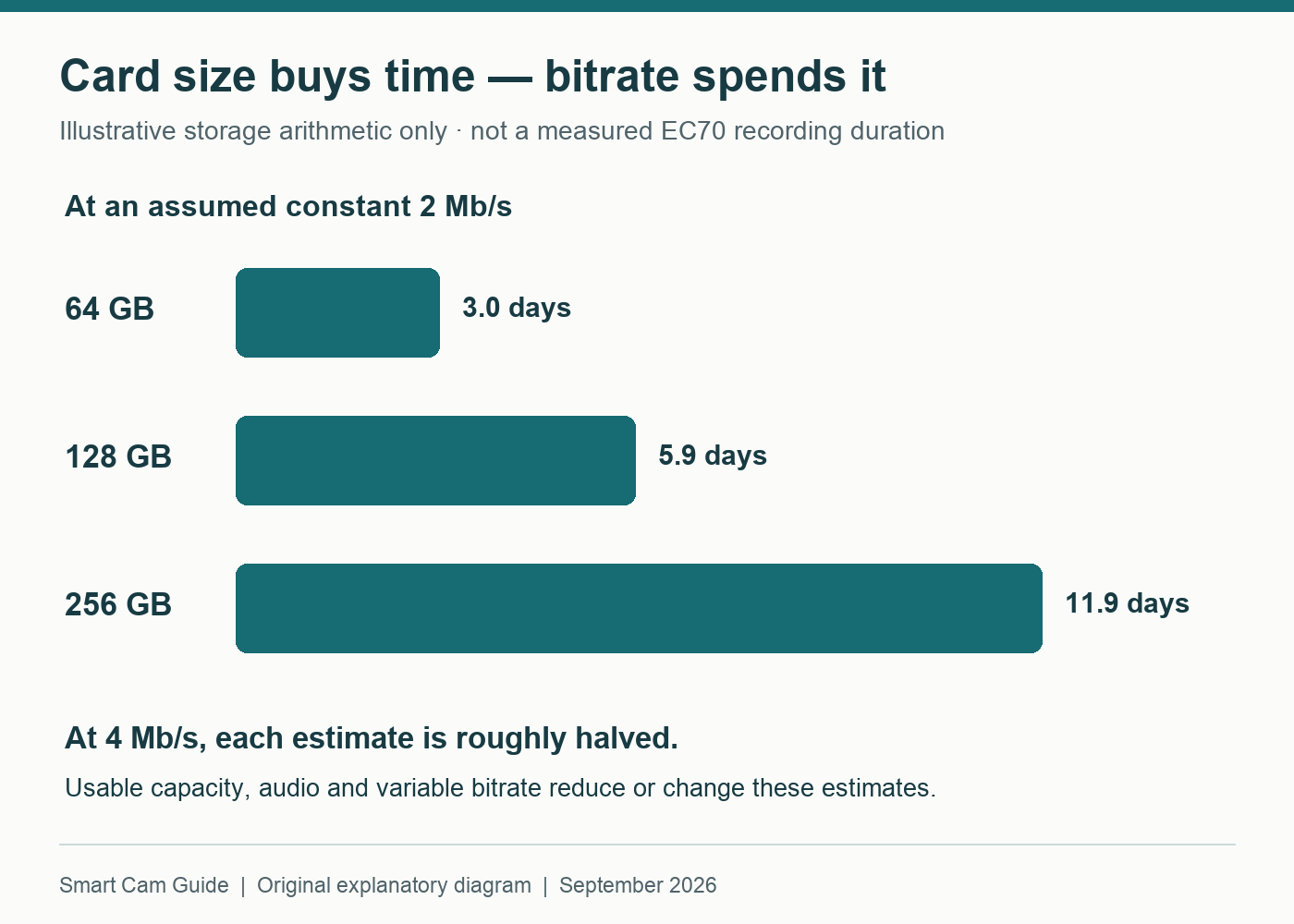
| Card size | At assumed 2 Mb/s | At assumed 4 Mb/s |
|---|---|---|
| 64 GB | About 3.0 days | About 1.5 days |
| 128 GB | About 5.9 days | About 3.0 days |
| 256 GB | About 11.9 days | About 5.9 days |
The formula is days = capacity in GB × 8,000 ÷ bitrate in Mb/s ÷ 86,400. Usable space is lower than the label capacity, and real recording can use a variable bitrate. After several days, inspect the oldest playable timestamp in your own camera. That measured rolling window is more useful than treating a planning estimate as a product guarantee.
Set up the card and verify continuous recording
- Identify and update the camera. Confirm EC70 and its hardware version, complete the normal app and Wi-Fi setup, and install the current firmware for that revision. TP-Link issued security fixes for EC70 v4 in 2026, so do this before relying on an older unit.
- Insert the compatible card following the camera guide. Use the documented slot access and power instructions. Do not force a card into the mechanism or confuse a reset control with the card slot.
- Format in the app. Save anything you need from the card first: formatting erases its existing contents. Confirm that the app recognizes the card and reports it as ready.
- Enable continuous recording. Select the local-card recording controls and cover the full schedule you want. A motion-only schedule cannot prove continuous coverage. Menu labels differ between Kasa and Tapo app versions.
- Make a short test. Note the time, leave the scene still, then walk through it. Wait for the recording to become available and play back both the quiet interval and the movement.
- Repeat later. Reopen playback the next day, find the earlier test, and try saving an important clip using the app’s supported export controls. Confirm the saved file plays before treating it as a backup.
Where are the recordings?
In TP-Link’s documented Kasa workflow, use Cameras → your camera → Manage → 24/7 Recording for card footage. The Activity area is associated with Kasa Care cloud clips. An empty cloud area does not establish that the microSD card is empty.
If you use the Tapo app instead, open the camera’s playback controls and select the microSD recording source and date. Follow the current app’s local recording guide rather than looking for an identical Kasa menu. Kasa local-versus-cloud playback guidance; Tapo continuous playback guidance.
When the card fills—or playback has gaps
TP-Link documents automatic replacement of the oldest local recordings when the card is full. The card is a rolling archive, not permanent storage. Export a needed clip before it ages out, and keep an independent copy when losing it would matter.
For gaps, work in order: check the selected date and card source, card status, recording schedule, camera power and app/firmware version. Test playback after each relevant change. Do not immediately reformat a card that may still hold needed footage. If the app repeatedly reports a card fault, preserve accessible clips and test a known-compatible replacement; do not assume a larger card fixes a recording configuration problem.
We have not verified this exact hardware revision’s behavior through an internet outage. Test any outage scenario you depend on, including local playback and access from outside the home, before relying on it. Card recording does not by itself establish offline remote viewing.
If you are still choosing the camera
EC70 suits a plug-in indoor setup where local history and pan/tilt are useful. It is less suitable when you require off-site recording without additional planning or simultaneous views in several directions. Read our EC70 versus Ring Indoor Cam comparison to compare those tradeoffs.
The card is sold separately; verify the delivered hardware revision before ordering a capacity at its stated limit.
Sources: TP-Link US EC70 v4 product specifications; microSD FAQ 3048, updated August 3, 2026; Kasa playback FAQ 458; Tapo playback FAQ 2617; EC70/EC71 v4 security advisory FAQ 5192. Reviewed September 15, 2026. Diagram and retention arithmetic are original; no physical camera test is implied.