By Smart Cam Guide
As an Amazon Associate I earn from qualifying purchases. Purchases through our links may earn us a commission at no extra cost to you.
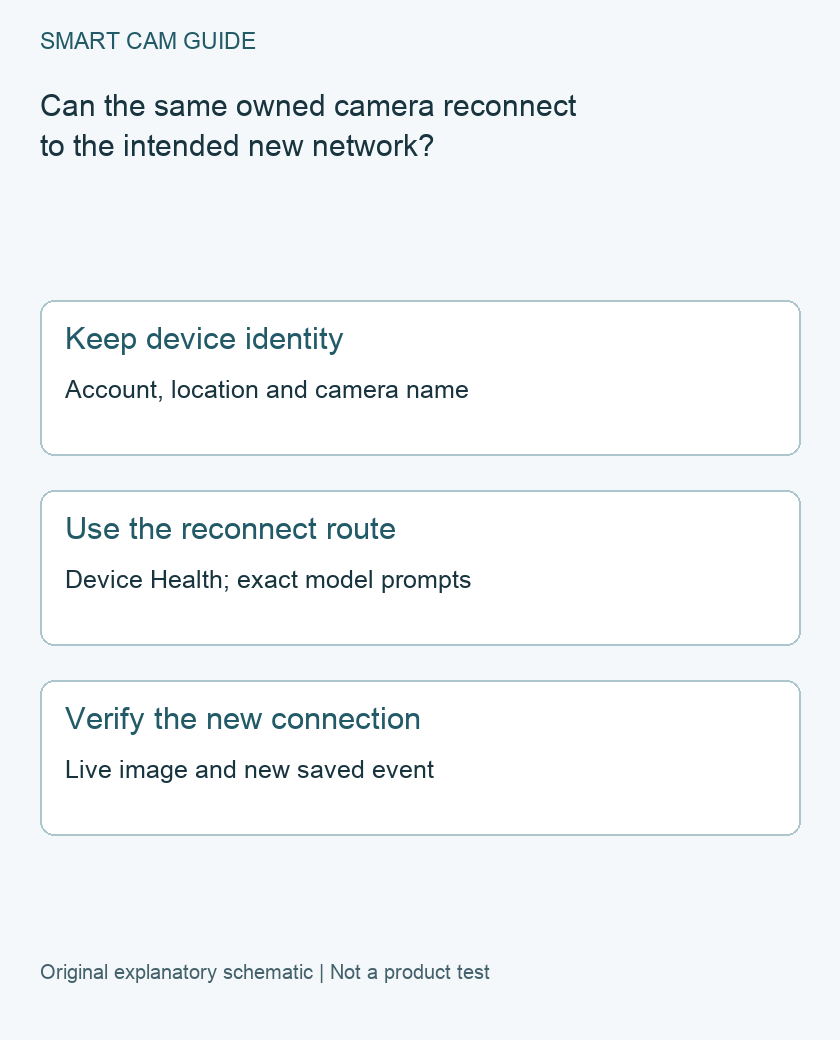
For a Ring camera you still own, try its Device Health network-reconnection workflow before deleting the device or starting an ownership transfer. Record the intended Wi-Fi network and verify a new live image and, where supported, a newly saved event after the change. A familiar thumbnail is not sufficient proof.
Prepare the change while you still have access
Note the Ring account, location and camera name. Confirm you can sign in and have the network credentials available privately. Identify the exact product and its supported network requirements before changing the router. Do not publish or send your Wi-Fi password in a troubleshooting screenshot.
If the camera is hard to reach, read its model-specific setup instructions before the old network is removed. Some prompts may require physical access. Plan a time when the resulting coverage gap is acceptable and preserve any important recordings first.
Use the existing device’s network controls
Ring’s current offline-device guidance directs the owner to select the device, open Device Health and use Reconnect or Change Network under Network. Follow the actual prompts and the model’s setup cues. An absent control should be investigated with the correct device and account, not worked around by removing ownership.
The temporary Ring network encountered during setup is different from the home network the camera ultimately needs. Note which step fails: entering setup, finding the intended network, accepting its credentials or reconnecting after configuration. Those observations lead to different support questions.
Check compatibility without weakening security blindly
Ring documents that some devices support only a 2.4 GHz network and that unsupported network encryption can cause a setup error. Establish the exact model’s supported settings and ask the router provider or installer for an appropriate configuration. Seeing a network name does not prove that the device can join it.
This guide does not recommend turning off Wi-Fi security or changing protection settings just to make an error disappear. Keep any router change deliberate, authorized and documented. A more expensive router or camera has not been established as a necessary purchase merely because one migration attempt failed.
Validate the result with a new observation
- Return to Device Health and confirm the intended device reports a connection.
- Open a new Live View and verify the current scene rather than an old preview image.
- If event recording is supported and enabled, create a harmless test event with a consenting household member.
- Check its actual time and playback, accounting for the configured recording Mode and subscription.
- Repeat for each camera; one successful device does not migrate the whole household.
Record the test time and result. If the camera connects but a clip is missing, do not immediately repeat the network setup. Separate recording configuration from connection status using the same device and a known new event.
Keep moving house separate from changing a router
Ring’s moving guidance includes reconnecting devices at the new location and handling location details. Changing a Wi-Fi network is not the same as transferring a camera to another owner. Do not remove a device or an alarm location merely as a network troubleshooting experiment.
If ownership really is changing, follow the separate account-transfer process. If you are simply replacing the router in the same home, keep the existing device identity and account context clear so a connection issue does not become an unnecessary setup or access problem.
When reconnecting still fails
Save the exact product, power arrangement, app version, error text and failing step for support. Note whether other devices can use the intended network. Do not repeatedly reset the camera without preserving that distinction and checking the current official procedure.
This is document-based migration guidance, not a test of your router or a promise that recording continues during an outage. Successful reconnection, a new saved clip and the availability of past footage are three facts to verify separately.
Buying option: match the exact product
If you are also planning a new indoor view, compare the Indoor Cam (2nd Gen) after checking power, Wi-Fi at the location and the recording plan. Reconnecting your existing camera does not require a replacement. This indoor model is not an outdoor substitute.
Ring Indoor Cam (2nd Gen), white
Check Ring Indoor Cam (2nd Gen), white details on Amazon
Product link and model mapping reviewed November 4, 2026. Check the selected model, package, seller and current offer before ordering. No live price, stock or delivery is asserted.
Related guides
- Ring Live View Stops at 10 or 30 Minutes: Which Mode Do You Need?
- Ring Camera Still Records in Disarmed Mode: Check Each Device Action
- Transfer a Ring Camera: Ownership, Saved Videos and Subscription
Sources and research scope
Reviewed October 27, 2026. Ring Fixing offline devices; Ring Fixing setup issues; Ring Moving with your Ring devices. This is document-based guidance by Smart Cam Guide. The decision worksheet and proposed owner checks are editorial recommendations, not hands-on test results. Exact model, hardware revision and current instructions govern where details differ.
If a Chime Pro sounds alerts but the camera still has weak connectivity, use the sound association versus network-link checklist. Check the camera's selected network and both connection legs before assuming the speaker test proves Wi-Fi extension.