Research guide by Smart Cam Guide. Reviewed September 28, 2026. Based on manufacturer documentation; no hands-on product testing.
Affiliate disclosure: As an Amazon Associate I earn from qualifying purchases.
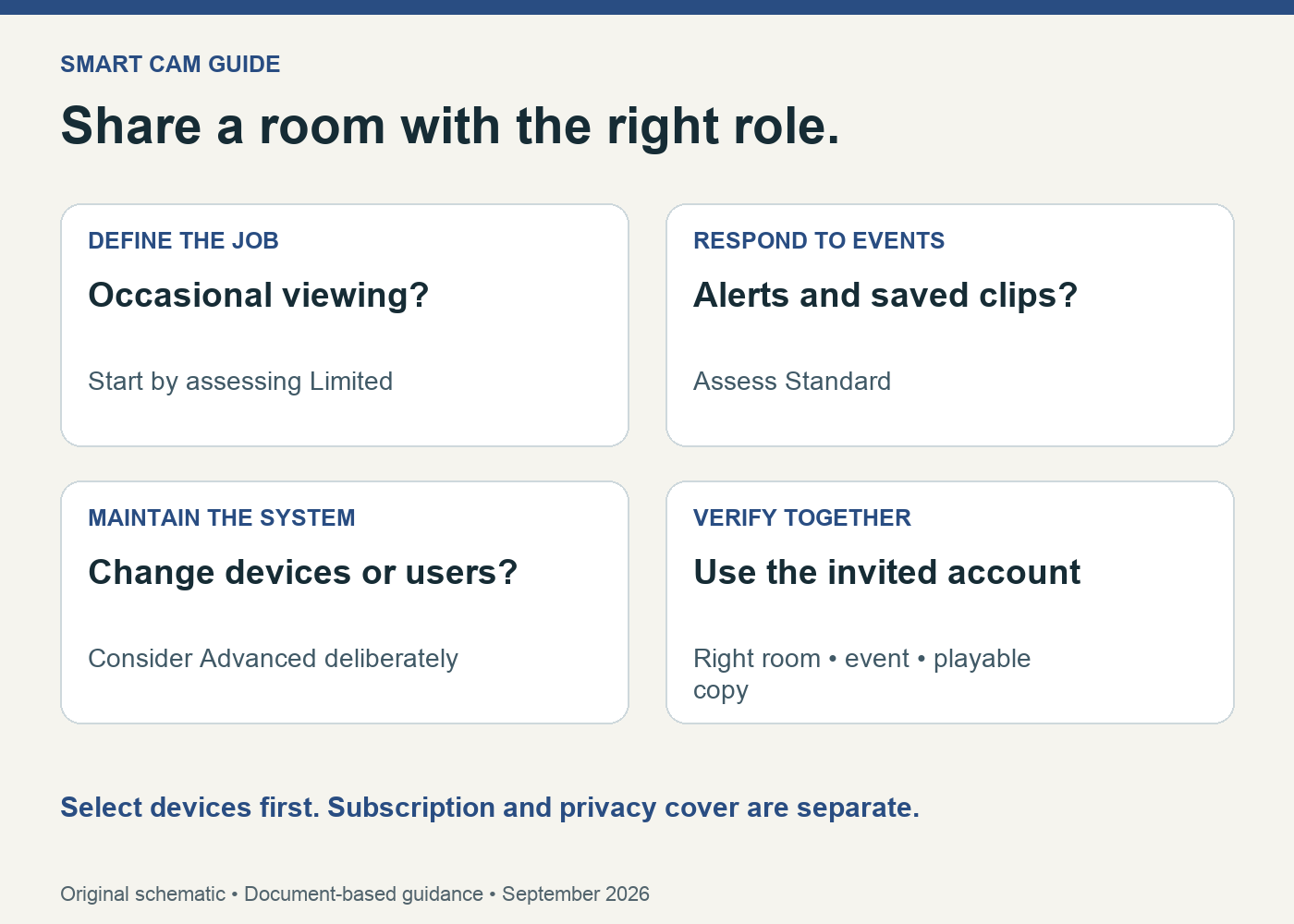
For most household helpers who need camera alerts and saved-video downloads, start by assessing Standard access. Limited access has fewer capabilities, while Advanced access delegates management as well as viewing. Do not choose a role from its name alone: decide which cameras the person should see and what they need to do.
This guide uses Ring’s current US permission documentation, checked September 28, 2026. Ring now documents several permission levels. Older advice that describes every shared user as having one identical set of powers can miss important differences.
The camera permissions that change the decision
For selected devices, Ring’s current table gives all three household levels Live View and Event History access. Standard and Advanced add real-time notifications and recording download/sharing; Limited does not. Advanced also permits device-setting changes and user/device management. Recording deletion and account/subscription management remain owner functions. Viewing saved camera video requires the applicable Ring subscription.
This is the practical distinction: an occasional viewer, the person responding to alerts, and the person maintaining the system may need different roles. Do not grant management powers just to solve a missed-notification problem.
Use a household task to choose the role
Someone occasionally checks a shared room
Assess Limited first, and verify that the actual viewing experience meets the need. “Limited” should not be interpreted as “Live View only”: Event History appears in Ring’s permission table too. If excluding historical visibility is essential, do not assume this role meets that requirement.
A family member responds while you are away
Assess Standard when that person must receive alerts and retain a clip. Before relying on the arrangement, make sure their phone receives a harmless test event and they can open the recording that matters. A successful live connection alone leaves both of those tasks unverified.
Another person maintains the camera system
Consider Advanced only when system administration is part of the job. Make the responsibility explicit: who changes detection settings, who adds people, and who checks that the camera still serves its original purpose? Shared management without an agreed owner can make later troubleshooting confusing.
Invite a person to the right cameras
In the current app, use Settings or Control Center → User Permissions → Invite User. Select the location, individual devices and an initial Limited or Standard role. Advanced is assigned by changing an existing user’s permissions. Review the invitation and have the person accept it in their own account. Check the current app if labels differ.
Write a short access list before you begin: person, purpose, permitted cameras, role and a review date. “Can watch the dog” need not mean “can see every camera.” Separating accounts also means you can change a person’s access without distributing the owner’s password.
Keep the list short enough to use. For a temporary helper, put the end date in your own calendar and review access when the arrangement finishes. A general household role should not be treated as an automatic temporary-access timer.
Subscriptions and physical privacy remain separate checks
Adding a viewer does not create a recording archive that was never captured. Check the owner’s coverage and the actual recorded event before assuming the other person can watch it. A role cannot recover missing footage just because the camera shows an entry in its history.
On the linked 1080p Ring Indoor Cam, the physical Privacy Cover disables the camera and microphone when closed. That is useful for a room that should sometimes stop capturing, but it is separate from deciding who can access the device. Our cover and audio guide explains the physical control.
A five-minute handover check
- Use the invited person’s own account and confirm the intended room is visible.
- Check that an unrelated private camera is absent.
- For an alert-response role, trigger an agreed harmless event and inspect the receiving phone.
- For a footage-saving role, open a new recording and verify that the saved copy plays outside the camera view.
- Confirm the owner can identify the person’s role and knows how to review it later.
Do not stage a real emergency to test access. If a check fails, inspect the selected location, camera, invitation and role before buying another camera or handing over the owner login.
Who should consider this camera?
The Ring Indoor Cam 1080p model can make sense for an indoor room where plug-in power, a manual cover and Ring household access fit the routine. Budget separately for saved-video features you need. It is a weaker fit if your main requirement is a camera microSD archive with no recurring recording plan; compare that storage approach in our Wyze Cam v4 local-recording guide.
Check Ring Indoor Cam 1080p on Amazon
The link is the white, single-camera 1080p unit, ASIN B0B6GLQJMV. Do not infer its features from a similarly named 2K, Plus or Pan-Tilt bundle. Owners who already have a suitable camera should check permissions before considering a purchase.
Research basis: Ring “Managing permissions for users,” Ring privacy information and the exact Amazon model listing, checked September 28, 2026. This is a documented-permissions decision guide, not an app test performed on a physical camera.
Selling or giving away the camera requires an ownership handover, rather than another viewer invitation. Use the Ring transfer, saved-video and billing checklist to select the correct device, preserve needed clips and review the subscription separately.
Encryption settings can change which viewing routes remain available. Check the current Ring end-to-end encryption limits for Shared Users, Alexa and recovery before relying on the ordinary sharing roles above.