As an Amazon Associate I earn from qualifying purchases.
The Tapo C120 uses 2.4GHz Wi-Fi; a 5GHz-only network is not a match for its radio. A dual-band or mesh router can still be a candidate if it provides a compatible 2.4GHz network at the camera’s position. The important questions are the camera connection, the security mode supported by its hardware version, and the network access needed for the features you intend to use.
Do not buy a new router simply because your phone shows a 5GHz connection. Also do not assume that a modern mesh system guarantees every camera feature will work without checking its settings.
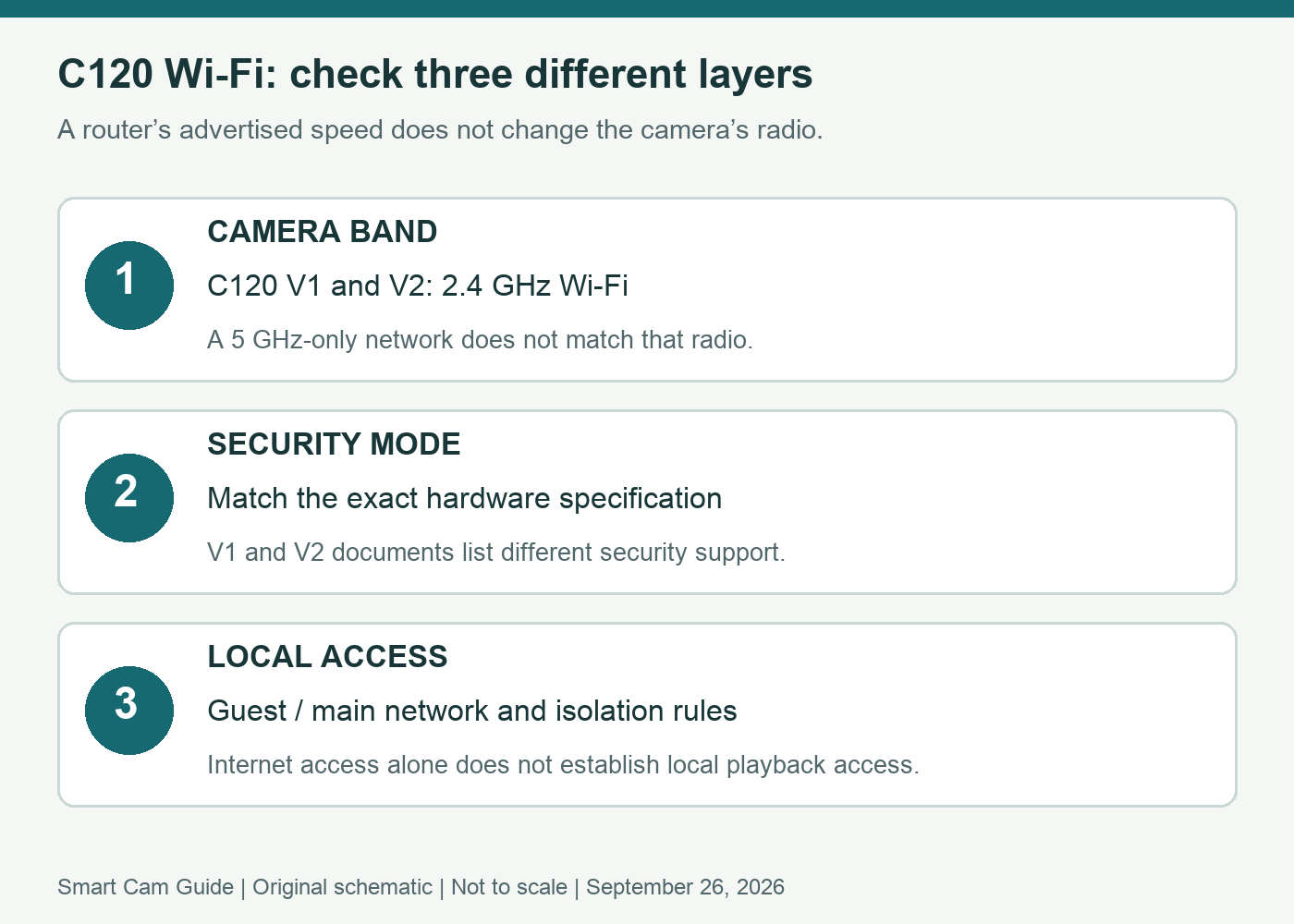
Layer 1: the camera’s radio
The US C120 specifications reviewed for both V1 and V2 list 2.4GHz 802.11b/g/n. A mesh system’s faster radio or wireless backhaul does not change that camera specification. The relevant question is whether a suitable 2.4GHz access point is available where the camera will operate.
A combined network name can serve different radio bands. A phone joining one band is therefore not, by itself, evidence that the camera must support that band too. However, matching a name on two screens does not prove that the devices have the local access needed for a particular playback or discovery function.
Before buying, check the router’s documented 2.4GHz availability and the camera location. Strong service at the sofa does not establish coverage on the far side of a garage. Evaluate the intended position before permanent mounting.
Layer 2: hardware version and security mode
Select V1 or V2 explicitly on the manufacturer’s product page; its default view can open the newer version. The C120 product pages are not identical. The V1 page we reviewed lists WPA/WPA2-PSK; the V2 page also lists WPA3-PSK. Do not treat a specification on the newer hardware page as a promise about a camera already owned or a retail package whose revision has not been confirmed.
Write down the label’s hardware version and compare it with the matching US support page. If the router is configured for a security mode absent from that camera’s documentation, ask the network administrator or manufacturer for a supported arrangement. Making the network open is not an appropriate compatibility fix.
TP-Link’s setup guidance also excludes open and portal-based Wi-Fi. A network that asks guests to complete a web sign-in is a different situation from an ordinary home network with a supported password and security mode.
Layer 3: local access and guest networks
A device having Internet access does not prove it can communicate with another device inside the home. For example, TP-Link documents isolation between Deco guest and main networks in Router mode. AP isolation can also prevent wireless clients communicating with one another.
This distinction matters when diagnosing a feature that requires local access. If the camera works remotely but a local function fails, investigate the network arrangement instead of immediately replacing the camera or assuming the microSD card is defective.
Keep security decisions intentional. Ask whoever manages the network to assess the required access for the specific feature. Do not turn off all isolation or change unrelated firewall settings merely because a general setup checklist mentions connectivity.
A compact compatibility check
- Identify the camera: record C120, hardware revision and firmware.
- Identify the wireless network: confirm 2.4GHz is enabled and available at the actual location.
- Match the security mode: use the documentation for that hardware, not another C120 version.
- Map local access: note whether the phone and camera are on the main network, a guest network or an intentionally isolated segment.
- Follow setup requirements: choose the correct model/version in the app. On iOS, check Tapo’s Local Network permission when device discovery fails.
- Verify the intended outcome: check live viewing and a real saved clip, using the access path you expect to need after installation.
Keep a record of which step failed. “Cannot join the network” and “joins successfully but cannot retrieve a recording” are different symptoms and should not trigger the same purchase decision.
Buy, adjust the plan, or choose another camera?
The C120 is a plausible choice when a compatible 2.4GHz network, suitable power and the required access are available. Pause the purchase if the intended installation is 5GHz-only, depends on a captive portal, or requires an unverified hardware-specific security mode.
If the location needs Ethernet or a specifically documented 5GHz camera, compare products designed for that requirement. A low camera price does not create those capabilities. Conversely, an existing dual-band router is not automatically a reason to reject a 2.4GHz camera.
For what happens after an Internet outage, see our C120 outage and recording guide. For a recorder on the network, use the separate NAS/RTSP compatibility guide. The C120 versus Cam v4 comparison helps with the broader camera choice.
Research scope: US C120 V1/V2 product specifications, TP-Link’s camera setup guide, Deco guest-network guidance and AP-isolation explanation, reviewed September 27, 2026. No router/camera combination was physically tested; network behavior depends on configuration.
Retail check: the linked listing was the white C120, 1-pack. It did not confirm the hardware revision that will ship; confirm that separately if your purchase requires a version-specific feature.