As an Amazon Associate I earn from qualifying purchases.
The Tapo C120 supports device sharing, but “my family can see the camera” is not a complete playback requirement. Decide whether the second person needs live viewing, previously saved video, two-way talk or the ability to manage settings. Then check the sharing system actually available on both phones.
Tapo’s US support pages describe different sharing versions. They should not be combined into one unconditional promise for every C120. If access to recordings is essential, verify it for the exact camera, firmware and apps before relying on that arrangement.
Why current instructions can appear to disagree
TP-Link’s US Device Sharing 1.0 guide lists the C120 as a supported model. It describes invitations to a separate TP-Link account and says invited users can access SD-card video while lacking Tapo Care cloud access and general camera settings.
The separate US Device Sharing 2.0 FAQ describes Live View Only, Basic and Advanced roles. It permits cloud playback for Basic and Advanced users when the owner has an active subscription, and it describes different results when the two phones run different app generations.
That is a real documentation distinction, not proof that a subscription purchase or a factory reset will fix a particular household’s access. We have not tested a C120 against every app and firmware combination. Start with the options actually shown in the owner account and the behavior seen by the invited account.
Send an invitation, then check the displayed role
In the owner app, long-press the camera card and choose Share, or open Me > Device Sharing. Enter the recipient’s own TP-Link account. The recipient accepts the invitation under Devices From Others. Labels and the position of Me vary by app version.
If the owner can choose a role, write down its name before testing. The Sharing 2.0 FAQ says an older recipient app can receive an Advanced or Live View Only invitation but behave as Basic. Update through the normal app store and recheck the displayed permissions before relying on them. Do not share the owner’s password to work around a failed invitation.
Write a household access requirement
A useful requirement names an action and a person. For example: “The second adult must replay yesterday’s locally saved clip while the owner is away.” That is more specific than “supports multiple users,” and it makes an acceptance test possible.
- Occasional check-in: does the person only need to open the current view?
- Reviewing an event: which recording source must they reach—camera microSD, a hub or cloud storage?
- Responding: do they need audio controls or notifications as well as a picture?
- Administration: should they be able to change detection, recording or storage settings?
Use the smallest access level that accomplishes the intended job. A camera may be shared with a trusted family member for a limited purpose; that does not automatically make full configuration access desirable.
Test the invitation with the second person’s account
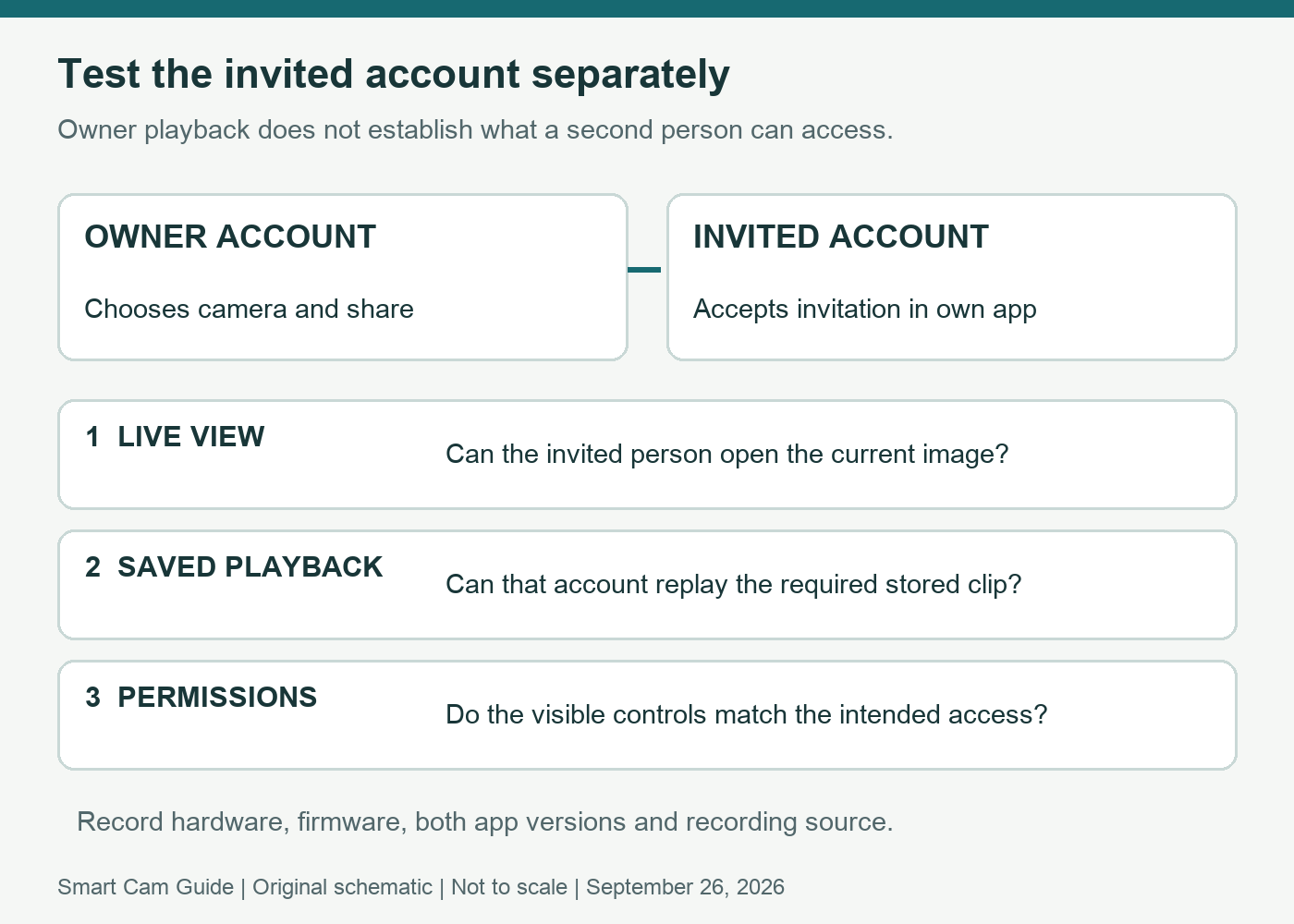
Use the supported invitation process and a separate TP-Link account for the recipient. Have that person accept it in their own app. Testing only from the owner account proves very little about the invitation.
Record the camera hardware label, firmware version and both app versions. Then check these outcomes individually:
- The camera appears in the invited account and its live image opens.
- A newly created, recognizable event is actually saved in the intended storage location.
- The invited person finds and replays that saved event from their account.
- Any required audio or notification behavior works for that person.
- The settings they should not control remain unavailable.
Keep a short pass/fail record with the date and recording source. A thumbnail, notification or working live image does not by itself establish saved-video access. Repeat the relevant check when an app update or storage change alters the household’s setup.
Check storage separately from sharing
First establish that the owner can retrieve the required recording. If the owner cannot find a saved clip either, solve recording and storage before diagnosing the invited user’s permissions. Buying a plan in response to any playback problem risks paying for the wrong remedy.
If the owner can replay the clip but the recipient cannot, compare the actual sharing options and application versions with the appropriate support instructions. Report the precise difference to support. Avoid repeatedly removing devices, resetting the camera or swapping cards before identifying which layer failed.
When the C120 is a sensible candidate
Consider the C120 when its camera features meet your needs and a supported shared-account arrangement can be verified. Keep it conditional if your purchase depends on a specific person managing recordings remotely without owner help. The label “family sharing” should not replace that test.
A household expecting a tightly controlled multi-operator recording system should compare that requirement explicitly before buying several cameras. A successful test with one camera and the actual two accounts is more informative than a generic compatibility badge.
For the rest of the choice, read our C120 versus Wyze Cam v4 comparison. Recording outside the app is covered separately in the C120 NAS and RTSP guide; the internet-outage guide addresses a different question.
Research scope: TP-Link US Device Sharing 1.0 guide and Tapo US Device Sharing 2.0 FAQ, reviewed September 27, 2026. This is a version-aware buying and verification guide, not a tested permission guarantee for a particular shipped camera.
Retail check: the linked listing was the white C120, 1-pack. It did not confirm the hardware revision that will ship; confirm that separately if your purchase requires a version-specific feature.