Research guide by Smart Cam Guide. Reviewed September 28, 2026. Based on manufacturer documentation; no hands-on product testing.
Affiliate disclosure: As an Amazon Associate I earn from qualifying purchases.
Seeing a clip in Wyze Cam v4’s SD Card playback is not the same as keeping a copy elsewhere. If the card is your only recording location, the footage remains tied to that card until you preserve it. Before relying on the camera, decide how you will retrieve an important period and check the saved files.
This guide concentrates on local microSD footage, especially longer periods that you want to retain on a computer. It does not assume that a cloud subscription recorded the same event, that a notification contains a downloadable clip, or that a damaged card can be recovered.
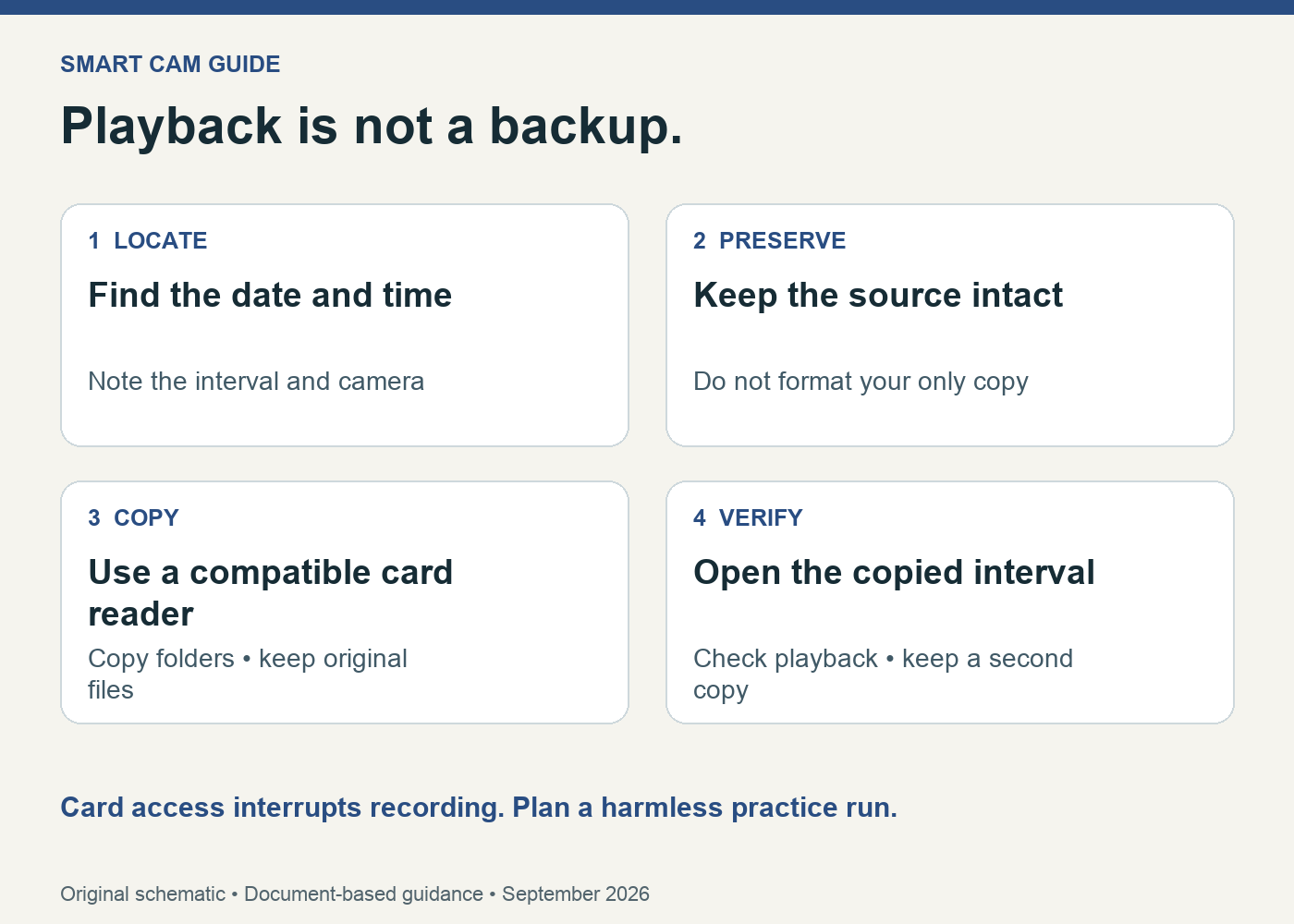
Locate the right recording before changing anything
Wyze’s v4 troubleshooting guide directs owners to the camera’s Live Stream → SD Card view and the date selector below GO LIVE. Confirm the day as well as the time. Also note whether the camera was configured for continuous or events-only recording; a missing interval is not automatically a playback malfunction.
Write down the displayed start and end times and the camera name. Include some time before and after the moment you care about. If you know the displayed clock differs from the actual time, record that difference separately instead of altering or renaming the originals as your only record.
Do not format the card as the first response to missing footage. Formatting is a troubleshooting step in the manufacturer’s guide, but it conflicts with the immediate goal of retaining existing files. Preserve what is available before deciding whether to repair or reuse the card.
Choose a copy you can actually verify
For an app export, use the saving control that is actually available in your current playback view and check the resulting file in the phone’s storage. A button in a cloud Event view is not proof that the same export exists in SD Card playback. We have not verified a universal one-tap, multi-hour v4 SD export workflow and would not buy the camera on that assumption.
For direct access, Wyze’s v4 audio support instructions explicitly describe checking card recordings on a computer. That provides a useful route when you can physically reach the camera and have a compatible card reader. It does not help if the camera and its only card have already been taken.
Use a preservation-first computer workflow
- Arrange a safe interruption. Stop using the camera and disconnect its power before physically removing the card. Do not pull a card during recording. Local recording will be unavailable while the card or camera is out of service.
- Read, then copy. Put the card in a compatible reader. If the computer asks to format or repair it, cancel while existing footage is the priority. Copy the available recording folders into a newly named folder on the computer; do not move the only files off the card.
- Keep the originals intact. Preserve filenames and folder structure. Create edited or joined versions as separate copies if you need a convenient excerpt.
- Check the relevant interval. Open the copied files, including the first and last part of the period. Check visible time, continuity and whether expected audio is present. A folder containing files is not enough.
- Keep another copy. Put the preserved folder in a separate trusted storage location. Confirm it opens before returning the original card to routine recording.
This is a conservative file-handling workflow, not a forensic recovery service or a claim about legal admissibility. If the card is unreadable and the footage is important, stop experimenting on the only copy and seek appropriate recovery help.
Test retrieval when nothing important has happened
Record an agreed harmless activity, note the time, and try the exact route you expect to use later. Keep a small checklist: can you find it, obtain an independent copy, play it, and restore normal recording afterward? An app screenshot of a timeline verifies less than a playable file.
Test from the account that will actually retrieve the footage. Also consider physical access: a camera mounted high outside may be awkward to reach safely every time you want a long recording. A local-card camera is convenient only if the retrieval method fits your routine.
When Wyze Cam v4 fits this job
It is a reasonable shortlist for a powered location where local recording, access to the card and occasional manual copying are acceptable. The linked offer is the white one-pack Wyze Cam v4, not Wyze Cam Outdoor or a Pan model. It is not a self-contained battery camera.
Do not confuse no subscription required for a local recording route with every analytics or cloud feature being free. Card-capacity statements also differ between the retail listing and Wyze’s technical documents, so we do not promise a fixed number of recording days or base this recommendation on the largest advertised card.
If the only copy must survive camera theft, include a separately verified off-camera recording route in your system choice. Do not assume a v4 card provides that. For a different camera with documented recorder protocols, read our Tapo C120 NAS and RTSP guide and verify recorder compatibility before buying.
For routine setup and feature limits, see Wyze v4 without a subscription. For the recording card itself, use our high-endurance microSD selection guide. These decisions support retention, but neither replaces the retrieval check.
Research basis: Wyze Cam v4 MicroSD Card Troubleshooting, v4 audio troubleshooting and v4 Tech Specs, checked September 28, 2026. File-preservation steps are editorial recommendations; we have not performed a physical-camera export or recovery test.