By Smart Cam Guide
As an Amazon Associate I earn from qualifying purchases. Purchases through our links may earn us a commission at no extra cost to you.
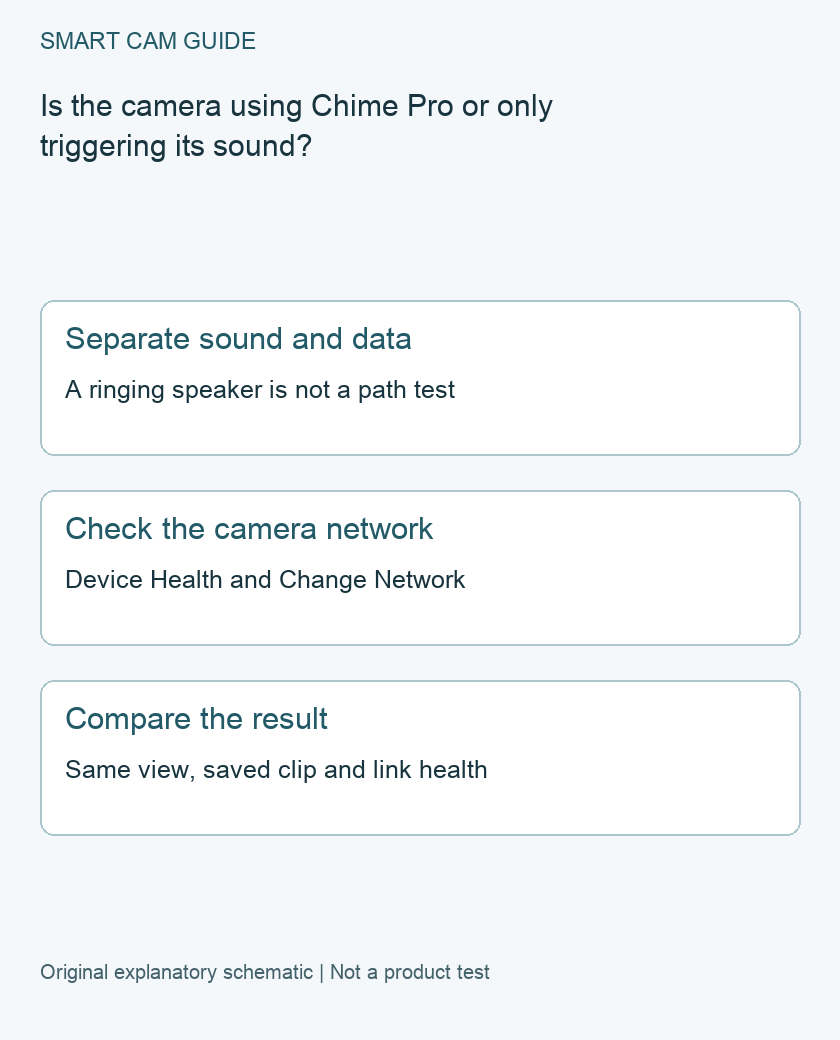
A Ring Chime Pro sounding an alert does not establish that your camera is using its network. Check the camera’s own connection in the Ring app, then evaluate both the router-to-Chime Pro and Chime Pro-to-camera paths. Speaker association and Wi-Fi extension are separate setup questions.
Identify the actual accessory
Record the accessory’s full name and generation and the camera model. Ring’s current setup guide covers several Chime products but specifically describes Chime Pro 2nd Gen as the Wi-Fi extender in this procedure. Do not assume that every product with Chime in its name performs that role.
If considering secondhand hardware, check Ring’s current security-support information for the exact generation. A familiar case or a listing that omits the generation is an unresolved identity issue, not evidence that it matches the setup instructions. We recommend no particular used listing.
Check the camera’s own network selection
Ring’s US guide provides a separate route for joining an existing device to Chime Pro: select the camera, open Device Health and use the network-change controls to connect to Chime Pro. It also provides that choice during setup. Follow the current in-app prompts for your device rather than treating a successful speaker sound test as completion.
Before changing the path, record the camera’s current state and a representative connection complaint. Preserve any needed footage. If someone else manages the home network, coordinate the change so the household knows that a short interruption may occur. Do not reset every Ring device to test one camera.
Think of the route as two links
Write down where the router, accessory and camera are located. The accessory needs a usable upstream connection as well as a useful position relative to the camera. A location beside the camera may be convenient for an outlet but can leave the first leg unchanged.
Ring’s setup guide suggests placing Chime Pro 2nd Gen halfway between the router and the farthest Ring device. Treat that as a starting point for checking the actual home, not a guaranteed distance or throughput specification. Walls, equipment positions and available safe indoor outlets differ.
Use a small before-and-after record
- Record the exact camera and accessory, their locations and the camera’s reported network state.
- Follow the supported network-selection procedure for that camera.
- Keep the camera view and ordinary test conditions unchanged.
- Check Live View and a new saved event separately, where recording is configured and available.
- Record the result, including a failure to join or an unchanged symptom.
A working Live View does not establish that a motion event was saved. Equally, a single saved event cannot measure long-term reliability. Use the household’s actual recording plan and permissions, and make an ordinary, consenting test rather than a staged incident.
When this is not the right purchase
Do not buy a Chime Pro simply because the camera has no electrical power, an unsupported network configuration or no recording storage. A radio accessory does not resolve those separate requirements. If multiple household devices have connection problems, investigate the wider network instead of assuming that a camera-specific change is enough.
This guide follows Ring’s supported Ring-device connection route. It does not establish Chime Pro as a general extender for Blink, Tapo, computers or other equipment. Use the compatibility information for each device rather than extending this procedure across brands.
Escalate with an identifiable failing step
Tell support whether the accessory joined the router, whether the camera joined its network and which playback or saved-event check failed. Include model, generation, app version and times. Keep the original connection available if a controlled rollback is needed under the product instructions. We have not benchmarked range, speed or packet loss, so no performance gain is promised.
Buying option: match the exact product
Compare Chime Pro only when you need its Ring-specific chime and network-extension role. It is not a general-purpose Wi-Fi repeater for other brands. First check the existing camera connection and placement; a working chime sound is not proof that the camera uses its extended network.
Ring Chime Pro (2nd Generation)
Check Ring Chime Pro (2nd Generation) details on Amazon
Product link and model mapping reviewed November 4, 2026. Check the selected model, package, seller and current offer before ordering. No live price, stock or delivery is asserted.
Related guides
- Changing a Ring Camera Wi-Fi Network: Reconnect and Verify Before Resetting
- Why Your Security Camera Keeps Going Offline (And How to Fix It in 2026)
- Security Cameras During a Power Outage: What Needs Backup Power?
Sources and research scope
Reviewed October 30, 2026. Ring Set up Chime, Chime Plus and Chime Pro, US support; Ring software security update information. This is document-based guidance by Smart Cam Guide. The decision worksheet and proposed owner checks are editorial recommendations, not hands-on test results. Exact model, hardware revision and current instructions govern where details differ.