By Smart Cam Guide
As an Amazon Associate I earn from qualifying purchases. This maintenance guide does not select a replacement product or include a shopping button.
If a Wyze camera’s videos or events show the wrong time, check the phone or tablet’s date and time before using the camera’s Sync control, then verify a new recording. Wyze documents Settings → Advanced Settings → Sync for most Wyze Cam and Cam Pan devices. A wrong timestamp does not, by itself, prove that recording failed or that a subscription is required.
First identify which time is wrong: the visible clock in the picture, the playback position, an event label or the time a phone notification arrived. Correcting one does not establish that the others now agree. This guide is a practical comparison workflow, not a test of every model or app version.
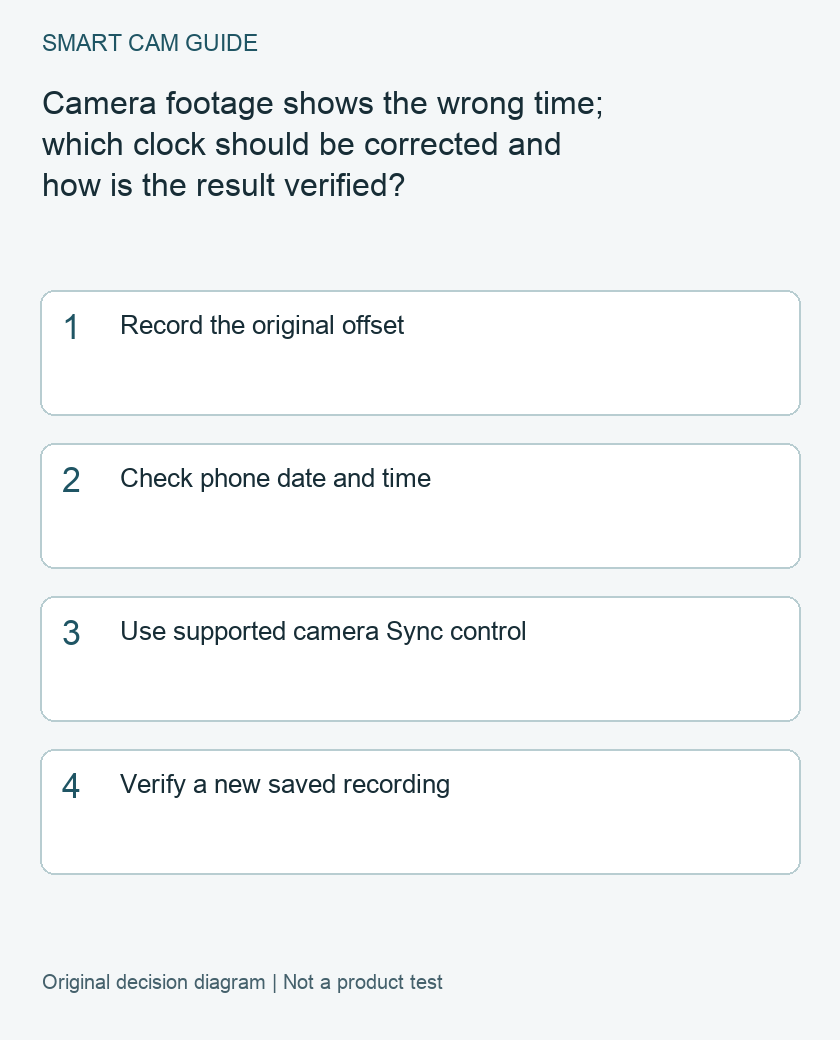
Write down the offset before changing anything
Use a trusted clock and record the actual date, time and time zone alongside the camera’s displayed time. Include the date when the difference crosses midnight. Write an example such as “actual 8:15 p.m.; camera 7:15 p.m.” instead of only saying “one hour wrong.”
Also note whether the phone is at the camera’s location or you are viewing remotely from another time zone. The intended reference must be clear before syncing to a mobile device. A viewer’s local time and the time where the camera is installed need not be the same.
If you need footage from an earlier incident, preserve the available files and note their apparent offset before experimenting. Do not rename or edit the only copy to make its clock appear correct. Our separate preservation guide covers copying; this guide concentrates on restoring and checking time for future recordings.
Check the device used for synchronization
Wyze says Sync adjusts camera time to the phone or tablet’s time and advises checking that mobile device’s Date & Time settings if synchronization remains wrong. Confirm its displayed date and time zone as well as the hour. Do not intentionally set the whole phone to an incorrect clock just to make one app label look right.
In the documented app path, open the camera, select Settings, then Advanced Settings and Sync. Wyze qualifies this as working on most Cam and Cam Pan devices. It separately warns that notification times may not function properly in zones using half-hour or quarter-hour UTC offsets. A model or zone exception should remain explicit rather than being called a universal fix.
Verify three observations with one harmless event
With the people involved informed, make an ordinary brief movement in the camera’s view and note the trusted time. Check the visible live clock, then find the new recording through the actual storage route you use. Finally, compare any notification that arrives. You are checking the clocks and saved result, not measuring a guaranteed alert latency.
- Live picture clock: does the new displayed time match the intended reference?
- Saved clip: can you find and play the new event at the expected date and time?
- Phone notification: is the displayed time consistent, or is only this layer still wrong?
Keep one note per layer. If the camera overlay is corrected but the notification still differs, report that narrower symptom. If the new clip cannot be found, widen the search around both the old and corrected offsets before concluding there was no recording.
Do not use an old clip as the only acceptance test
Changing a setting now is not evidence that previously saved timestamps have been rewritten. Keep old samples separate from the new check. A playback timeline can also make a recording appear absent when you are looking at the wrong date; check the day and the visible time inside the file, not just the slider position.
For continuous local recording, inspect a short interval around the test movement rather than relying only on an Event-feed entry. For cloud events, confirm you are checking the service that actually recorded that clip. Do not format a card or purchase a plan as the first reaction to a clock mismatch.
If the clocks still disagree
Prepare the camera model, firmware and app versions, mobile-device time-zone setting, intended camera reference, original offset and result after Sync. Include whether the remaining mismatch appears in new live video, new recordings, the timeline or notifications. That record lets support investigate the correct layer.
Check again after a time-zone or seasonal clock change rather than assuming an earlier successful check proves future behavior. This is a maintenance checkpoint, not a claim that every Wyze device automatically handles those changes the same way. No replacement camera or subscription is recommended solely to correct an unverified clock issue.
Related guides
- Save Wyze Cam v4 microSD Footage Before It Is Lost
- Wyze Cam v4 Without a Subscription: SD Recording vs Cloud Events
- High-Endurance microSD for Security Cameras: Capacity Is Not Lifespan
Research basis and limits
Document-based guide by Smart Cam Guide, checked October 23, 2026. Manufacturer references: Wyze The timestamp on my recordings is incorrect, updated October6 2026. The comparison notes and decision sequence are editorial recommendations. We have not performed this procedure on a physical unit, measured reliability or inspected your installation. Follow the exact model instructions where the procedure differs.
If footage from two cameras already has different time labels, use our shared-event clip alignment worksheet to compare the originals.