By Smart Cam Guide
As an Amazon Associate I earn from qualifying purchases. Purchases through our links may earn us a commission at no extra cost to you.
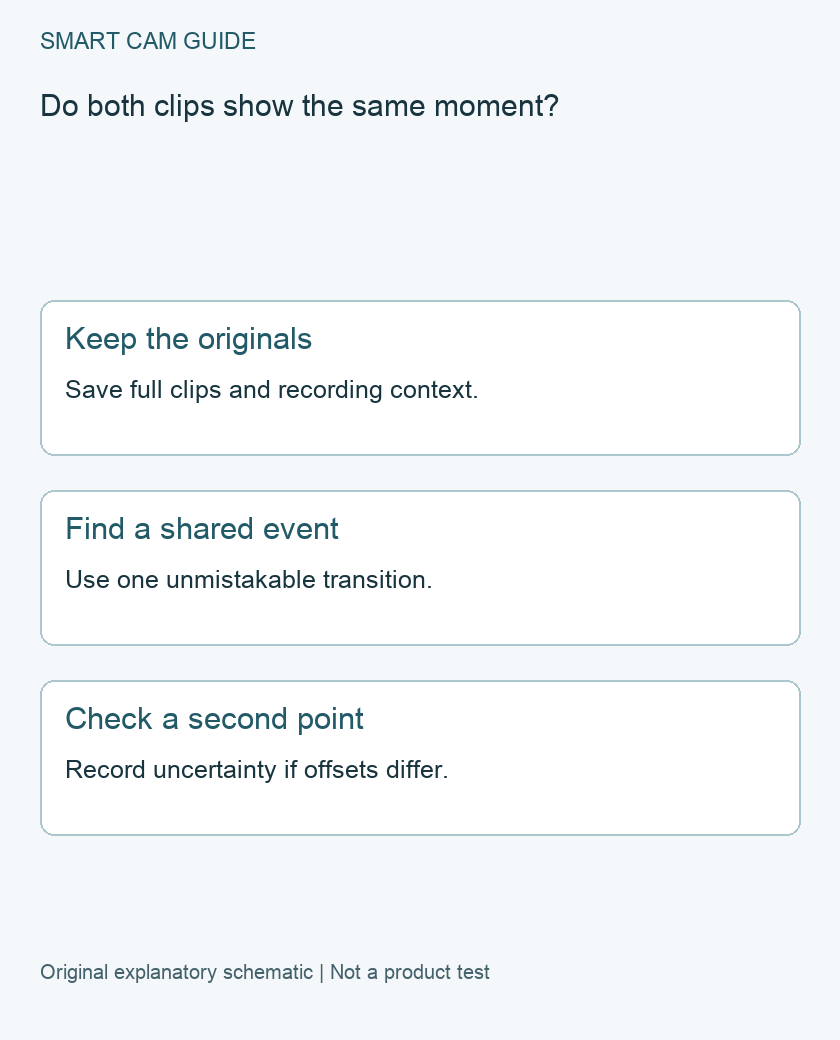
When two camera clocks disagree, align copies by finding an unmistakable event visible in both recordings and check the alignment against a second event. A person crossing two different doorways provides an order of events, but the crossings are not simultaneous. Look for the same gate closing or the same light switching on, if both views actually capture it.
Separate the clock label from the playback position
Write down what each camera displays, which date and time zone the app is using, and what portion of the clip you have exported. A phone download date is when a copy was created or transferred. It does not establish when the camera captured the scene. In supported Tapo playback, for example, selecting the recording date and storage source is part of finding the recording. Check those choices before concluding that a clock differs.
Keep the original exports and record the camera label and storage source. If the video lacks a visible timestamp, you can still compare the elapsed position in each player. Note the basis for each number so somebody else can repeat the check.
Calculate the offset from the same visible transition
Suppose a porch light visibly switches on at 00:18 in clip A and 00:11 in clip B. To line up those moments, start B seven seconds after A in a comparison timeline. This aligns the shared event in the two copies. It does not determine the correct wall-clock time. Look for a second shared transition later in both clips. If it falls at 00:42 in A and 00:35 in B, it supports the same seven-second difference over that interval.
If the second pair gives a different difference, check for a skipped portion, a cut between event clips, an ambiguous match or a changed clock. Note the uncertainty instead of applying one offset to the entire night. A slowly changing scene can be difficult to match precisely even if the two clips overlap.
Handle nonoverlapping views honestly
If only one camera sees each event, leave the exact alignment unresolved. You can describe the visible sequence and the time labels each device shows. For future checks, record a harmless visible marker in a shared part of your own camera coverage, such as turning on a light you control while both cameras are recording. Then verify the saved clips rather than relying on the live preview. A short test only describes that interval.
Keep a comparison note with the source filenames, the two anchor events, offsets and any gaps. Preserve the originals before changing device clocks or trimming copies. A new camera is rarely the first answer to an unexplained timestamp mismatch. First establish whether the requirement is better clock configuration, more overlapping coverage or a recording mode that preserves the required interval.
Related guides
- Wyze Camera Time Is Wrong: Sync the Clock and Check New Recordings
- Tapo microSD Videos Will Not Play on a Computer: Empty Files, Encryption or Export?
- Ring Snapshot Capture vs Video: What the Timeline Actually Saves
Sources and research scope
Reviewed November 11, 2026. TP-Link playback and date selection documentation; Tapo video download documentation. This is document-based guidance by Smart Cam Guide. The decision worksheet and proposed owner checks are editorial recommendations, not hands-on test results. Exact model, hardware revision and current instructions govern where details differ.