By Smart Cam Guide
As an Amazon Associate I earn from qualifying purchases. Purchases through our links may earn us a commission at no extra cost to you.
If you hear the visitor through Ring but they cannot hear you, start with the outgoing phone-microphone path rather than assuming the camera needs replacement. Live View’s microphone and speaker controls have different jobs. Record which direction fails before changing settings.
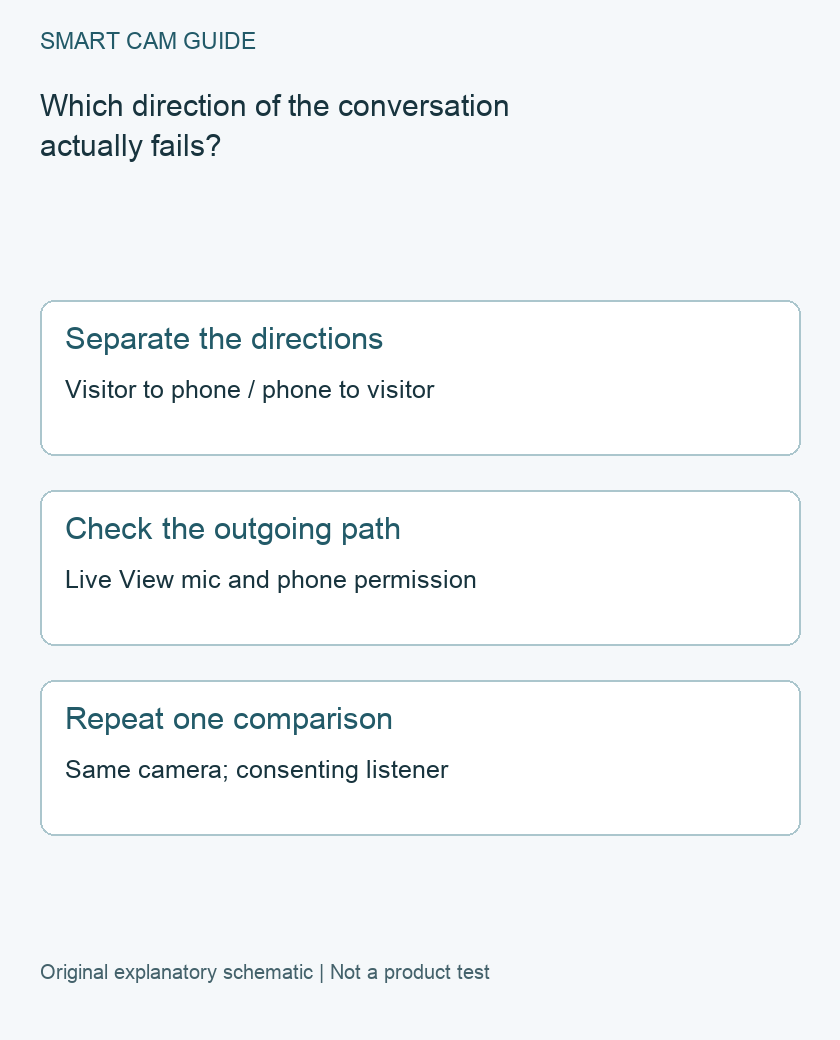
Make a two-direction observation
With a consenting helper at the camera and the household aware of the test, ask whether they can hear one short spoken phrase. Separately record whether you hear their reply on the phone. Name the two results: visitor-to-phone and phone-to-visitor.
A moving live image is not an audio test. Hearing an old saved clip is not proof that the microphone on this phone can transmit during a new conversation. Keep those observations separate in your support note.
Check the Live View controls
Ring’s Live View guidance distinguishes the microphone button used to speak from the speaker control used for incoming sound. Its text describes the microphone as initially muted, so inspect the actual control state instead of assuming the conversation starts as soon as the picture opens.
Use the current app’s controls for the selected camera. Do not tap the siren, alter recording settings or change several devices to test a talk button. If the control looks different from a support image, record the app version and camera model rather than copying a different interface blindly.
Check permission on the phone that is speaking
Ring’s audio troubleshooting says the app must have permission to use the phone or tablet microphone. Check that permission for the device you are actually using. Access granted on another household member’s phone does not establish the setting on yours.
If a privacy choice intentionally prevents microphone use, agree on the intended behavior before changing it. Granting a permission for a test should not become an unexamined permanent household change. This page does not ask you to share account credentials or disable account protections.
Keep camera-side audio privacy visible
Ring also lists Audio Streaming and Recording under the camera’s Privacy Settings in its troubleshooting path. Inspect the existing state and understand the privacy effect before any agreed temporary change. Our privacy-cover guide explains why a physical cover and notification settings are separate controls.
If end-to-end encryption is enabled, follow the existing authorized-device arrangement. Do not turn off encryption simply to make a troubleshooting screen look different. Use the related encryption guide and manufacturer support if access, rather than the microphone, is the actual problem.
Compare one authorized viewing device
Ring suggests trying another device with the app when investigating sound problems. If a household device is already properly authorized, repeat the same short conversation on it. Keep the camera, helper and test location unchanged, and record the result in both directions.
- One phone fails, another works: retain the per-phone control, permission and app-version differences for investigation.
- Both fail in the same direction: report that result without declaring which component is broken.
- Both directions are intermittent: include the camera’s connection state and exact test times.
One comparison narrows the next question; it does not prove a hardware diagnosis. Do not create another account, reset every camera or purchase a subscription merely to perform it.
Escalate with a compact record
Send support the camera model, app and phone versions, test time, both audio directions, Live View control state and microphone-permission result. Include whether video stayed connected. If recording is configured and appropriate, preserve a relevant event separately; a recorded clip and a live conversation remain different checks.
Restore any temporary audio/privacy choice to the household’s intended configuration. We have not measured audio quality, latency or echo cancellation, and this guide promises no hardware repair from a button change. It is a document-based path to a more identifiable support request.
Buying option: match the exact product
If you need a new indoor camera with two-way talk, compare this second-generation option after checking its power, privacy cover and recording plan. Microphone permissions or a muted visitor device do not justify replacing an otherwise working camera. This is not an outdoor model.
Ring Indoor Cam (2nd Gen), white
Check Ring Indoor Cam (2nd Gen), white details on Amazon
Product link and model mapping reviewed November 4, 2026. Check the selected model, package, seller and current offer before ordering. No live price, stock or delivery is asserted.
Related guides
- Ring Live View Stops at 10 or 30 Minutes: Which Mode Do You Need?
- Ring Indoor Cam Privacy Cover: Does It Turn Off Audio Too?
- Ring End-to-End Encryption: Check Alexa, Sharing and Recovery
Sources and research scope
Reviewed October 31, 2026. Ring Fixing audio and video issues, US support; Ring Live View for doorbells and cameras, US support. This is document-based guidance by Smart Cam Guide. The decision worksheet and proposed owner checks are editorial recommendations, not hands-on test results. Exact model, hardware revision and current instructions govern where details differ.