By Smart Cam Guide
As an Amazon Associate I earn from qualifying purchases. Purchases through our links may earn us a commission at no extra cost to you.
Disarmed is a configurable Ring Mode, not a universal promise that every camera is off. Check whether the camera uses Modes and inspect that device’s actions for Disarmed. Distinguish a new recording from an old saved clip, a live view and a notification before deciding the setting has failed.
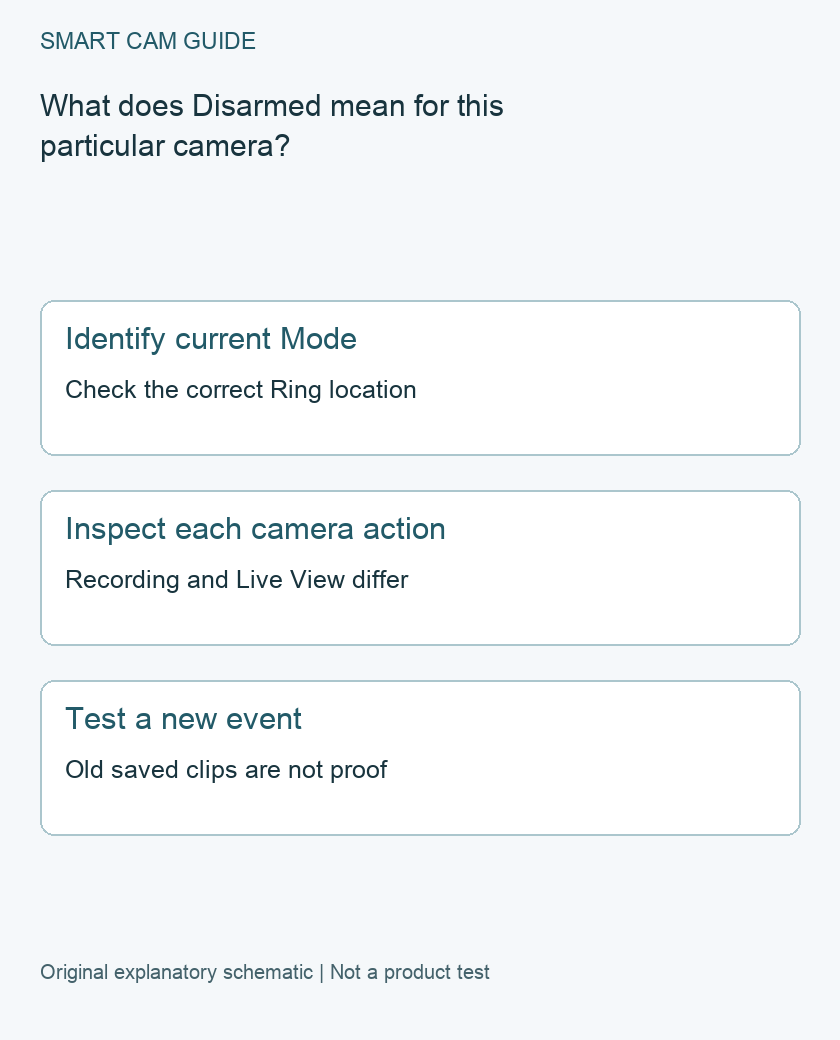
Check the camera, not just the mode badge
Ring lets users configure camera recording and Live View behavior for Disarmed, Home and Away. Modes can be enabled or disabled for doorbells and cameras, and access depends on the eligible features and subscription. The behavior of Ring Alarm sensors is not a substitute for checking a camera’s own actions.
For example, a household may intentionally keep an entrance camera recording while disarming other devices. Another household may want indoor coverage disabled when someone is home. The badge alone cannot tell a visitor which choice was saved. Write down the intended behavior for each camera before changing the configuration.
Audit one device at a time
- Confirm the correct Ring location and camera name.
- Open that device’s settings and inspect whether Modes is enabled for it.
- Open Mode Settings and choose the mode you intend to audit.
- Review the available device actions, then save any intended change.
- Repeat for the next device rather than assuming the first camera’s choices apply to all.
Ring’s current camera action list includes Recording, Motion Warning and Live View. Check what the actual device and app expose rather than expecting every older screen label to remain identical. If Mode Settings is missing, establish feature eligibility and account access before purchasing another camera or repeatedly reinstalling the app.
Keep four outcomes separate
A notification: a phone alert says something about delivery to that phone; it does not by itself prove what was stored. A saved clip: compare its capture time with the time the mode change was saved. A live image: test it separately because Live View is its own action. An old event: seeing it in history does not establish that a new event was recorded after the change.
Our Motion Snooze guide covers suppressing alerts without assuming recording stops. This page addresses a different control: which actions a device follows in each Mode. Using Snooze as a privacy-off switch would leave the actual capture question unanswered.
Use a controlled future-event check
Do this when a brief coverage change is acceptable. Note the time, current Mode, exact camera and saved settings. Have a consenting household member make a harmless test movement within that camera’s intended view. Then inspect whether a new event from that time appears and whether it can be played. Test Live View separately if that is part of your requirement.
Repeat the check after deliberately selecting another configured Mode, keeping the same camera and test location. Preserve the result and restore the intended coverage when done. A missing event in one small test is not proof of universal privacy or a guarantee about all integrations and recording paths.
Consider who can change the mode
Ring provides a setting for whether Shared Users can change Modes. Decide who needs that control and record the choice. If the observed mode later differs from your test, review the household’s intended use and available mode-changing arrangements before calling it a hardware fault. Do not remove someone else’s access without the account owner’s decision.
If new recordings continue contrary to the saved device action, retain the app version, device identity, mode, action settings, change time and an example event time for support. Avoid deleting history or resetting the camera while those details are still needed.
Choose a privacy boundary you can verify
For a room where people expect privacy, agree on the actual required behavior: no alerts, no recordings, no live access, or no camera operation. These are different requirements. If app settings do not establish the required boundary, use the device’s documented privacy or power procedure and account for lost coverage. This article does not claim that a mode badge is a physical camera disconnect.
Related guides
- Does Ring Motion Snooze Stop Recording? Alerts vs Capture
- Ring Linked Events: Why a Camera Records Without Local Motion
- Ring Indoor Cam Sharing: Limited, Standard or Advanced Access?
Sources and research scope
Reviewed October 25, 2026. Ring Using Device Modes for Ring Alarm, Cameras, and Doorbells. This is document-based guidance by Smart Cam Guide. The decision worksheet and proposed owner checks are editorial recommendations, not hands-on test results. Exact model, hardware revision and current instructions govern where details differ.
For an unexpected spoken message, use the Motion Warning versus Motion Alerts checklist. Camera announcements, phone notifications and recorded video need separate checks, including the exact device and power arrangement.