By Smart Cam Guide
As an Amazon Associate I earn from qualifying purchases. Purchases through our links may earn us a commission at no extra cost to you.
To verify a Blink Clip Backup, check backup status, safely eject the storage device, and open the copied recording on a computer. A cloud clip in the app is not proof that a backup file exists, and a file copied to another drive is not verified until you check its content.
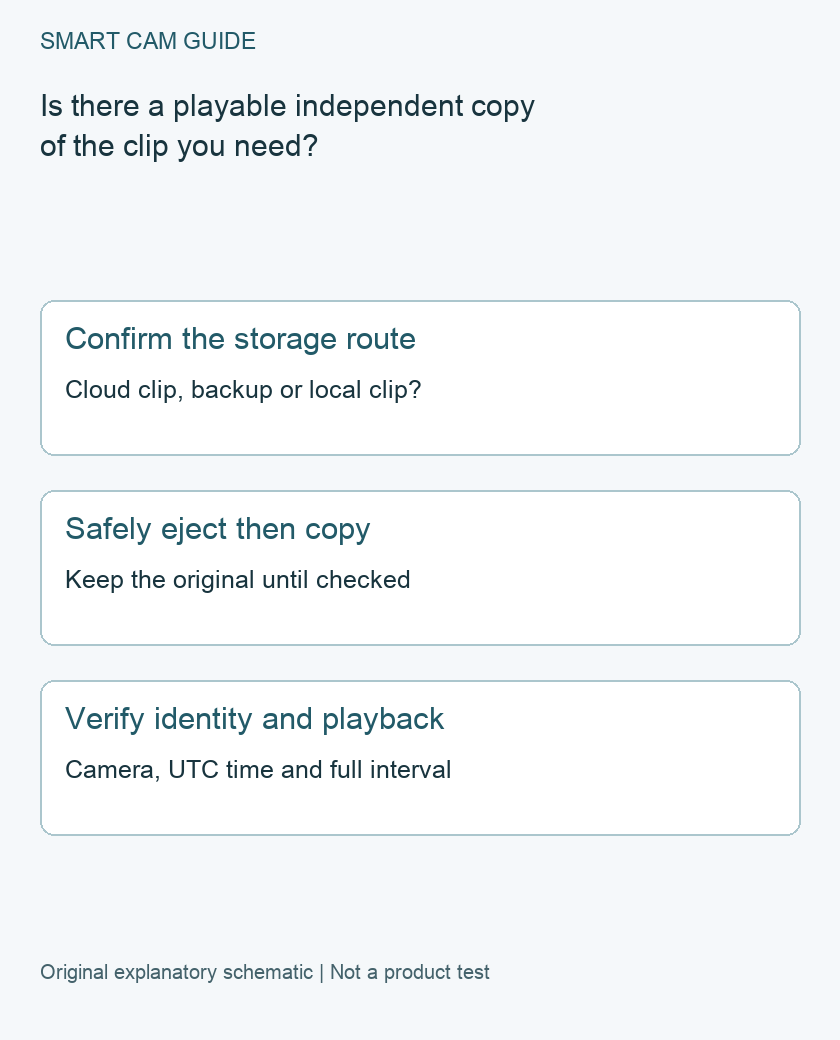
Identify the storage route before removing anything
Blink distinguishes Clip Backup from direct Local Storage. With an eligible subscription or trial, supported cloud clips can be backed up once daily to USB on Sync Module 2 or microSD on Sync Module XR. Core does not provide these storage paths. Backups are viewed on a computer rather than directly in the app.
Record the module, camera and storage route you are actually using. A missing recent backup may reflect the daily backup timing, a reported backup failure or an incompatible setup; it does not automatically mean the original cloud clip has disappeared. Check the backup status and included cameras before deciding which part failed.
Prepare a retrieval note
Write down the camera name, the event time you are trying to find and the local time zone. If the event crossed midnight, note both possible calendar dates when translating the time. Keep a note of what the app shows, but do not rename or delete original files merely to make the folder dates match your local clock.
Decide where the independent copy will be saved and make sure that destination has enough space. If several cameras recorded the event, list each one separately. This avoids finding one plausible filename and assuming it covers the whole incident.
Safely eject before handling the media
Use the Sync Module’s Local Storage settings to safely eject the media. For Sync Module 2, follow the confirmed disconnected state before removing its USB drive. Use the model’s handling instructions for XR microSD. Do not pull media while relying on it to save another event.
Removing the media interrupts its storage role. Choose a suitable time and return it promptly when the retrieval is complete; the camera’s ability to show a live image does not mean the removed storage can still receive files. Do not format the device as an export step.
Find and copy the actual recording
On the computer, Blink documents Clip Backups in a blink_backup folder with year/month subfolders. Its backup filenames include time, camera name and camera identifier; the timestamps are UTC. Keep that time basis in your retrieval note rather than interpreting the filename as your local time.
Copy the relevant files to a separate destination while retaining the originals. If the device contains direct local recordings rather than backups, use Blink’s instructions for that storage route; do not assume every file belongs in the same backup folder. A computer that asks to format unreadable media has not offered a safe way to preserve it.
Check the copy before you call retrieval complete
- Open the copied file from the destination, not just from the removable media.
- Confirm the camera view, date/time relationship and required part of the event.
- Play through the needed interval; a thumbnail does not establish a complete playable clip.
- Record the original filename and keep the retrieval note with the copy.
For an important incident, consider a second independent copy after checking the first. This is a preservation workflow, not a claim of forensic authenticity or proof that every moment was captured.
Return and verify storage
Safely disconnect from the computer, return the media to the correct module and confirm its connected state in the app. Check available capacity and the subsequent expected storage result. Removing media and making a copy does not repair a failing drive or establish that the next backup will succeed.
If a file is absent, preserve the app event time, backup status, camera inclusion and storage details for support. Avoid repeated formatting or deleting material while the only copy remains uncertain. No new subscription, drive or camera is recommended solely because one export attempt is unclear.
Buying option: match the exact product
If you are planning a compatible Blink USB local-storage system, compare Sync Module 2 rather than assuming Sync Module Core has a USB recording path. A compatible USB drive is separate. This module is not a computer backup drive and cannot recover a deleted cloud clip; match the camera and recording arrangement before ordering.
Blink Add-On Sync Module 2
Check Blink Add-On Sync Module 2 details on Amazon
Product link and model mapping reviewed November 4, 2026. Check the selected model, package, seller and current offer before ordering. No live price, stock or delivery is asserted.
Related guides
- Blink Mini 2K+ Local Storage: Sync Module 2, XR or Core?
- Blink Outdoor 4 Add-on or Kit? Check the Sync Module
- Blink XR vs XR+: Which Extended-Range System Should You Buy? (2026)
Sources and research scope
Reviewed October 26, 2026. Blink How Do I View Clip Backups?; Blink Local Storage with Sync Module; Blink troubleshooting motion clips saved locally or in the cloud. This is document-based guidance by Smart Cam Guide. The decision worksheet and proposed owner checks are editorial recommendations, not hands-on test results. Exact model, hardware revision and current instructions govern where details differ.