As an Amazon Associate I earn from qualifying purchases. This page contains affiliate shopping links.
A configured Tapo C120 can keep recording to a working microSD card during an internet outage, provided the camera still has power and recording is enabled. That does not mean you can see it from another location or receive cloud-dependent notifications. An internet outage, a Wi-Fi outage and a camera power outage are three different failures.
The C120 is a useful option for a powered home that needs local footage when its internet service drops. It is not a cellular camera, and buying it will not give a property remote alerts when the property’s only internet connection has failed.
No internet at the building at all is a different purchase decision. Before buying a camera for that situation, use our powered outbuilding connection guide to compare extending the house network, cellular service and local-only recording. This C120 guide deals with an interruption to an already configured system, not a promise of remote access without an internet path.
Check Tapo C120, white 1-pack on Amazon
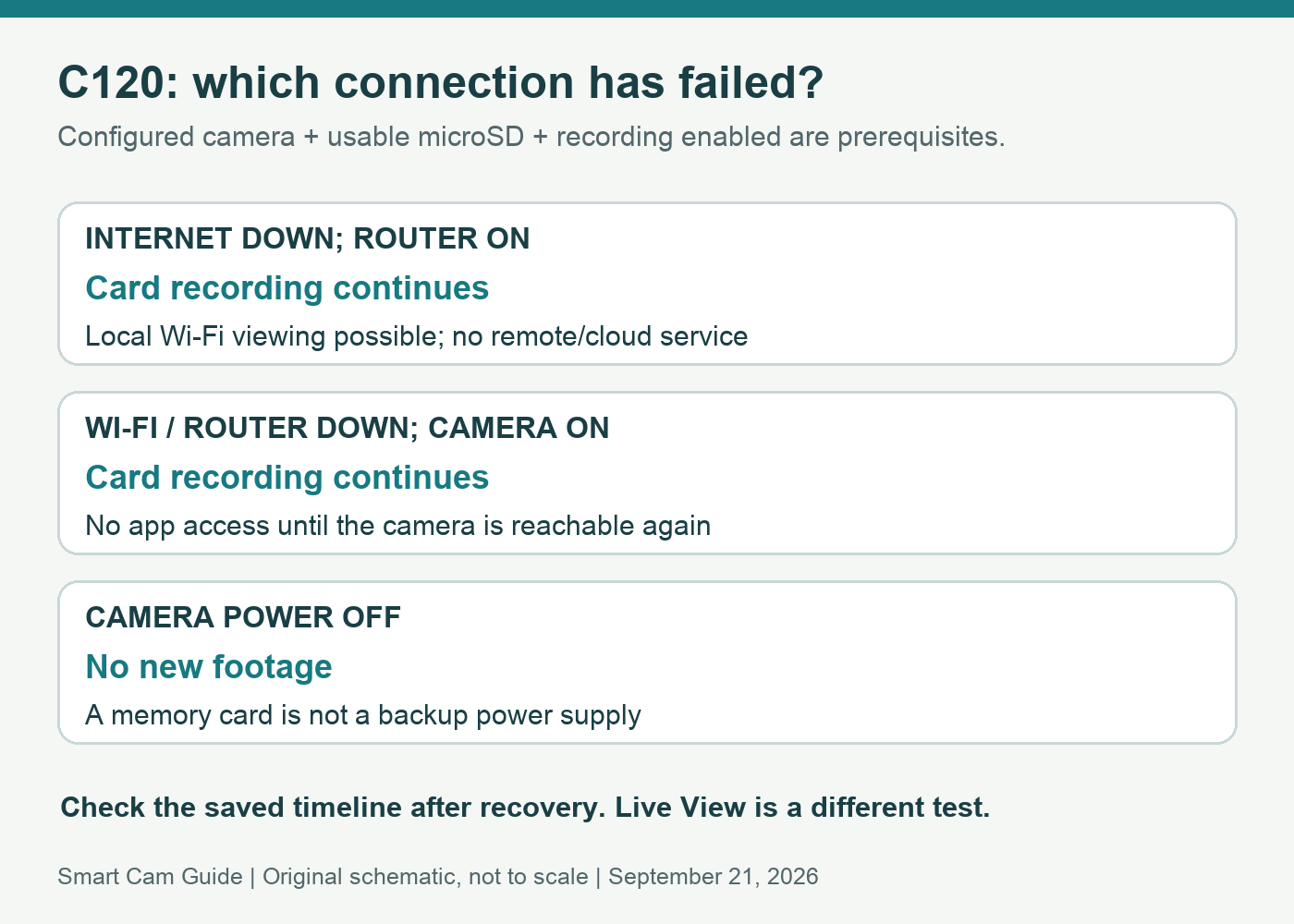
What works in each outage?
| Situation | Local recording | Viewing and alerts |
|---|---|---|
| Internet service fails; router and camera keep running | Configured microSD recording continues | TP-Link describes local live view/playback with phone and camera on the same Wi-Fi; remote/cloud services are unavailable |
| Router or Wi-Fi link fails; camera remains powered | Configured microSD recording continues according to TP-Link’s FAQ | The app cannot reach the disconnected camera for live view or playback; notifications are unavailable |
| Camera loses electrical power | No new recording while the camera has no power | No live view or alerts from that camera |
| No usable microSD card, and internet is down | No local card recording to rely on | A cloud subscription does not create an offline recording path |
These are conditional product behaviors from the current manufacturer documentation. We have not performed an outage test on a physical C120. The acceptance exercise below is a way to verify your own installation before relying on it.
Set up the recording path while the connection works
Initial configuration needs a network connection and the Tapo setup process. Do not take an unopened camera to an offline site and assume inserting a card completes installation.
The current US C120 specifications list microSD support up to 512 GB. The card is sold separately. Capacity is only one buying condition: choose a card suitable for repeated video recording, confirm the camera recognizes it and set the intended recording schedule. Our high-endurance microSD guide explains why storage capacity is not a lifespan rating.
In the app, distinguish a continuous recording schedule from detection-only recording. Continuous recording is the relevant choice if your question is “what happened between alerts?” A detection-only schedule is expected to have gaps when no qualifying event is recorded. Neither mode works if recording is disabled or Privacy Mode is active.
Also decide what happens when the card fills. If loop recording is enabled, older footage can be overwritten. “The camera was recording” is not the same as “the clip from last week is still on the card.” Verify your actual retention period rather than assuming a universal number of days for 512 GB.
Internet failure: local access needs a working local network
If the router still provides Wi-Fi but loses its upstream internet service, a phone on that same local network is in a different position from a phone using cellular data. TP-Link’s FAQ describes local live view and playback on the shared wireless network without internet.
Test that exact arrangement. A phone may automatically switch to mobile data when Wi-Fi has no internet, and a guest network may isolate devices from each other. A camera showing “offline” from work does not by itself prove that the microSD card stopped recording at home.
Do not treat local access as a remote-access workaround. If you need a notification while away during an ISP outage, the network needs another suitable connection. That is an internet-resilience decision, not a feature unlocked by a larger memory card or a Tapo Care subscription.
Router failure: saved footage and app access separate
TP-Link states that configured card recording continues after the camera loses its router connection, including continuous and detection recording. The same FAQ says the disconnected camera cannot provide live view, playback or notifications through the app.
After the connection returns, check the playback timeline for the outage period. Do not factory-reset the camera or format its card as a first troubleshooting step when your priority is preserving existing footage. Those actions can change the setup or erase material you meant to retrieve.
Export the important interval promptly and play the exported file on the device where you will keep it. Access to a camera’s timeline is not yet an independent copy. If the camera and its card are stolen, footage stored only there can be lost with them.
A short acceptance exercise for your installation
- Establish a normal baseline. Record the camera’s time, card status and schedule. Create a recognizable event and confirm that it appears in playback.
- Simulate only the internet loss. At a convenient time, disconnect the router’s upstream internet connection while keeping its Wi-Fi and the camera powered. Avoid disrupting any service you currently need.
- Create a second recognizable event. Note its time separately. Check local viewing with the phone on the camera’s Wi-Fi, and distinguish that from access over mobile data.
- Restore the connection and review. Find the second event in the saved timeline. Verify that the configured recording mode produced the coverage you expected.
- Test router loss separately if needed. Keep the camera powered, interrupt the local network, then restore it and inspect the saved interval. Do not combine this with camera power loss and call the result an internet-only test.
- Save a sample clip. Confirm that you can export and replay it. Record any gaps before treating the setup as ready.
When the C120 is the wrong purchase
Do not choose it for a site without dependable camera power, or if your essential requirement is remote alerts with no available internet connection. It is a plug-in Wi-Fi model, not a battery-powered LTE model. Outdoor installation also needs a suitable power route; the camera’s weather rating does not make every power connection weatherproof.
If you want recordings away from the camera, a separate recorder may be part of the design. See the C120 NAS and NVR guide. That network recording path has its own dependencies and is not a substitute for checking what remains available during a router failure.
Check Tapo C120, white 1-pack on Amazon
Research scope
Reviewed September 21, 2026: TP-Link’s US C120 specifications, Tapo camera setup/features FAQ and continuous-recording instructions, plus the selected white C120 one-camera US listing. This guide separates documented behavior from the proposed acceptance exercise; it does not claim hands-on outage testing or guaranteed recovery of every clip.
For a different outage design, see how Nest Cam Battery stores events while offline. Its temporary internal buffer uploads after reconnection; that is a different workflow from removable local storage.
For a camera that cannot join the network in the first place, use our C120 Wi-Fi band and mesh compatibility checklist. Camera band, hardware-specific security support and guest-network isolation are separate from an Internet outage.
For an electrical outage, map the whole camera, recorder and network backup-power path. Keeping the camera powered and keeping remote access working are separate requirements.