As an Amazon Associate I earn from qualifying purchases. Purchases through our links may earn us a commission at no extra cost to you.
Blink Mini 2K+ can save motion clips locally through a Sync Module 2 with a USB drive or a Sync Module XR with a microSD card. The camera’s compatibility with Sync Module Core does not give Core local storage. Buying the wrong module is an easy way to end up with a system that connects successfully but cannot save clips the way you intended.
This guide uses Blink’s Mini 2K+ FAQ and storage documentation, checked September 18, 2026. We have not bench-tested the camera or timed clip delivery. The linked Amazon package is two white Mini 2K+ cameras, camera-only configuration; budget separately for a suitable module and storage media when the selected package does not include them.
Camera compatibility and storage capability are different
| Module | Local-storage route in the Mini 2K+ documentation | Buying consequence |
|---|---|---|
| Sync Module 2 | USB drive attached to the module | You need the module and a compatible drive. |
| Sync Module XR | microSD card inserted in the module | The card goes in XR, not in the Mini 2K+ camera. |
| Sync Module Core | No local storage or clip backup | Do not buy Core as the local-recording accessory. |
These are the two local-storage paths named in the Mini 2K+-specific FAQ at our check. A module described as “compatible with Blink cameras” still needs a separate feature check. Core can be part of a compatible system while lacking the storage function that matters to this purchase.
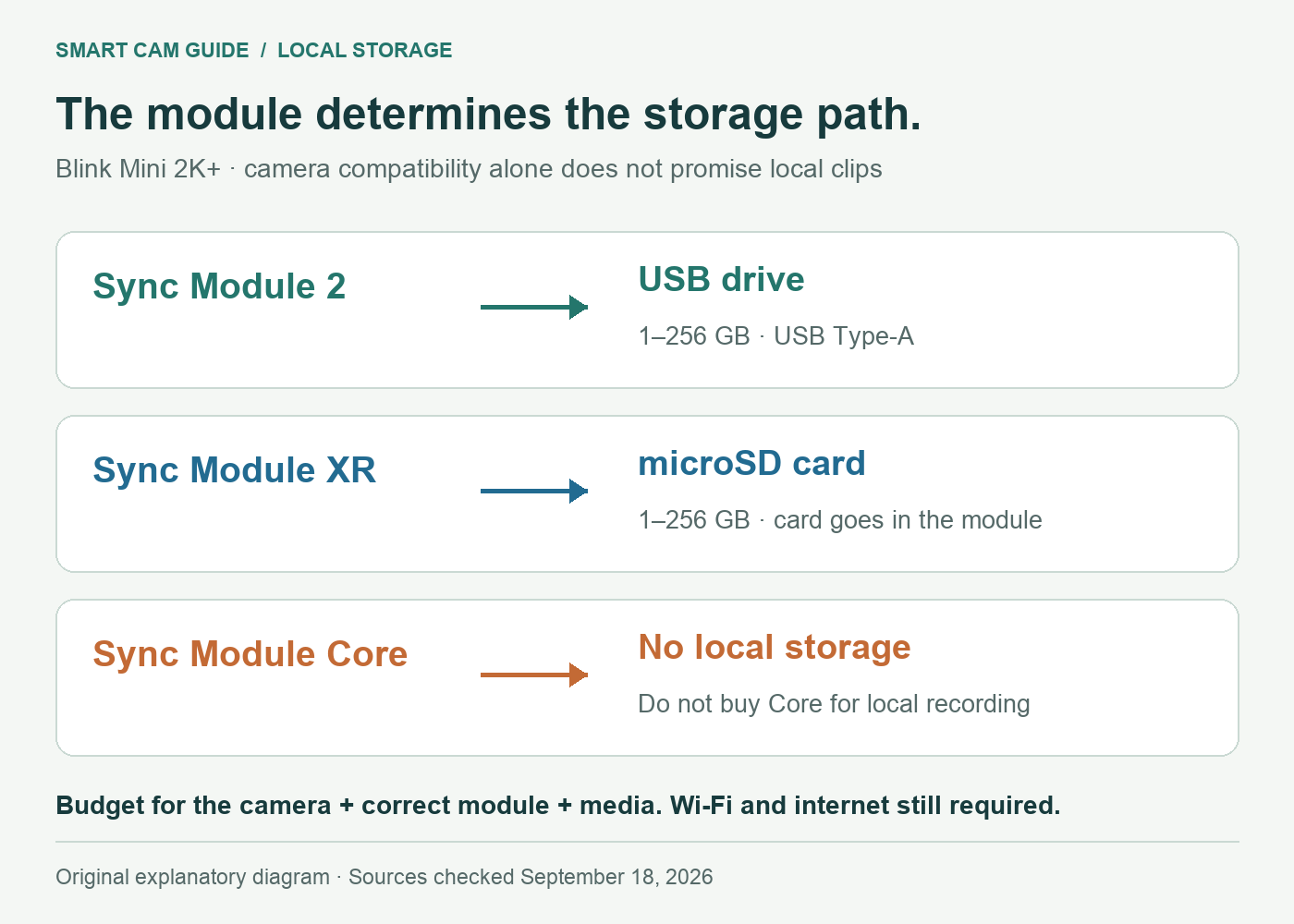
Blink lists USB 2.0 Type-A drives from 1–256 GB for Sync Module 2 and microSD cards from 1–256 GB for XR, with at least 375 MB free for local storage. Follow the current preparation instructions for the exact module. Blink recommends exFAT for the USB-drive route. Do not assume a higher-capacity card or a USB adapter is supported merely because it physically connects.
A storage card in a separate module is also a different arrangement from a card inside a camera. Our microSD buying guide explains capacity and endurance checks, but its general advice cannot make an unsupported module or card capacity work.
Price the camera, module and media together
The camera can operate without a Sync Module; the module becomes part of the plan when you want this local-storage route. For a first Blink purchase, compare the complete list: cameras, the correct module, compatible storage and any needed power accessories. A camera-only price is not the total cost of a local-recording setup.
If you already own a Sync Module 2 or XR, confirm its exact model and available storage before buying another hub. Do not infer the model from a similar-looking white enclosure or an old order’s generic “Sync Module” label. Check the device information and its physical storage connection.
The selected listing contains two cameras, so compare it with other two-camera packages on the same basis. A neighboring bundle may add a module or subscription; switching variants can change both the price and what arrives. We do not quote a fixed retail price or count a temporary cloud trial as permanent storage.
Blink Mini 2K+ — two white cameras, camera-only package
Check price on AmazonConfirm an actual saved clip, not just a connected camera
Check the complete system before buying. Download the free, one-page Camera Recording Checklist (fillable PDF). Record the exact camera, module, storage route and continuing costs, then keep the result of your own saved-clip playback check. A connected live view alone is not proof of recording.
- Confirm the hardware. Identify Mini 2K+ and the exact module in the Blink app. Use the current pairing instructions for that combination.
- Check storage status. Open the Sync Module status bar, then Local Storage. Blink’s documentation shows a USB Drive or MicroSD Card status; resolve an unrecognized or disconnected drive before relying on recording.
- Check the recording conditions. Confirm the system is armed and motion detection is enabled for the intended camera. An available Live View by itself does not prove motion clips are being saved.
- Create a simple acceptance event. Walk through the intended detection area, then find and play the resulting local clip in the app. Check its camera name, timestamp and usable view. This is a setup check for the owner, not a test result we claim to have performed.
- Repeat when the storage arrangement changes. Recheck after replacing media or after an eligible cloud trial ends. Verify the selected clip source instead of assuming that an earlier cloud clip proved local recording.
If no local clip appears, record which link failed: camera connection, arming and motion settings, module connection, media recognition or playback. That is more useful for support than replacing the camera immediately. Safely eject a USB drive through the app before removing it, following Blink’s instructions.
Local clips do not mean continuous or internet-free recording
The Mini 2K+ FAQ describes clips up to 60 seconds. That is an event-clip workflow, not a promise of an uninterrupted 24/7 timeline. Extended Live View is a different feature from continuous saved recording. If your requirement is to scrub through an entire afternoon, establish that requirement before choosing an event-based system.
The camera requires 2.4 GHz Wi-Fi and an internet connection. Blink specifies upload bandwidth of 6 Mbps for 2K, 3 Mbps for standard quality and 2 Mbps for saver mode. Treat those as the manufacturer’s connection requirements, not a measured performance result for your house. Do not treat a local-storage accessory as evidence that the system works during an internet outage.
Some features, including smart person and vehicle detection, depend on an eligible subscription. A local clip path does not grant every cloud or smart-alert feature. Read the current plan terms for the account and region before deciding whether those features are essential.
Likewise, avoid carrying instructions from the original Mini or Mini 2 straight across to Mini 2K+. General Blink pages may list different supported models for cloud clip backup and other features. This guide’s recommendation is the local-storage path explicitly documented for Mini 2K+, without promising every older model’s backup behavior.
Who this setup suits
Shortlist Mini 2K+ if event clips meet your needs, you have suitable Wi-Fi and power, and you are comfortable buying or reusing the correct storage module. Choose Sync Module 2 for the documented USB route or XR for the documented microSD route; Core is unsuitable when local storage is the reason for buying a module.
If you want storage directly inside each camera, compare that requirement separately. Our Wyze Cam v4 subscription and local-recording guide explains another architecture and its own limitations. “No monthly fee” is only meaningful when the actual recording and playback workflow suits you.
Blink Mini 2K+ — verify two-camera contents before checkout
Check price on AmazonSources and scope: Blink Mini 2K+ FAQ, Local Storage instructions and Sync Module Core FAQ; selected Amazon US two-camera variant. Reviewed September 18, 2026. Module compatibility, local storage, cloud backup and subscription features are separate checks. We have not measured detection reliability, bandwidth use or playback delay.
For a battery-powered outdoor addition, read our Blink Outdoor 4 add-on versus module-included kit guide. Outdoor 4 requires a Sync Module, and a Core bundle still does not provide local clip storage.
Choose the camera for its position
If the camera must sit farther from the house, compare the Outdoor 4 Extended Range module options. Mini 2K+ module compatibility does not grant Extended Range. For a battery-camera purchase, see Outdoor 2K+ versus Outdoor 4 before assuming that higher resolution also adds reach.
Need a movable indoor view? Read what Blink Mini Pan-Tilt can and cannot track. That mount is for the first-generation Mini, not Mini 2K+, and it does not automatically follow movement.
Before moving a Mini to another group, plan separate Blink arming schedules and their system boundaries. Recheck the destination system’s recording route and any doorbell-chime requirement after regrouping.