As an Amazon Associate I earn from qualifying purchases. Purchases through our links may earn us a commission at no extra cost to you.
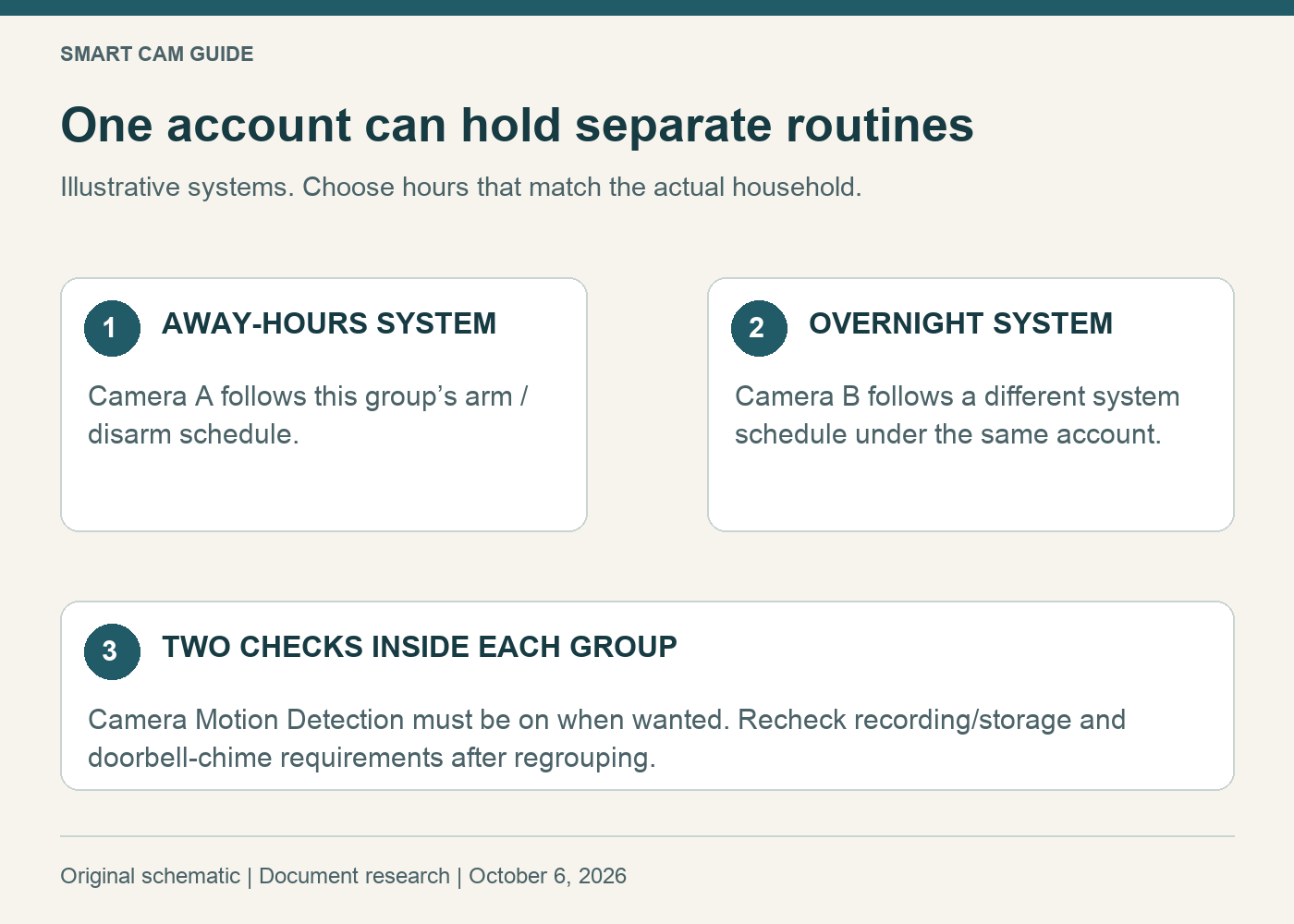
Blink’s built-in arming schedule applies to a system. Cameras placed in the same system follow that system’s arm/disarm routine. If two groups need different automatic routines, plan separate systems under the same account.
For example, a hallway camera might be needed while everyone is out, while another camera should be ready overnight. Decide those groups before adding both cameras to the first system offered during setup.
Separate a schedule from the camera’s motion switch
A camera also has its own Motion Detection setting. Blink requires that setting to be enabled for motion-event recording when the system is armed. Turning detection off for one camera can exclude it from that armed group, but it is not an independent weekly schedule for that camera.
This distinction helps avoid a common buying mistake: adding another camera will not create a second automatic routine if you put it into the same scheduled group and leave the grouping unchanged.
Plan two routines on paper
Make a small list with four columns: camera location, desired armed times, desired disarmed times and recording route. Group cameras only when their intended routines match.
Use understandable system names such as “Away-hours indoor” and “Overnight indoor.” These are example labels, not recommended hours for every home. Check the time zone for each system, both the arm and disarm entries, and the intended days of the week.
Blink warns that a scheduled action can override a manually, Alexa- or IFTTT-triggered arm/disarm state. A manual change now does not necessarily suspend the next programmed change. Review the schedule when routines change for a holiday or a guest.
Does each group need another Sync Module?
Not automatically for Mini 2K+. Blink says this plug-in model can operate without a Sync Module, and its setup flow lets you choose an existing system or create a new one. A new account is not required merely to manage more than one system.
The answer changes when you include cameras that require a module or want module-based storage. Each Sync Module manages one system and supports up to ten cameras. Do not assume one module supplies the same functions to several independently scheduled systems.
Recheck storage and the doorbell chime before splitting
Mini 2K+ local storage requires a suitable Sync Module 2 or XR with its storage media; Core does not provide local storage. Before moving a camera, confirm the recording route that will remain in its destination system. A live view after moving is not proof that the new setup saves clips.
The Mini 2K+ local-storage guide covers the hardware choice. Also note that Blink’s setup instructions require a Mini used as a Video Doorbell chime to share the doorbell’s system. Independent scheduling may therefore have a chime tradeoff worth checking first.
Use the current transfer options
Blink’s current account guidance describes a System transfer option for moving a device between systems within the same Location. Moving to a different Location can require removing and adding the device again. Inspect the applicable current instructions before taking a deletion step; older advice may not describe the present app.
Make a note of the existing camera name, assigned system, recording arrangement and relevant settings before making changes. Avoid moving every camera at once. Confirm one intended group before changing another.
Buying two cameras does not decide their grouping
The shopping link selects a white two-camera Blink Mini 2K+ pack. These are plug-in cameras, so each intended position needs an appropriate power arrangement and network connection.
Check Blink Mini 2K+ — white, two-camera pack
Consider the pair if you genuinely need two views and have worked out their routines and recording routes. If the cameras you already own cover the needed views, regrouping them may solve the scheduling problem without buying another pack. Check any module or subscription costs separately.
Verify the next change, not only the saved screen
After setup, observe a scheduled transition for each group. Confirm the intended system state, each camera’s motion setting, an ordinary event and its saved clip if recording is expected. Record the actual outcome; a schedule visible in the app is only the configuration.
Research scope: Blink’s current scheduling, multiple-system, Mini 2K+ setup and FAQ guidance, checked October 6, 2026. No customer account was reconfigured and no scheduling or storage performance test was performed.