By Smart Cam Guide
As an Amazon Associate I earn from qualifying purchases. Purchases through our links may earn us a commission at no extra cost to you.
For a Blink Outdoor 4 on a standard Wi-Fi setup, check both the camera’s Wi-Fi reading and its connection to the Sync Module before buying extra hardware. A good reading for one connection does not guarantee the other is good. Start at the actual mounting location with doors and windows in their usual positions.
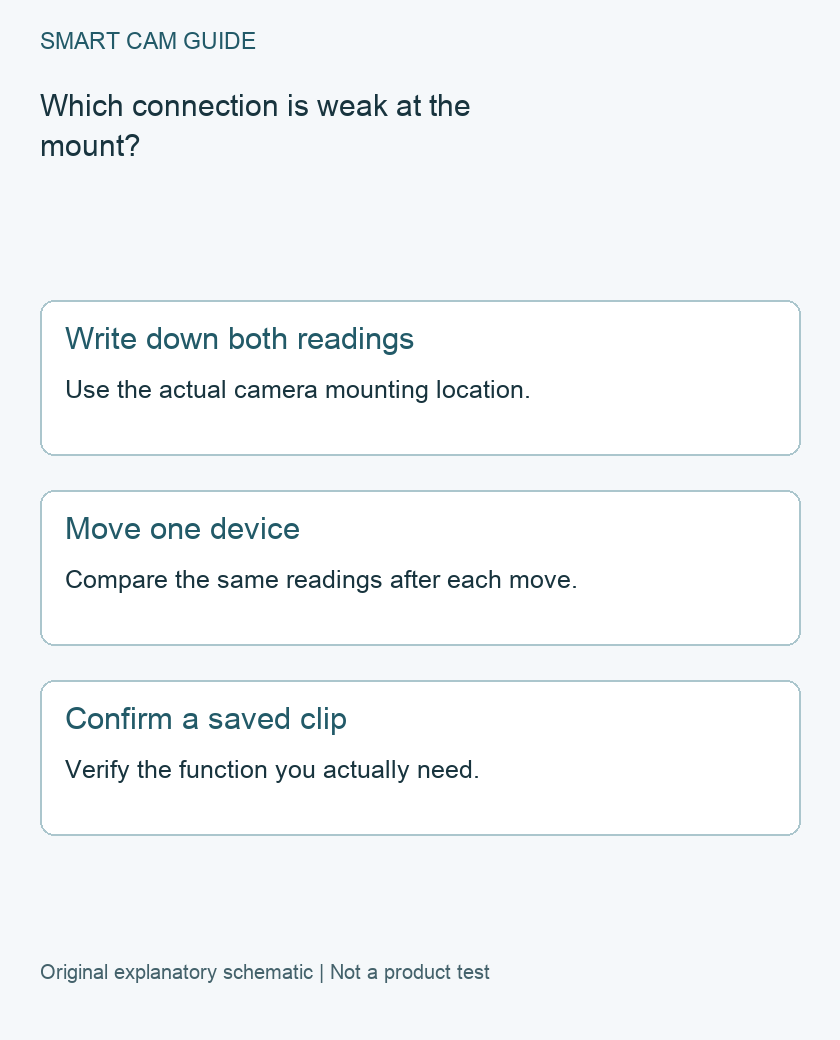
Record the baseline at the camera
In the Blink app, find the camera’s network and Sync Module signal readings using the current device settings. Blink’s mounting guidance calls for at least three bars for both connections. Record the two readings, whether the module itself is online, and the time and place. Those readings are a setup guide. Confirm the intended function with a short test in the installed location.
Check the module model and connection mode before interpreting the readings. Extended Range modes on compatible combinations have their own setup and limitations. Use the mode-specific instructions for those installations. The checks below are for the usual Wi-Fi setup and do not assume every Blink camera talks to a module in the same way.
Change one thing based on the weak reading
Wi-Fi weak, module connection good: first compare a nearby camera location with a clearer path toward the existing Wi-Fi access point. Record whether the Wi-Fi reading improves and the module link remains usable. Moving the module alone does not remove the wall between the camera and its access point.
Module connection weak, Wi-Fi good: try a module location closer to the camera that still has good Wi-Fi and power. Recheck any other cameras using the same module. Helping one camera can make the path worse for another.
Both weak: start with a temporary, more sheltered mounting location where both readings are stronger. Make one change at a time, then see whether the view still covers the area you need. If the entire system is offline, check module power and network status before judging individual camera range.
Verify the outcome that matters
Check Live View, then trigger a normal motion event in your own coverage area and check for the alert or saved clip you expect under your configured settings. Make sure the system is armed and the chosen recording destination is available. A missing saved clip can also be caused by detection, storage or account settings. A successful live view alone is not a recording check.
Repeat after putting everything back in normal use. Close the garage door if it usually stays closed, and test at the time when you have seen failures. If repositioning solves the weak link and the desired view still works, extra equipment may add no benefit. If it does not, use the measured weak link and your existing module mode to choose the next change.
Related guides
- Blink Outdoor 4 Add-on or Kit? Check the Sync Module
- Blink XR vs XR+: Which Extended-Range System Should You Buy? (2026)
- Ring Chime Pro Rings but the Camera Still Has Weak Wi-Fi: Check the Network Link
Sources and research scope
Reviewed November 12, 2026. Blink Outdoor 4 mounting and signal guidance; Blink Wi-Fi troubleshooting and signal readings; Blink Sync Module connectivity guidance. This is document-based guidance by Smart Cam Guide. The decision worksheet and proposed owner checks are editorial recommendations, not hands-on test results. Exact model, hardware revision and current instructions govern where details differ.