By Smart Cam Guide
As an Amazon Associate I earn from qualifying purchases. Purchases through our links may earn us a commission at no extra cost to you.
There is no single best Blink sensitivity number for every doorway, driveway and season. Use a small setting change and repeat the same walk test. A quieter phone is a useful result only if the camera still detects the person and route you need to monitor.
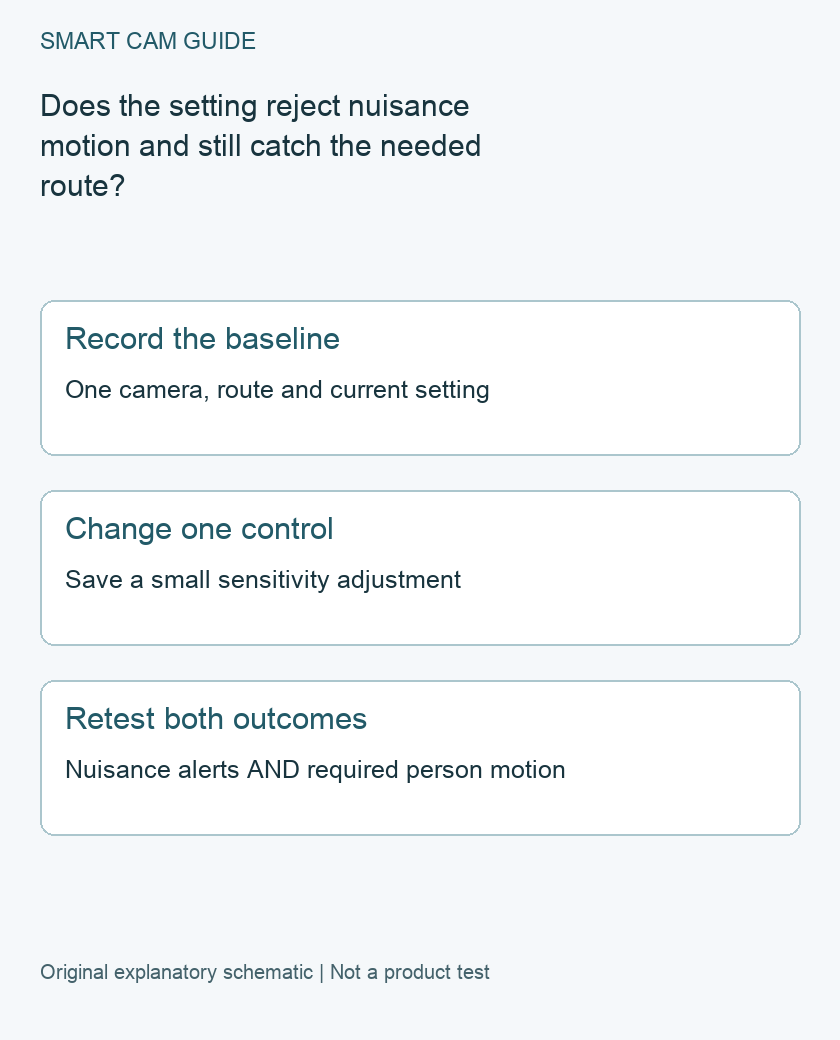
What the slider changes
Blink describes sensitivity as the amount of motion input needed to create a notification. Higher values respond more readily to smaller or shorter movement; lower values require more. The setting is individual to each camera. Its guidance lists a usual default of 5, with Outdoor 4 defaulting to 6, rather than recommending that every camera be set to the maximum.
The apparent size and direction of movement matter. A nearby small object can create more change in the view than a distant person. Blink explains that Outdoor 4 uses passive infrared detection, which is most responsive to movement across the view; temperature contrast with the background also matters. A higher number does not turn a poorly framed approach into a guaranteed detection.
Record a baseline that can be repeated
Choose the actual access route that matters, with permission from anyone involved. Note the camera model, current sensitivity, mounting view, time, weather or lighting, and the nuisance event you want to reduce. Keep privacy and activity-zone choices unchanged for this test so their effects are not confused with the slider.
Confirm that the correct system is armed and the camera’s Motion Detection is enabled. If saving footage is part of the test, confirm the relevant storage route separately. A Live View image is not proof that a motion event will be detected and saved.
Change one setting and save it
In the camera’s Device Settings, open Motion Settings and locate Motion Sensitivity. Blink’s nuisance-alert guidance suggests lowering it by two levels and then testing human movement. Save the change before leaving the settings screen.
Do not change sensitivity, mounting position and zones together. If the result changes, you would not know which adjustment caused it. Keep a simple record with one row per saved change:
- Setting: previous value, new value and time saved.
- Required route: whether the person was detected at the useful part of the approach.
- Notification: whether it arrived, recorded separately from detection.
- Playback: whether a new saved clip exists and contains the required action.
- Nuisance result: whether the original unwanted event still produces alerts.
Retest the required route as well as the nuisance
Repeat a comparable walk after the system is ready for another event. Do not interpret a second walk during the retrigger interval as a clean sensitivity failure. Use the separate retrigger guide if the first event is captured but the next is missed.
Test the route as people actually use it, not just a broad sideways wave directly in front of the lens. Repeat under the conditions that caused trouble when practical. If a change removes nuisance alerts but misses the needed arrival, restore the previous setting and investigate framing or the nuisance source separately.
Know when to stop moving the slider
If nuisance alerts persist at a low setting, Blink suggests considering Activity Zones. That is a new test, not proof that zones hide footage or fix every environmental trigger. Separate a zone adjustment from the sensitivity experiment and recheck the required route afterward.
This is an owner-check worksheet, not a hands-on performance rating or a security guarantee. No new module, subscription or camera is established as necessary by the sensitivity symptom alone.
Buying option: match the exact product
Consider this exact bundle only for a new system needing both included views. Adjusting sensitivity on an existing Outdoor 4 does not require it. Core lacks local storage, so compare the cloud recording arrangement before choosing the package. The current destination identifies Video Doorbell, not a verified 2K+ doorbell; confirm the exact selected generation and package before ordering.
Blink Video Doorbell + Outdoor 4 + Sync Module Core bundle
Check Blink Video Doorbell + Outdoor 4 + Sync Module Core bundle details on Amazon
Product link and model mapping reviewed November 4, 2026. Check the selected model, package, seller and current offer before ordering. No live price, stock or delivery is asserted.
Related guides
- Blink Outdoor 4 Retrigger Time: Why Clips Can Miss the Next Event
- Blink Outdoor 4 Privacy Zones vs Activity Zones: What Is Actually Hidden?
- Blink Outdoor 4 Temperature Alerts: Thresholds Are Not the Operating Range
Sources and research scope
Reviewed November 1, 2026. Blink Adjusting Motion Sensitivity for your Camera, US support; Blink Understanding Motion Detection, manufacturer support, GB language path. This is document-based guidance by Smart Cam Guide. The decision worksheet and proposed owner checks are editorial recommendations, not hands-on test results. Exact model, hardware revision and current instructions govern where details differ.