By Smart Cam Guide
As an Amazon Associate I earn from qualifying purchases. Purchases through our links may earn us a commission at no extra cost to you.
A full microSD card does not by itself mean a Tapo C120 is broken. With Loop Recording enabled, older footage is replaced as storage is reused. Check whether a new recording can be played before deciding the camera has stopped. If an important clip is at risk, preserve it before changing settings or formatting the card.
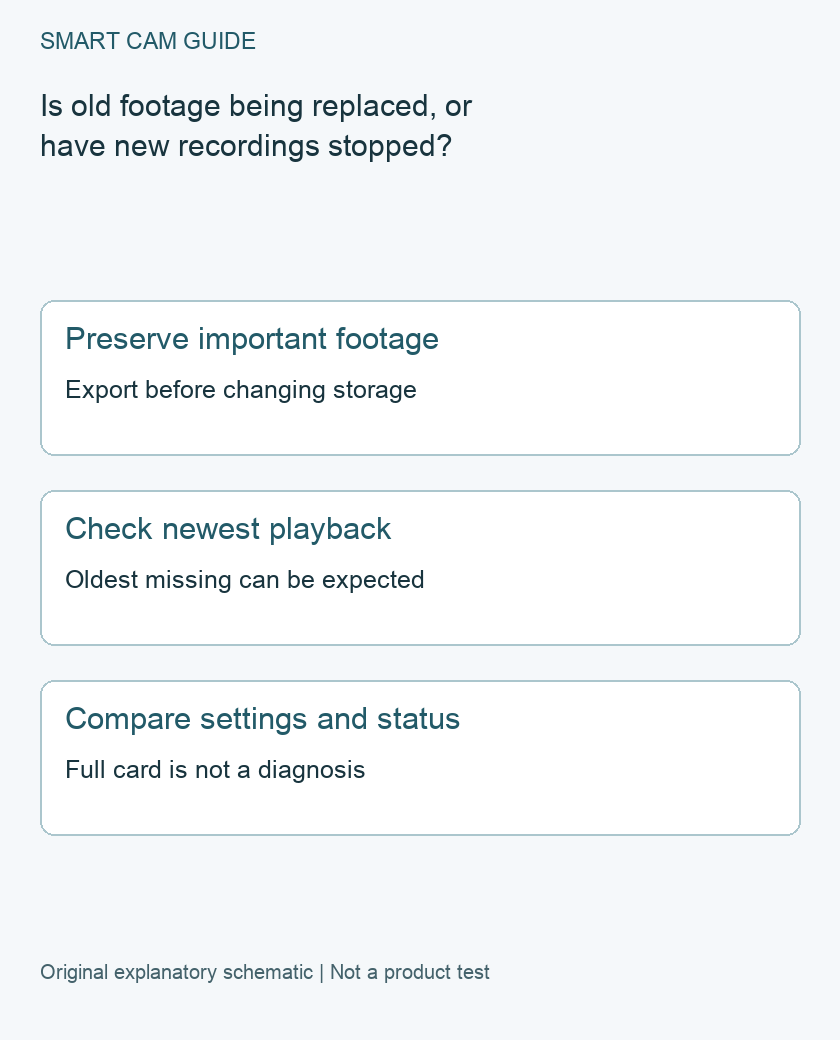
Start with two dates, not the storage gauge
Write down the oldest time you can actually play and the newest time you can actually play. Note whether your recording schedule calls for continuous recording or only detection recording at the time being checked. An empty interval outside that schedule is a different problem from a camera that cannot save any new footage.
TP-Link documents that Loop Recording overwrites the oldest footage when the card fills. The C120 supports local microSD recording, but card support and the available settings must be checked for the exact hardware and current firmware. Neither a full-capacity display nor a working live image proves that the latest video was saved.
Separate the three useful cases
- New footage plays and the earliest footage has moved forward: that is consistent with storage being reused. Preserve anything you need before it ages out.
- Old footage plays but no new expected recording appears: inspect recording enablement, schedule, Loop Recording and the card’s reported status.
- Neither recent nor old footage plays: treat this as a playback or storage-access problem. Do not jump straight to an overwrite explanation.
Use the same camera, local-card playback route and a known recent time for the comparison. A cloud event list and the local recording timeline are not interchangeable proof. Keep the exact result in a short note so a later app refresh is not confused with a new write to the card.
Make preservation the first decision
If a clip matters, export it through the supported playback workflow while it is available, then check that the copy opens and contains the needed interval. A thumbnail or timeline marker is not a verified independent copy. Record the camera name and original time alongside the saved file.
Do not format the card as a routine response to the word full. Formatting is not a preservation step. If the footage is irreplaceable and the card is failing, stop repeated experiments and seek appropriate recovery help. Any change that stops recording also creates a coverage gap; make that tradeoff deliberately rather than treating it as free extra retention.
Run a small, controlled new-recording check
After preservation, note the current settings and a start time. Choose an interval that is covered by the configured recording schedule. Wait for that interval to finish, then return to local playback and try to play it. If using detection-only recording, do not assume that every minute should contain video.
Record whether the new interval exists, whether it plays, and whether the card reports an error. Change one setting at a time. If a new interval still cannot be saved, send support the hardware version, firmware, card identity, reported card status, schedule and exact test time. That evidence is more useful than saying only that the memory is full.
When a larger card helps—and when it does not
A compatible larger card can be considered when working storage is being reused sooner than your required review interval. It is not an established fix for an unreadable card, a disabled recording schedule or a camera that cannot write. Confirm the exact model’s supported capacity and card requirements before buying.
This guide gives no fixed number of recording days. Settings, recorded activity and storage behavior can change the result. Observe the oldest playable point over several days under your own setup, and leave a margin for retrieving an incident. If you require a guaranteed retention period or evidence-management process, a single unattended microSD card may not meet that requirement.
Related guides
- Tapo C120 Sends Alerts but Has No Recordings: A Decision Tree
- Tapo C120 During an Internet Outage: Recording vs Remote Access
- High-Endurance microSD for Security Cameras: Capacity Is Not Lifespan
Sources and research scope
Reviewed October 25, 2026. TP-Link US Which microSD Cards Work With Tapo and Kasa Cameras? FAQ 3048; Tapo C120 US product specification. This is document-based guidance by Smart Cam Guide. The decision worksheet and proposed owner checks are editorial recommendations, not hands-on test results. Exact model, hardware revision and current instructions govern where details differ.
If the issue is a card entry that will not play on a computer, use the Tapo placeholder, encryption and export checklist. Verify a known recorded interval and an independent copy before treating every unplayable entry as corruption or formatting the card.