By Smart Cam Guide
As an Amazon Associate I earn from qualifying purchases. Purchases through our links may earn us a commission at no extra cost to you.
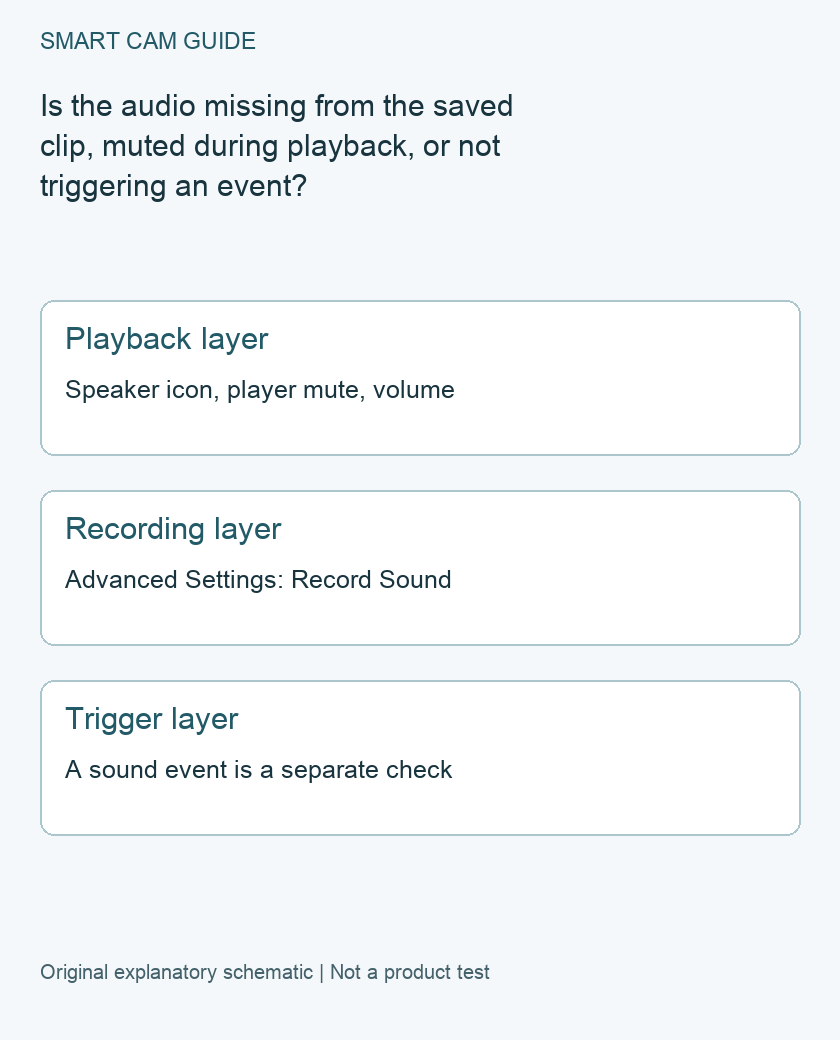
For a silent Wyze Cam v4 recording, first rule out a muted player, then check Advanced Settings → Record Sound and verify a new saved sample. Hearing Live View, recording an audio track and triggering an event with sound are three different checks. Raising sound-detection sensitivity is not a substitute for checking whether a clip’s audio is muted.
Wyze’s v4 audio troubleshooting guidance separates the live-stream speaker control, Record Sound, playback volume and a comparison on another device or computer. This guide uses those distinctions to avoid resetting the camera or replacing a card before you know which layer fails.
Start with one clip you can identify
Write down the camera name, clip date and time, and whether you are watching a cloud Event, local-card playback or an exported file. Keep the same sample for your first comparison. Moving between different recordings can make a playback change look like a recording fix.
If the sample matters, preserve an independent copy before troubleshooting. Do not format the card to test an audio theory. Also record whether there is no audio at all or only quiet or distorted sound; these are different symptoms to report.
Check the playback layer
In Live View, Wyze directs users to enable sound with the speaker icon. For saved playback, confirm the video is not muted and check the phone or tablet’s volume. Its support guidance also suggests trying another device. Keep camera position and the recording itself unchanged while comparing players.
If the same saved file has sound in one player but not another, record that result before changing the camera. If Live View has sound but the saved sample does not, do not conclude that every camera function is healthy; you have only narrowed the problem.
A useful note has three entries: live sound heard or not, the same saved sample heard or not, and the device or player used. Avoid the vague description “the camera has no sound” when one of those tests works.
Check the recording layer, then make a new sample
Wyze’s documented control is the camera’s Settings → Advanced Settings → Record Sound. Check its actual state. Changing it now is not evidence that a previous clip gains an audio track.
With the people involved informed, create a short ordinary test near the installed camera and note the time. Find the newly saved recording through the storage route you normally use. Confirm the clip plays and compare its sound with Live View and an independent copy where available.
Use the same quiet location and ordinary sound for each check rather than repeatedly raising volume near the device. This is a proposed functional check, not a microphone sensitivity or identification-distance measurement. We have not performed it on physical hardware.
Do not confuse sound recording with sound-triggered events
The question “does this saved clip contain sound?” is separate from “will a sound start an event or send a notification?” Wyze’s support article gives separate Event Recording and detection controls. An event appearing in the feed does not prove its audio track can be heard, and a local clip with sound does not prove a desired alert was sent.
If the actual failure is no sound-triggered event, state that clearly when following the current model and service instructions. Do not buy a subscription solely because a local saved clip is silent. Conversely, this audio check does not establish that every cloud or smart-event feature is included without a plan.
Compare local-card footage carefully
Wyze specifically suggests checking microSD recordings on a computer to see whether the same audio issue exists there. Use the preservation workflow linked below before physical card handling. Keep the original files and create copies for comparison rather than editing your only recording.
Record whether the copied file plays with sound, which player you used and whether the issue affects one interval or newly made samples too. If the card is unreadable, stop treating the problem as merely a mute control; preserving important footage takes priority over trying more recording settings.
What to send support if the new sample stays silent
- Exact Cam v4 identity, firmware and app versions.
- Storage route and the date/time of the new sample.
- Live, app playback and independent-file results listed separately.
- Record Sound state when the new sample was made.
- Whether there is complete silence, distortion or only missing sound-event notifications.
Wyze’s broader procedure includes updates, power cycling and a reset, but do not jump to destructive or disruptive steps while your only evidence is unpreserved. Follow the current device procedure if those steps become necessary. A clear comparison record is a better basis for that decision than replacing the camera, card or plan at random.
Related guides
- Save Wyze Cam v4 microSD Footage Before It Is Lost
- Wyze Cam v4 Without a Subscription: SD Recording vs Cloud Events
- Wyze Camera Time Is Wrong: Sync the Clock and Check New Recordings
Sources and research scope
Reviewed October 24, 2026. Wyze My Wyze Cam v4 has poor audio quality, April27 2026. This is document-based guidance by Smart Cam Guide. The decision worksheet and proposed owner checks are editorial recommendations, not hands-on test results. Exact model, hardware revision and current instructions govern where details differ.