As an Amazon Associate I earn from qualifying purchases. Purchases through our links may earn us a commission at no extra cost to you.
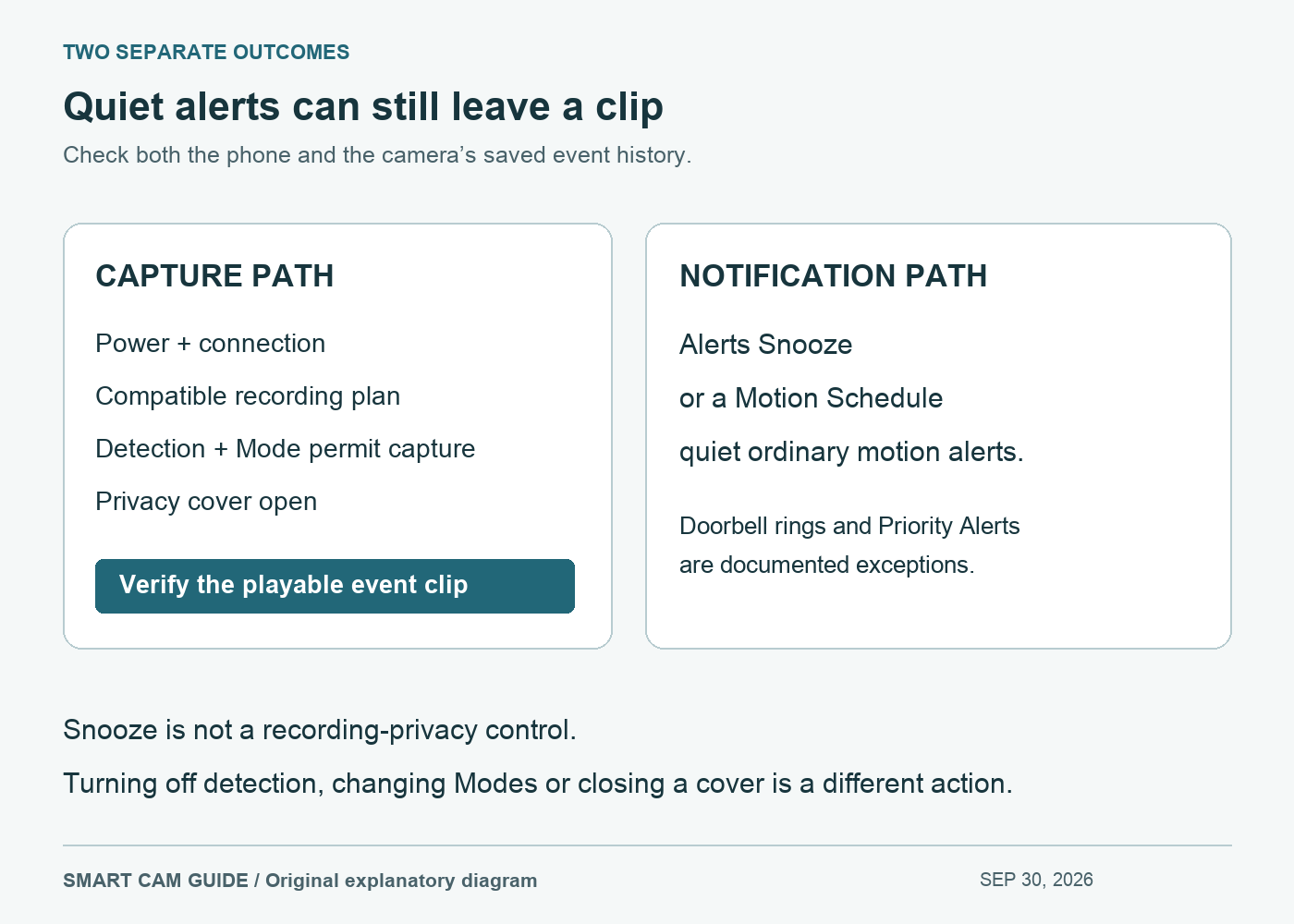
Ring Alerts Snooze pauses ordinary motion notifications; it does not, by itself, stop motion-event recording. Recording still needs a compatible subscription and a camera configured and able to record. Turning off Motion Detection, selecting a mode that disables recording, or closing an Indoor Cam’s privacy cover is a different action.
This guide uses the white 1080p Ring Indoor Cam, also known as Indoor Cam (2nd Gen), as its buying example. The distinction is useful when you want a quiet phone during normal household activity while keeping an event history to review later.
Choose the control that matches your aim
| Your aim | Relevant control | Recording consequence |
|---|---|---|
| Quiet ordinary motion alerts for a short time | Alerts Snooze for the device | Does not itself stop subscribed event recording |
| Quiet ordinary alerts on recurring days or hours | Motion Schedules | Motion events can still be recorded |
| Change whether motion is detected and recorded | Motion Detection and applicable device-mode settings | Can change capture; check each device |
| Turn off the Indoor Cam camera and microphone | Manual privacy cover on the supported model | The covered period is not recorded by that camera |
A silent phone therefore proves very little about what footage exists. Conversely, receiving an alert does not establish that you have a playable saved clip. Check the event history for the actual camera and time when the answer matters.
Use Snooze for a temporary interruption
Ring’s current US instructions put a device’s Alerts Snooze tile under Menu → Devices → the chosen device. Select a duration and start it; the same tile allows an early end. The dashboard’s crescent-moon control offers a global snooze covering the cameras and doorbells.
The documented exceptions matter: doorbell presses and Priority Alerts remain on. Do not present global snooze as an all-sounds-off switch. Check other household phones, tablets and linked announcement devices separately rather than assuming one quiet phone establishes the behavior everywhere.
If your goal is privacy from recording, use the appropriate recording or cover controls and verify them. Snooze is the wrong privacy boundary because its intended job is to quiet notifications.
Use Motion Schedules for recurring quiet periods
For a regular period, Ring’s US path is Devices → your device → Device Settings → Motion Settings → Motion Schedules. Review the name, days and time range before saving. An active schedule can show a clock icon on the device dashboard.
Ring explicitly says scheduled alert suppression leaves motion recording available. When an active schedule is suppressing alerts, simply trying to switch Motion Alerts on does not override it; inspect and turn off or adjust the schedule itself. App layout and feature availability can change, so use the controls actually offered for your device.
A schedule called “Night Time” is not evidence of a recording schedule. Read what the setting says it turns off. In particular, do not confuse a Motion Schedule with a scheduled change to a system Mode.
If the expected clip is missing
Work through the capture path before buying another camera:
- Identify the exact camera, event date and time. A different room’s timeline or the wrong date can look like a missing clip.
- Check the camera was powered and connected. Snooze does not supply power or an internet connection.
- Check the subscription covering that device, Motion Detection, and any active Mode that controls its recording.
- On the 1080p Indoor Cam, confirm the manual privacy cover was open. Also review the household’s agreed camera routine.
- Run a brief, consented check in a noncritical situation. Note a clear movement through the intended view, then inspect a playable event in history. Compare the notification outcome separately.
This is an editorial troubleshooting sequence, not a guarantee that every movement triggers recording. Do not disable important monitoring merely to experiment. Preserve any existing clip you need before making storage or account changes.
The Ring snapshots versus video guide explains why still images and event clips also need to be distinguished. For capture privacy, see the Indoor Cam cover and audio guide.
Does this change which camera to buy?
The linked white, single-camera 1080p Indoor Cam is a plug-in indoor option for households that want Ring and accept its cloud-recording arrangement. Its cover is a useful physical control; it should not be confused with app alert preferences. A compatible recording plan is a separate cost to verify.
Check Ring Indoor Cam 1080p, white 1-camera, on Amazon
If your existing Ring setup records correctly and only the notifications are inconvenient, start with the relevant setting. More cameras do not solve the meaning of a snooze switch. If you instead require a local microSD archive, compare a different storage approach through our Wyze v4 local-recording guide.
Research scope: Ring US “Managing alerts for Ring doorbells and cameras,” “Setting up Motion Schedules,” device Modes guidance and the exact US Indoor Cam listing, checked September 30, 2026. No physical camera, subscription or notification test was performed by Smart Cam Guide.