As an Amazon Associate I earn from qualifying purchases. Purchases through our links may earn us a commission at no extra cost to you.
Ring Snapshot Capture saves still photographs at intervals. It is not a continuous video recording, even when the photos appear in a timeline beside motion clips. If you need to review what happened between two photographs, a time-lapse-looking sequence cannot recover moments the camera did not save as video.
This distinction matters when choosing the white 1080p Ring Indoor Cam (2nd Gen), ASIN B0B6GLQJMV. It can suit an indoor room with plug-in power and an agreed recording routine, but the device price alone does not settle which history you will be able to review.
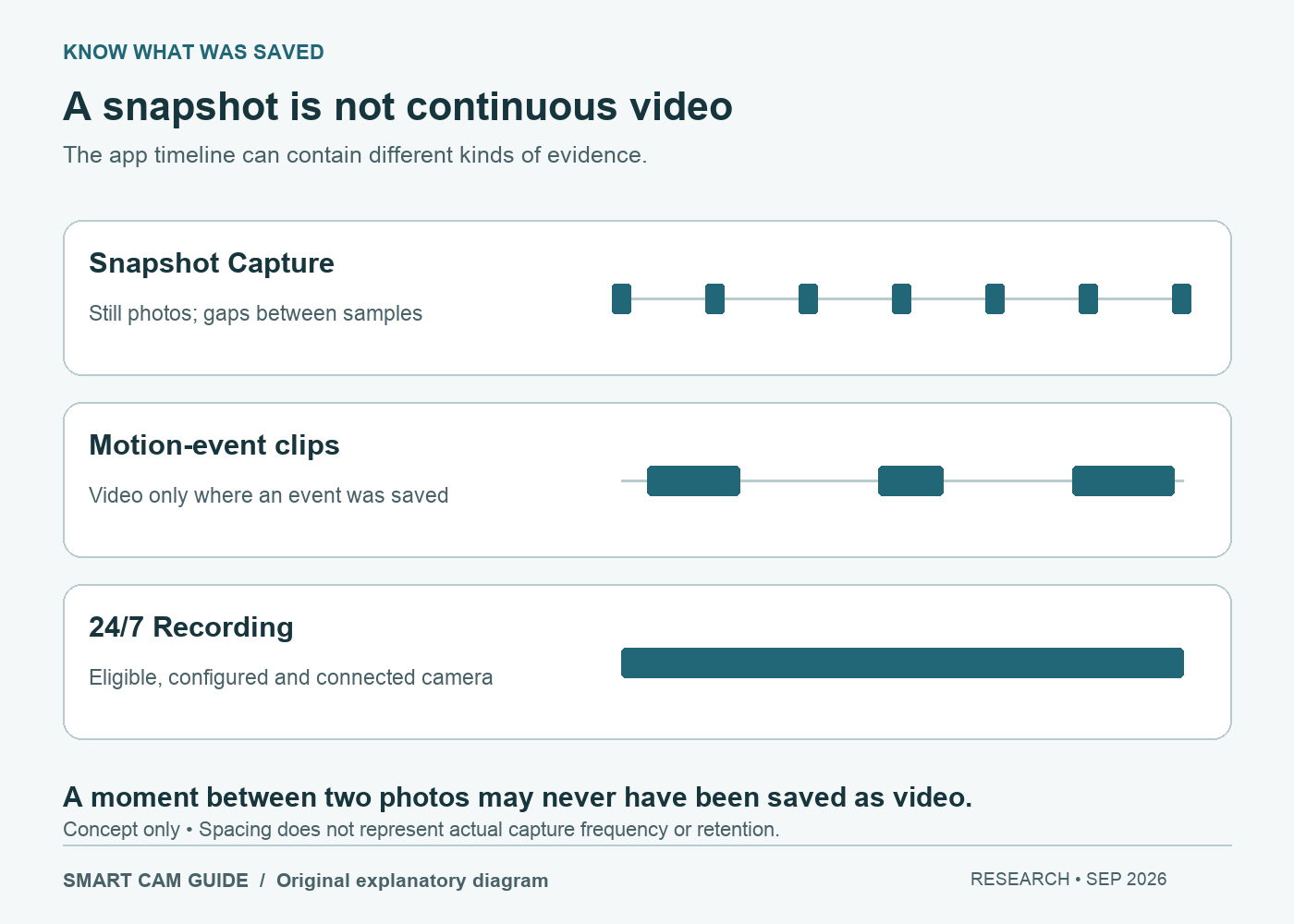
Three records that can look similar in the app
| Record | What you can inspect | Important limit |
|---|---|---|
| Snapshot Capture | Individual still images taken at selected intervals | Movement between photos may be absent |
| Motion-event recording | Saved video for a captured event | A clip does not establish that every quiet interval was recorded |
| 24/7 Recording | A continuous video timeline on an eligible configured camera | Needs its own power, connection, subscription and recording-mode checks |
Imagine a box is beside a door in one image and gone in the next. The snapshots show that the scene changed; they do not necessarily show who moved the box or exactly when. A motion clip might answer those questions if it captured the action. A continuous timeline is the more appropriate requirement when you need to examine an arbitrary time instead of relying on an event trigger.
Where snapshots live and why they can appear late
Ring’s US guidance places snapshots in the mobile app’s Event History Timeline, not the Ring website. A compatible subscription and an enabled Snapshot Capture setting are required. Snapshot frequency and cloud-storage duration are separate controls; the documented cloud limit is up to 14 days, depending on the plan.
The current Snapshot FAQ says uploads occur in batches of 15 minutes to one hour, regardless of capture frequency. A photo not appearing immediately is therefore different from a failed camera. Check the timestamp and allow for that documented batching before concluding the image was never taken. Closely spaced events can also leave no snapshot between them.
Keep these two clocks separate: when an image was captured and when it became visible in the app. Neither the frequency menu nor a recently refreshed preview proves that every second of a period exists as saved footage.
Check these settings before replacing the camera
- Open the intended camera in the Ring app. Under Device Settings, inspect Snapshot Capture and the available frequency choices. Use the options actually offered for that device.
- Inspect a quiet interval between recorded events in the Event History Timeline. If opening the preview starts Live View, end Live View to reach the history.
- For retention, check Control Center, then Video and Snapshot Storage. Choose the device and inspect its Snapshot Storage Time.
- Preserve a needed photo before changing settings. Ring warns that disabling Snapshot Capture removes previously stored snapshots, and a longer storage setting applies only to photos captured after the change.
Do not repeatedly switch the feature off and on as a casual troubleshooting step if you need existing images. First save what matters and verify the saved file can be opened. This guide does not perform those actions on your account.
If you actually need video between events
Ring currently lists Indoor Cam (2nd Gen) among eligible devices for 24/7 Recording when continuously powered. Its US guidance requires a Ring Protect subscription plus the per-camera 24/7 Recording add-on. Confirm the offer in your own region and account before subscribing; we are not promising a fixed recurring price.
Continuous recording depends on network connectivity and uses a temporary cloud timeline of up to 14 days. Enabling it replaces Snapshot Capture, so snapshots being unavailable in that mode is expected. Modes and recording preferences can still pause recording. The model’s manual cover turns off its camera and microphone; a subscription cannot record through that closed-cover period.
Our Indoor Cam cover and audio guide helps plan that household routine. The sharing-permissions guide covers who may view or save what was recorded. Capture type, privacy and access are separate decisions.
Is this Ring model the right purchase?
Shortlist it if you want this Ring indoor setup and have accepted the exact cloud-history arrangement. Choose a different storage approach if your main requirement is a camera-side microSD archive without a recurring recording plan. The Wyze v4 local-recording guide explains that alternative and its limits.
Check Ring Indoor Cam 1080p, white, on Amazon
The linked product is the white single-camera 1080p unit, not a 2K or Pan-Tilt bundle. Existing owners should identify the missing type of footage before buying more hardware. No camera upgrade can reconstruct an earlier interval that was never captured.
Research scope: Ring US “Using Snapshot Capture,” “Timeline Security Snapshots,” and “24/7 Recording,” plus exact model information, checked September 29, 2026. This is a document-based explanation, not a hands-on recording or account test. Settings and plan availability can change.
If you need moving context immediately before an event, compare Ring Advanced Pre-Roll and its six-second lead-up window. This is separate from periodic snapshots and does not itself establish all-day recorded history.