By Smart Cam Guide
As an Amazon Associate I earn from qualifying purchases. Purchases through our links may earn us a commission at no extra cost to you.
On an A229 Plus, locking an emergency recording protects a file from ordinary loop overwrite. Save independent copies of the incident and the neighboring segments when you are safely parked. The lock indicator alone does not establish that the entire approach, incident and aftermath are all in one file.
Know what the camera is locking
VIOFO describes manual locking during recording and automatic locking when the G-sensor is triggered. Review the control and indicators in the A229 Plus manual for your hardware and firmware. A lock action relates to footage the camera is recording. It cannot restore a time when the camera was unpowered, a channel was disconnected or the card was failing.
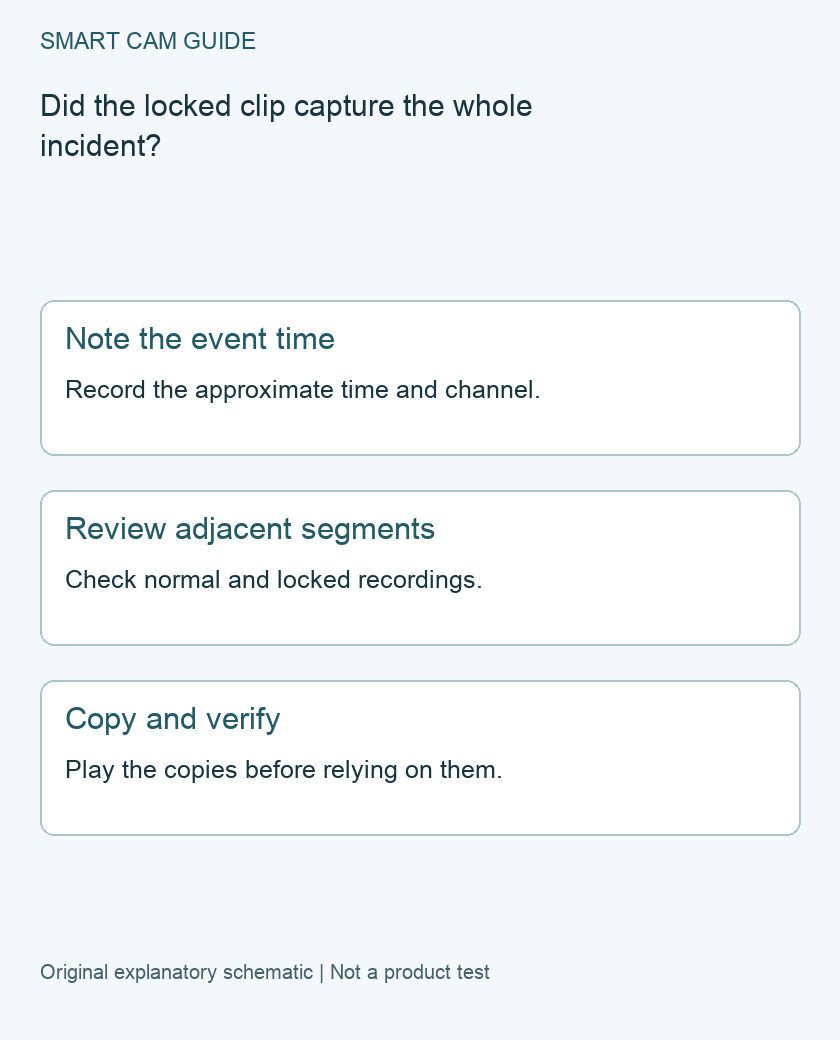
Loop recording breaks footage into separate files. An incident near a file boundary can begin in one clip and end in the next. A button press after the event may occur in another clip. Avoid assuming which adjacent files were protected. Check the actual files and preserve surrounding footage while it is still available.
Retrieve both channels and check the boundaries
- When safely stopped, note the approximate local time and any discrepancy you know about in the camera clock.
- Use the camera or app playback functions documented for your unit. Look for the relevant interval in both the locked and ordinary recordings.
- Check the front and rear footage separately. Look at the end of the previous clip and the beginning of the next. Preserve the original filenames and note which camera produced each file.
- Copy the relevant originals to another storage location. Open the copies away from the camera to check the image, duration and channel. If you make a trimmed version to share, keep the untouched copies separately.
If you read the card directly, follow the manual for powering down before removing it. Avoid formatting the card while you still need footage from it. In a consequential incident, a failed playback or missing file is a reason to preserve the card and the files you can access.
Practice once with a harmless test recording
While safely parked, make an ordinary recording and use the documented lock control. Check whether you can locate the locked clip and distinguish it from the adjacent files. Verify the rear clip as well if installed. This rehearsal checks your retrieval process. It does not establish how the impact sensor will behave in a future collision. A lock feature is most useful when you can quickly get playable copies out of the device.
Compare the exact US buying options
Check current details and price on Amazon. These are previously verified matching product destinations, not confirmation of current stock, price, seller, delivery or included accessories.
VIOFO A229 Plus 2CH front and rear dash camera
Choose this configuration if front and rear channels meet your needs. Confirm card compatibility and practice clip retrieval with the delivered camera.
Check VIOFO A229 Plus 2CH front and rear dash camera on Amazon
Related guides
- VIOFO A229 Plus Screen Goes Black: Screen Saver or Recording Failure?
- VIOFO A229 Plus Parking Mode: Is the HK4 Kit the Right Buy?
- Dash Cam SD Card Guide 2026: What Size, Speed and Endurance Rating Do You Really Need?
- VIOFO A229 Plus GPS: Speed Stamps, Location Logging and Shared Clips
Sources and research scope
Reviewed November 11, 2026. VIOFO A229 Plus English manual; VIOFO guidance on locking videos. This is document-based guidance by Smart Cam Guide. The decision worksheet and proposed owner checks are editorial recommendations, not hands-on test results. Exact model, hardware revision and current instructions govern where details differ.