By Smart Cam Guide
As an Amazon Associate I earn from qualifying purchases. Purchases through our links may earn us a commission at no extra cost to you.
On the VIOFO A229 Plus, changing a visible GPS stamp is different from changing GPS logging, and neither step by itself verifies a safe-to-share copy of an old clip. Decide whether your goal concerns text on new footage, the camera’s GPS function or an exported recording. Check the exact setting and the resulting file rather than using one switch as evidence for all three.
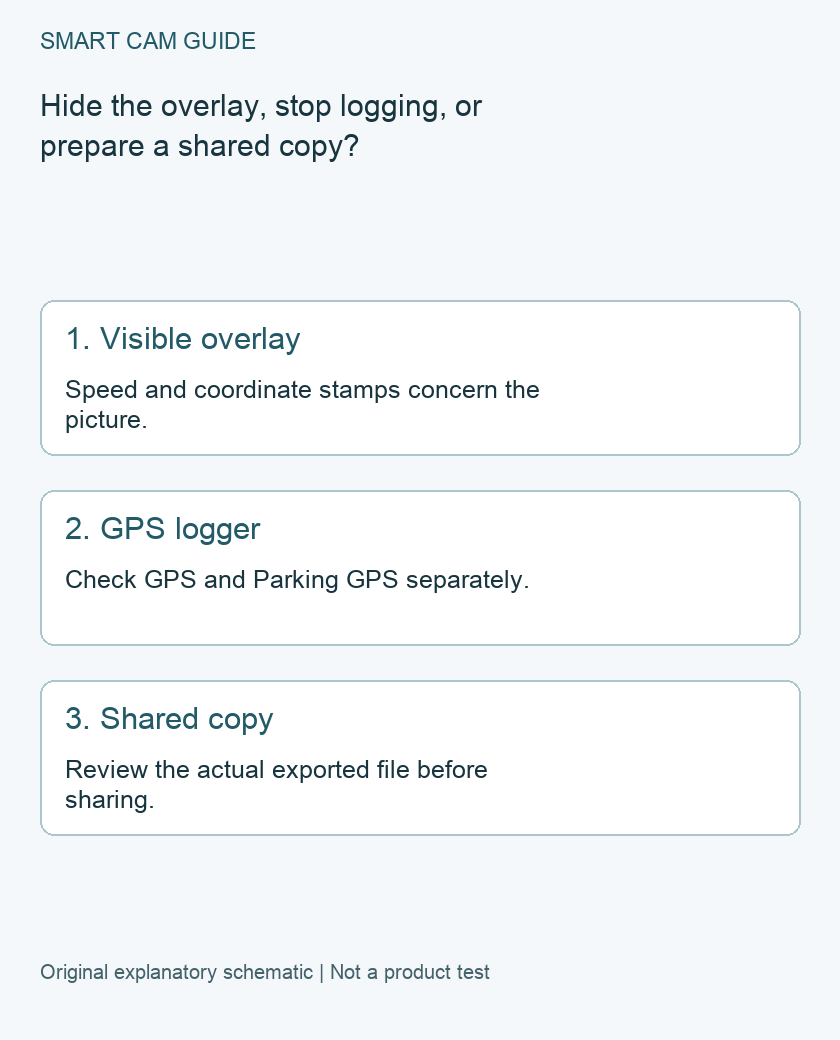
Separate the controls in the current manual
The reviewed A229 Plus manual lists GPS Speed Stamp and GPS Coordinates Stamp among the information that can be imprinted on video. Its GPS control separately addresses the logger; disabling GPS is described as stopping speed/position measurement and GPS time/date synchronization. Parking GPS is a further listed control for parking mode.
Keep those descriptions tied to the exact model and current firmware. A screenshot from another VIOFO model is not proof of the menu on your camera. We have not tested the controls or inspected recordings from a physical A229 Plus for this article.
Choose a result before changing settings
- Remove visible speed or coordinates from future images: inspect the applicable stamp choices, then verify a newly recorded file.
- Change GPS operation: read the GPS setting and its side effects in the current instructions. Check the parking-specific setting if that is the recording mode concerned.
- Share an existing clip: work from a copy and inspect the actual export. A current camera setting does not establish that an older recording was changed.
Hiding text from the picture is not evidence that all associated location information has been removed. Equally, a player that does not display a map is not a file inspection. We are not promising that an ordinary export or a changed overlay makes footage anonymous.
A verification record for a new configuration
- Work while safely parked. Record the camera model, firmware, connected channels and the relevant GPS, parking and stamp settings.
- Change one clearly identified control. Keep the previous state in your note so you can explain the difference. Do not format the card or reset the system as a shortcut.
- Make a short, unimportant new clip. Avoid private conversations and unnecessary identifying material. Use the recording mode whose behavior you are checking.
- Review the correct file. Confirm its time and channel identify the post-change recording. Inspect the picture and the information exposed by the player or file tools you actually use.
- Retain uncertainty. If you have not verified what information remains, do not label the clip location-free or anonymous.
This is a proposed owner check, not a test result. A driving-mode observation also does not establish every parking-mode result, so do not silently transfer it between modes.
Consider the clock separately
The manual’s GPS description includes time/date synchronization. If you change that function, check the recorded clock afterward rather than assuming it stayed correct. Keep the date, time-zone and relevant daylight-saving setting aligned with the instructions for the installed firmware.
A wrong timestamp can make it difficult to locate a useful recording. That is a reason to verify the new configuration, not a reason to leave a GPS feature enabled against your intended workflow. Decide the tradeoff explicitly and save the observed result.
For an existing clip, preserve the original
Keep an unchanged original when footage may be needed as evidence or for a claim. Make a separate sharing copy and inspect that copy for visible plates, faces, addresses, voices, screen text and other identifying details relevant to its audience.
This is an editorial handling checklist, not legal advice or a guarantee that every identifier can be removed. If the information is sensitive and you cannot verify the export, pause before sending it. Changing the camera’s current GPS menu is not a substitute for that review.
What the purchase option does and does not establish
The linked A229 Plus is the two-channel front/rear package already mapped on this site. It may fit a buyer who wants its documented controls and has checked the full recording arrangement. An existing owner should resolve a settings question before buying another camera.
Do not select the model on a promise that it automatically creates anonymous footage. The useful buying question is whether the controls and verification steps support your intended workflow, including the consequences of changing GPS operation.
Compare the exact US buying options
Check current details and price on Amazon. These are previously verified matching product destinations, not confirmation of current stock, price, seller, delivery or included accessories.
VIOFO A229 Plus 2CH front-and-rear dash cam
A front/rear camera option with documented GPS and stamp controls. These settings are not a guarantee that a shared file contains no identifying information. Confirm the exact package, firmware and intended recording workflow; it is not a three-channel cabin bundle.
Check VIOFO A229 Plus 2CH front-and-rear dash cam on Amazon
Related guides
- VIOFO A229 Plus: Voice Control, Spoken Alerts and Audio Recording Settings
- VIOFO A229 Plus Parking Mode: Is the HK4 Kit the Right Buy?
- VIOFO A229 Plus Missing 60fps? Check HDR and the Connected Cameras
Sources and research scope
Reviewed November 9, 2026. VIOFO current manual directory; VIOFO A229Plus English manual: Stamp, Parking GPS and GPS controls; VIOFO GPS support FAQ. This is document-based guidance by Smart Cam Guide. The decision worksheet and proposed owner checks are editorial recommendations, not hands-on test results. Exact model, hardware revision and current instructions govern where details differ.