By Smart Cam Guide
As an Amazon Associate I earn from qualifying purchases. Purchases through our links may earn us a commission at no extra cost to you.
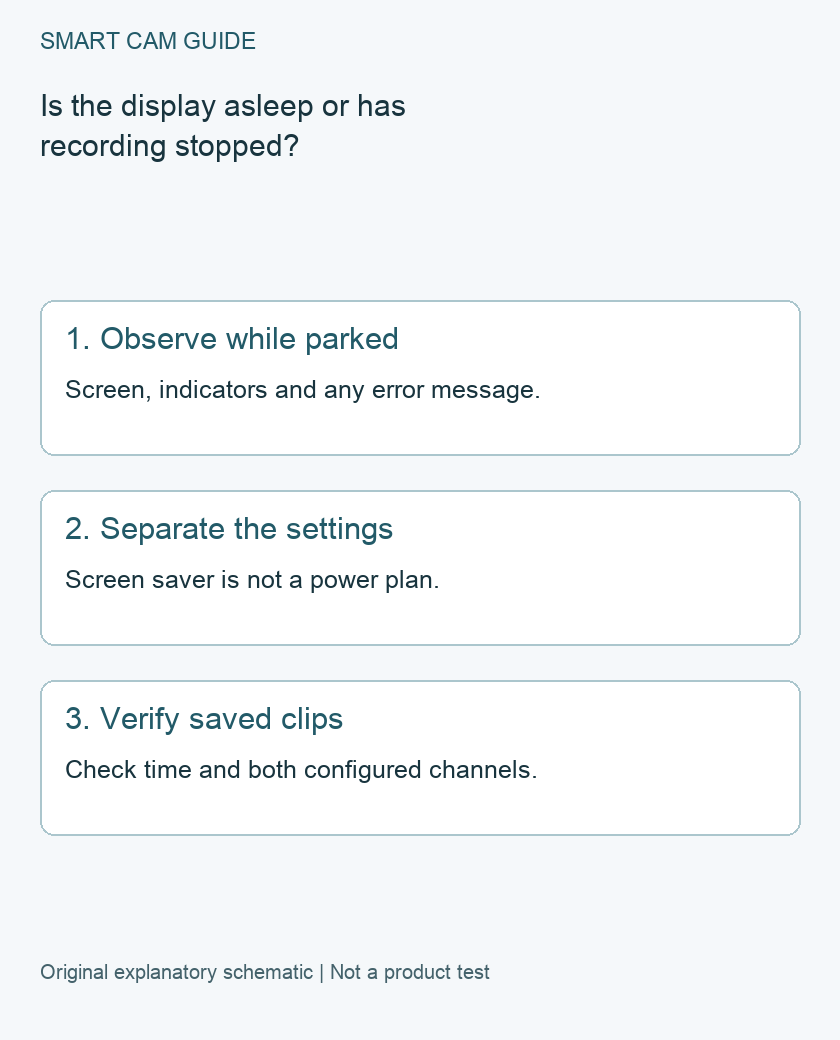
A black A229 Plus screen can be normal while the camera continues recording. VIOFO’s Plus manual describes a screen saver that turns the display black during recording. Check the exact unit’s recording indications and a saved clip before treating an inactive display as a failed camera. A screen saver and a complete power loss require different responses.
Make the check only when safely parked
Do not operate menus, inspect files or troubleshoot while driving. Once parked safely, note when the display went dark, whether the camera otherwise appeared to remain powered, and whether an error or repeated restart occurred. These observations help separate cases; they do not prove that an entire trip was saved.
If an important recording may exist, preserve available files before changing storage or resetting the device. Formatting can destroy the very evidence you want to inspect. Do not start with a factory reset simply because the screen is dark.
What the documented screen saver does
The reviewed A229 Plus manual says its screen goes black by default after one minute while recording and allows the interval to be changed. Verify the setting on your current firmware rather than assuming a previous owner’s configuration still applies.
VIOFO’s official FAQ also identifies a black display as normal screen-saver behavior when recording continues. Use the Plus manual to interpret that model’s indicators. An LED observation is a useful current-state clue; a playable file is the stronger check for the interval you actually need.
Check the recording rather than leaving the display on
- Record the current time while safely parked and note the configured front/rear channels.
- Observe the recording status using the exact model’s controls and indications without confusing the Wi-Fi or power indication with saved footage.
- Allow a short ordinary recording interval. Avoid changing several settings at once.
- Use the supported playback or export method to locate the interval by time.
- Play the relevant front and rear files if both channels are configured, and check that their timestamps correspond to the intended test.
Keep the original files if the result is important. A playable front file alone does not establish that the rear camera recorded too. A Live View image likewise does not establish that the storage path saved the interval.
When the symptom is more than the screen saver
Missing clips, repeated boot sequences, a card warning or loss of the expected recording state needs a separate check. Record the actual message, firmware version, card model and power arrangement for support. Do not conclude that the LCD caused a storage failure just because both were noticed together.
Inspect visible connections only within the manufacturer’s instructions. Do not alter vehicle wiring, substitute an unverified power source or disconnect equipment during an update to test a theory. Have uncertain power work assessed by a qualified installer.
A dark screen does not establish parking coverage
The screen saver is a display setting. It does not show that a hardwire kit is fitted correctly, that parking mode started, or that recording will continue after vehicle power changes. Those are power and mode questions addressed in our separate A229 Plus parking guide.
If the camera turns off with the vehicle and you expected parked recording, identify the installed power equipment and its intended behavior. Keeping the display illuminated cannot substitute for the required parking setup, and it is not a reliable way to measure battery protection.
Repair, adjust or buy?
If the only symptom is the documented screen timeout and the relevant saved recordings are intact, a replacement purchase has no demonstrated benefit. Choose a supported display setting if needed, then retain the evidence check as part of routine maintenance.
If recording is unreliable, work through the exact error and support process before buying another camera. The matching two-channel option below is for readers who are choosing a front/rear system after resolving their requirements; it is not a claimed cure for an unidentified power, card or installation fault.
Compare the exact US buying options
Check current details and price on Amazon. These are previously verified matching product destinations, not confirmation of current stock, price, seller, delivery or included accessories.
VIOFO A229 Plus 2CH front and rear dash camera
Consider only if you need a front/rear installation with the appropriate power and storage setup. A normal screen saver is not a reason to replace a working unit. This is the two-channel package, not proof of an included parking hardwire kit.
Check VIOFO A229 Plus 2CH front and rear dash camera on Amazon
Related guides
- VIOFO A229 Plus Parking Mode: Is the HK4 Kit the Right Buy?
- Dash Cam SD Card Guide 2026: What Size, Speed and Endurance Rating Do You Really Need?
- VIOFO A229 Plus Missing 60fps? Check HDR and the Connected Cameras
- VIOFO A229 Plus: Voice Control, Spoken Alerts and Audio Recording Settings
Sources and research scope
Reviewed November 10, 2026. VIOFO A229 Plus English manual, exact Plus model; VIOFO official FAQ: black screen and recording indicator. This is document-based guidance by Smart Cam Guide. The decision worksheet and proposed owner checks are editorial recommendations, not hands-on test results. Exact model, hardware revision and current instructions govern where details differ.
If the relevant interval includes an incident, follow our A229 Plus emergency clip preservation guide to check both channels and adjoining files.