By Smart Cam Guide
As an Amazon Associate I earn from qualifying purchases. Purchases through our links may earn us a commission at no extra cost to you.
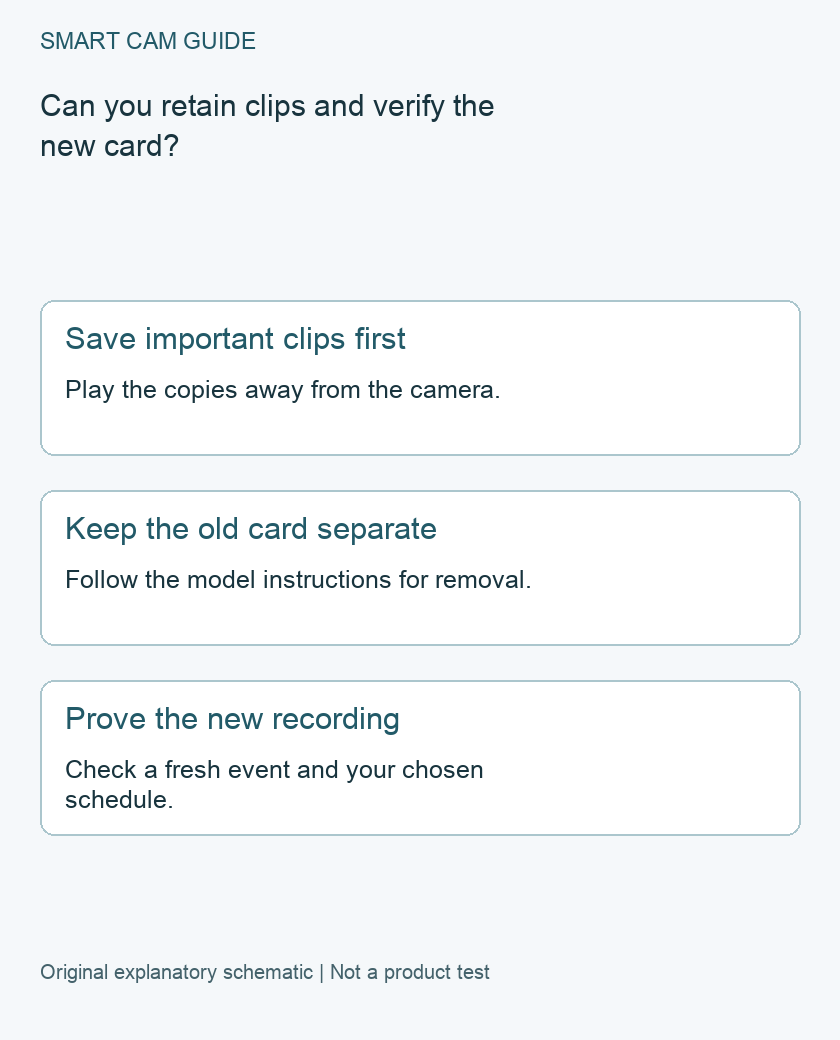
Export and play the important clips before you take the old microSD card out of the C120. Treat the swap as a fresh storage setup. The new card will not already contain your old timeline, and formatting can erase recordings on whichever card is installed.
Choose what needs to survive
Open playback for the correct camera and select the local recording source and date. Compare the displayed interval with notes about the event. Use the app’s supported download or recording controls and preserve enough context before and after the event. Check the exported file in the phone gallery or another player to confirm that it is usable without the camera.
Write down the camera name, clip times and the dates you still want to preserve. A clip visible in the app does not establish that you have an independent copy. A desktop that fails to play a file from the card does not prove that the recording is empty. Use the supported export path first if possible.
Keep the cards clearly identified
Check the manufacturer compatibility guidance and the limit for your C120 hardware version before ordering. Use a card intended for repeated recording where supported. The capacity printed on the package does not establish compatibility, usable recording duration or authenticity.
Follow the manufacturer’s instructions for taking the camera out of service and removing the old card. Keep it labeled and separate before installing the replacement. Follow the app’s initialization instructions only after confirming the new card is installed. Do not erase the old card until the clips you need are safely copied and the replacement is proven.
Verify actual recording after the change
Confirm local card status in the app and check the recording schedule. If the location needs continuous coverage, verify that the intended time blocks are configured, then play a short interval without motion. If it needs only events, trigger an ordinary event in your own coverage area and play the saved clip from the local timeline. Confirm the selected date and source before deciding that nothing was written.
Check again after normal use and note when the camera was offline during the change. A live image and a new card listed in settings are useful checks, but neither shows that a new clip can be retrieved. Keep the old card available until the intended recordings can be played on the new setup.
Buying option: match the exact product
After saving your existing clips, compare this endurance card if 128 GB is supported by your C120 hardware version. Confirm the selected capacity and initialize the new card in the camera before relying on recording.
SanDisk High Endurance 128 GB microSDXC card
Check SanDisk High Endurance 128 GB microSDXC card details on Amazon
Product link and model mapping reviewed November 16, 2026. Check the selected model, package, seller and current offer before ordering. No live price, stock or delivery is asserted.
Related guides
- Tapo C120 microSD Card Full: Loop Recording or a Recording Fault?
- Tapo microSD Videos Will Not Play on a Computer: Empty Files, Encryption or Export?
- Tapo C120 Mounting: Magnet, Adhesive Plate or Screws?
Sources and research scope
Reviewed November 13, 2026. TP-Link camera card compatibility; Tapo download and delete video guidance; TP-Link playback and date selection. This is document-based guidance by Smart Cam Guide. The decision worksheet and proposed owner checks are editorial recommendations, not hands-on test results. Exact model, hardware revision and current instructions govern where details differ.