As an Amazon Associate I earn from qualifying purchases. Purchases through our links may earn us a commission at no extra cost to you.
Wyze lists Cam v4 as able to continue a prearranged microSD recording when Wi-Fi drops. Its linked setup instructions describe a scheduled time-lapse. Set it up while online, install a working card and keep the camera powered. Do not turn that limited statement into a promise of remote alerts, live viewing or uninterrupted full-motion security footage at an offline property.
A time-lapse can be useful for following a slow change: a room renovation, a plant growing or daylight moving through a workspace. It samples a scene over time. If your purpose is to identify a brief incident, that sampling can omit precisely the moment you need.
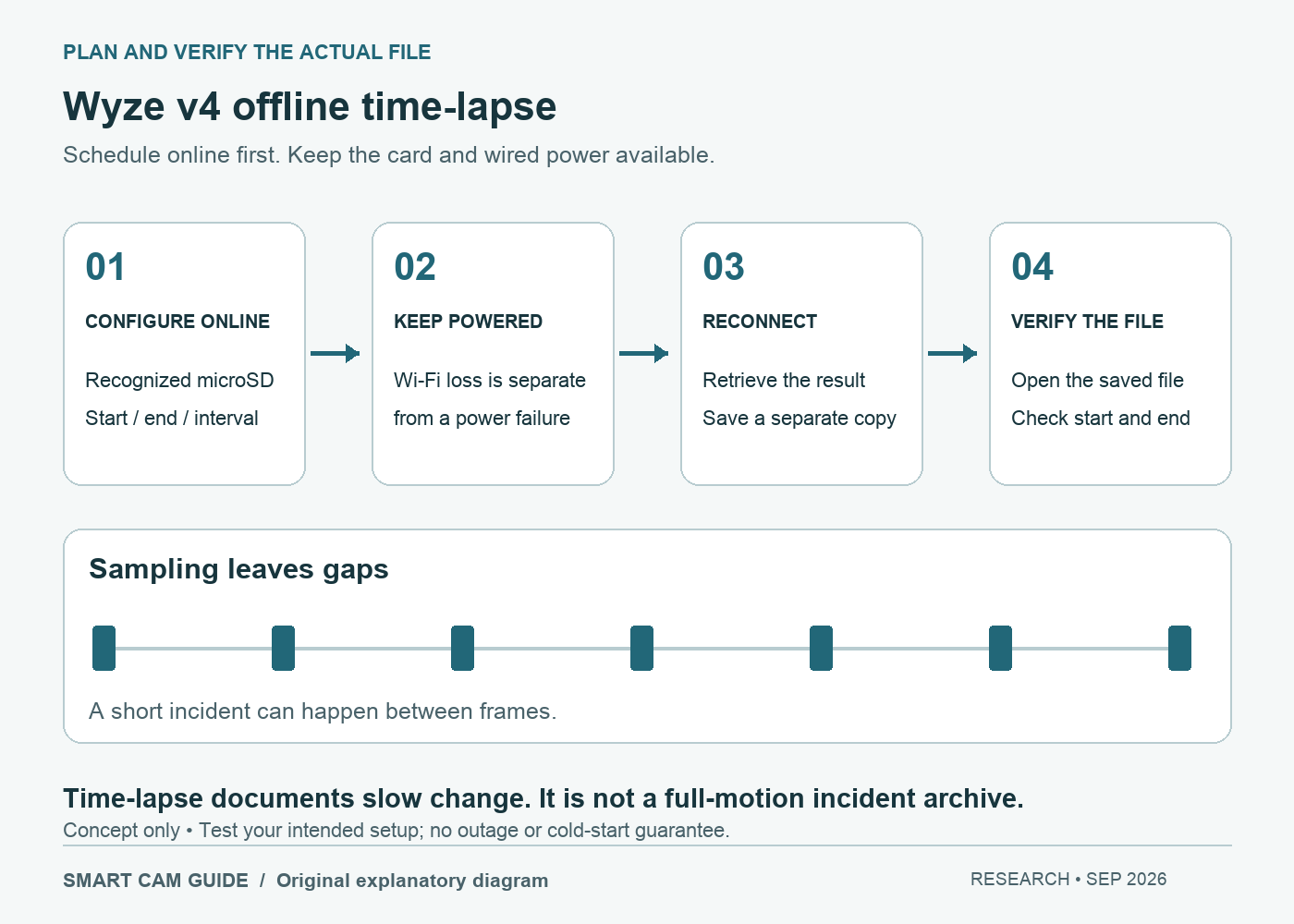
“Scheduled recording” needs context
Wyze’s August 2026 offline-compatibility guide explicitly includes the fixed-view Cam v4. The associated offline how-to directs users to Timelapse, where they enter start and end times and an interval. A broad “works without Wi-Fi” answer misses that setup condition and the kind of output being described.
Local Continuous recording and cloud Event videos are different features. Our Cam v4 subscription and microSD guide covers normal local video history. Here the narrow question is planning and checking an offline time-lapse, not guaranteeing every recording mode through every network or power failure.
Prepare the job while the camera is connected
- Identify the camera. Confirm fixed-view Wyze Cam v4 in the app. Cam Pan v4 and Wyze Cam Outdoor are different products; do not borrow their battery or Travel Mode instructions.
- Confirm the card. Install a compatible microSD card, make sure the camera recognizes it and preserve existing recordings before any formatting. A card slot alone does not prove usable storage.
- Schedule online. Load the camera’s live stream and open Timelapse, or More, then Timelapse. Set the start, end and available interval. Check the date and clock as well as the duration.
- Keep power available. The Cam v4 uses an external wired supply. Wi-Fi being unavailable does not make it a battery camera.
Those menu labels follow Wyze’s published instructions; app versions may arrange them differently. If the feature is absent on your unit, confirm its app, firmware and model with Wyze before planning a job around it.
Choose an interval for the change you want to see
Think in terms of how much can happen between samples. A slower interval may show the progression of a room makeover but miss someone walking through the frame. A shorter interval offers more samples; it does not turn a time-lapse into a guaranteed incident archive.
For an illustrative calculation, six hours contains 21,600 seconds. Sampling every 30 seconds would yield approximately 720 frames; sampling every 60 seconds would yield approximately 360. This is simple planning arithmetic, not a promise that every app offers those exact settings, a storage-size estimate or a prediction of the exported clip’s playback length. Use the actual options and output on your camera.
A short acceptance check before the real job
Schedule a brief, noncritical session first. Place an object in view, note the start time and make a few clear changes during the interval. If offline use is essential, test the intended loss of Wi-Fi while leaving the camera powered, at a time when it will not interrupt important monitoring. Restore connectivity afterward.
Find the resulting time-lapse through the camera’s app workflow and save a copy. Open that copy outside the live camera view; check its beginning, end, orientation and whether the planned scene changes are visible. A successful Live View after reconnecting does not prove the earlier file was saved.
If the test fails, inspect the schedule, camera clock, card recognition, free space and power path before relying on a longer run. Do not format the card to troubleshoot while it contains footage you need. The footage-preservation guide covers keeping important material separate from the camera.
When Cam v4 is a sensible choice
It is a reasonable shortlist candidate for a powered location where you can configure it online, verify the card workflow and return to retrieve the result. The checked white one-camera package is ASIN B0CJ9YX7DG; the microSD card is sold separately. Select capacity from current model-specific support rather than assuming every retail claim applies to your firmware.
Check Wyze Cam v4, white 1-pack, on Amazon
It is a poor purchase for someone expecting a self-contained cellular camera, battery operation, or immediate alerts from a site with no internet. For exterior use, first check the camera, cable and adapter weather-exposure requirements. The offline statement is also not a verified cold-start or power-cut recovery guarantee; test those separate conditions if your project depends on them.
Research scope: Wyze “Which Wyze Cams can be used without Wi-Fi?” (August 12, 2026), its linked “How do I record to a microSD card while offline?” instructions, Cam v4 power guidance and the selected US listing, checked September 29, 2026. No physical time-lapse, outage or export test was performed by Smart Cam Guide.