By Smart Cam Guide
As an Amazon Associate I earn from qualifying purchases. Purchases through our links may earn us a commission at no extra cost to you.
On the VIOFO A229 Plus, Voice Control, Voice Notification and audio recording are separate settings. If you want to change the camera’s announcements, start with Voice Notification. If you want sound omitted from newly saved driving clips, check audio recording and verify a new file. Silencing an announcement is not proof that a recording has no audio.
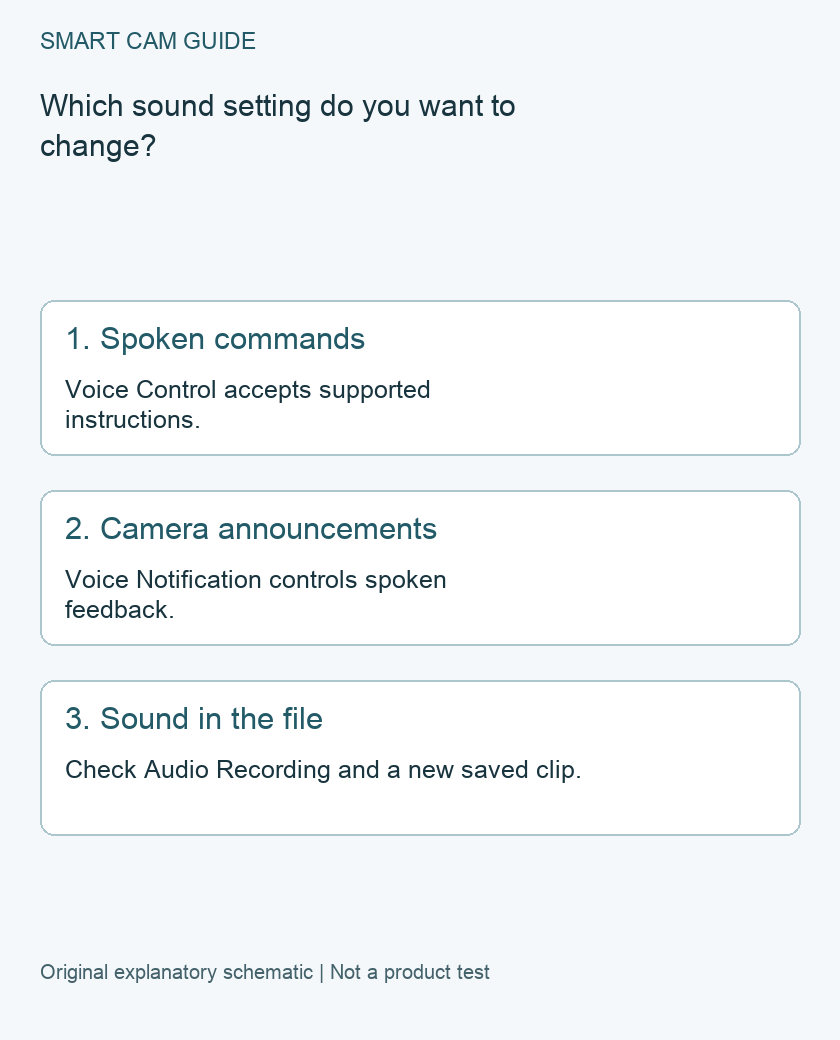
Name the result before touching a menu
Three common requests sound similar: “stop talking to me,” “stop responding to my voice,” and “do not save cabin sound.” Write down which result you want. Changing every sound-related setting at once makes it harder to understand what changed and can remove useful feedback unintentionally.
The current A229 Plus manual lists spoken-command control separately from notification on/off and notification volume. It also describes an audio recording control. These are model-documentation facts, not a claim that we tested every firmware version or parking configuration.
Use the correct control for each job
- Voice Control: the camera’s supported spoken-command feature. Turning it off addresses that control route. Do not infer the contents of video files from this switch.
- Voice Notification and its volume: spoken camera feedback. Lower volume or disabled notifications concern what you hear from the device; they do not establish whether cabin audio is saved.
- Audio recording: the setting to check when sound in the saved video is the concern. Confirm it using a newly recorded file in the mode you actually intend to use.
VIOFO’s feature overview describes voice feedback for changes and card errors. Before silencing it, decide how you will notice a recording problem. Turning off announcements is a preference choice, not a repair for an unresolved warning.
A stationary check that separates the three settings
- Park safely and record the starting state. Note the exact A229 Plus model, installed firmware, connected cameras and current sound settings. Do not operate menus while driving.
- Change one setting. Select the control that matches your written goal. If your menu differs, use the current manual for that model rather than instructions for A229 Pro or Ultra.
- Make a short new recording. Use an unimportant test clip with no private conversation or personal information. Follow the normal recording and stopping procedure.
- Open the new saved file. Confirm the filename/time identifies the post-change clip. Check the relevant channels and player sound controls; a muted player is not proof that a file contains no audio track.
- Write down the observed result. Keep the setting state and clip identity together. If the result is unclear, leave it unresolved and check the model instructions or support.
This is an owner verification plan. We have not carried it out on a camera for this article. It avoids using an old clip or a playback-volume setting as evidence about the current recording configuration.
Check command language without guessing microphone behavior
The manual lists supported voice-command languages and a relationship to system language. If commands are not recognized, check those exact instructions and whether Voice Control is enabled. Do not assume a recognition failure proves a defective recording microphone.
Conversely, a command that works does not, by itself, prove that every saved clip has the desired sound. Keep spoken control and file verification separate. This guide does not establish a hardware microphone disconnect, a privacy certification or the absence of every form of processing.
Preserve useful evidence before broader troubleshooting
If the camera is warning about a card or recording issue, preserve any important footage using the normal instructions before attempting a reset, format or update. Do not erase a card simply to test whether announcements stop. A sound setting can hide a warning without addressing its cause.
The shopping link is for the A229 Plus two-channel front/rear package. For an existing owner, adjusting and verifying a setting is usually the question to resolve first. For a new buyer, the value is knowing that “voice features” describe several controls, rather than assuming one switch delivers a particular audio or privacy outcome.
Compare the exact US buying options
Check current details and price on Amazon. These are previously verified matching product destinations, not confirmation of current stock, price, seller, delivery or included accessories.
VIOFO A229 Plus 2CH front-and-rear dash cam
Consider if the documented front/rear system and separate audio/voice controls fit your needs. This is the two-channel package, not a cabin-camera three-channel bundle, A229 Pro or A229 Ultra. Do not replace a working camera merely because one sound setting needs adjustment.
Check VIOFO A229 Plus 2CH front-and-rear dash cam on Amazon
Related guides
- VIOFO A229 Plus Missing 60fps? Check HDR and the Connected Cameras
- VIOFO A229 Plus Parking Mode: Is the HK4 Kit the Right Buy?
- VIOFO A229 Plus Front CPL: Fit the Filter and Check Reflections
Sources and research scope
Reviewed November 8, 2026. VIOFO A229 Plus current English manual, audio and system settings, PDF pages16/24; VIOFO A229 Plus official feature overview. This is document-based guidance by Smart Cam Guide. The decision worksheet and proposed owner checks are editorial recommendations, not hands-on test results. Exact model, hardware revision and current instructions govern where details differ.